
This tutorial is a part of the Getting started series — Day 4, Week 1.
Let's talk about where your enemies actually live
Yesterday we turned Chloe into a proper game object, so for the first time the "who" of our game has somewhere real to call home (here's how we did it). Good. But the mall was never going to stay quiet for long. The monsters are on their way - and odds are there's already a stash of enemy ideas somewhere.
So here's a question worth sitting with for a second: where do those ideas live right now?
Maybe it's a message sent to a friend at 2 AM. A phone note that reads "fast zombie, maybe armor, also explodes." A scribble on the back of a receipt. Or a paragraph buried in a design doc somewhere, waiting to be dug up.
It is important to remember that any creativity begins with a little chaos. The problems start later, when the deferred "later" finally comes. You look at this whole bestiary, and your head starts spinning from the amount of information you need to work with. And it no longer resembles game design, but archeology...
Let's look at the following steps to optimize development
Why a folder, specifically
Let's start with the basics - people group related or similar things in one place, whether it's a drawer in a closet, a bookshelf, or a folder on a computer. IMS Creators follows the same principle: it groups items in a single directory.
And for the enemies, the fix starts with the simplest thing that exists: a folder. One Enemies folder keeps the whole bestiary in one central place instead of fifteen scattered notes - every enemy is one file, in one folder, next to its siblings.
What makes even a plain folder worth it?
First, everything is in one place. You no longer have to rush through fifteen different notes. The entire bestiary is assembled in one spot - open the folder, and it's all in front of you.
Second, the chaos of disparate files is becoming a thing of the past. Each enemy becomes a structured game object (like Chloe yesterday), so they all share the same set of fields and are easy to compare, duplicate, and balance.
Next week we'll take this further - typed collections turn the whole group into a single grid where you view and edit every enemy at once. But the folder is the foundation everything else builds on.
Building the Enemies folder, step by step
This really only takes a few minutes, and it holds up no matter how big the roster gets.
Start with the folder itself
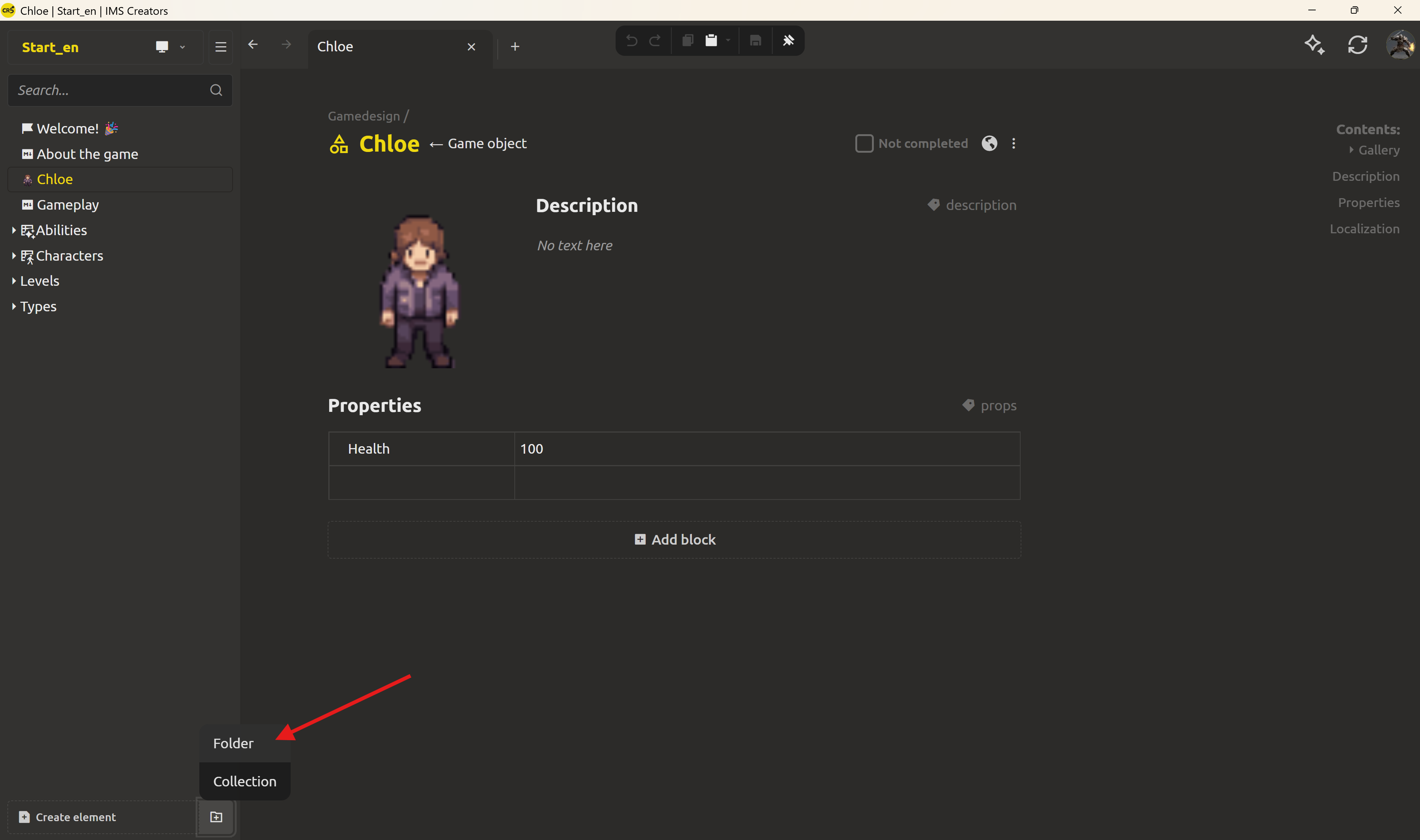
Find the Create folder button on the left panel - or right-click an existing folder and pick Create folder from the menu. Type the name Enemies and hit Create.
Drop in the first enemy
Open the Enemies folder, click Create element, and choose Game object - like Chloe yesterday. A game object shows up with a few blocks: Gallery for art, Description for a brief summary, Properties, where the structured fields live. Name it Mall-walker. Then add the fields every enemy should have - Health, Speed, Damage and Size - and fill in the values. Mall-walker, the standard shambling mall denizen, gets Health = 60, Speed = 30, Damage = 8, Size = 1.
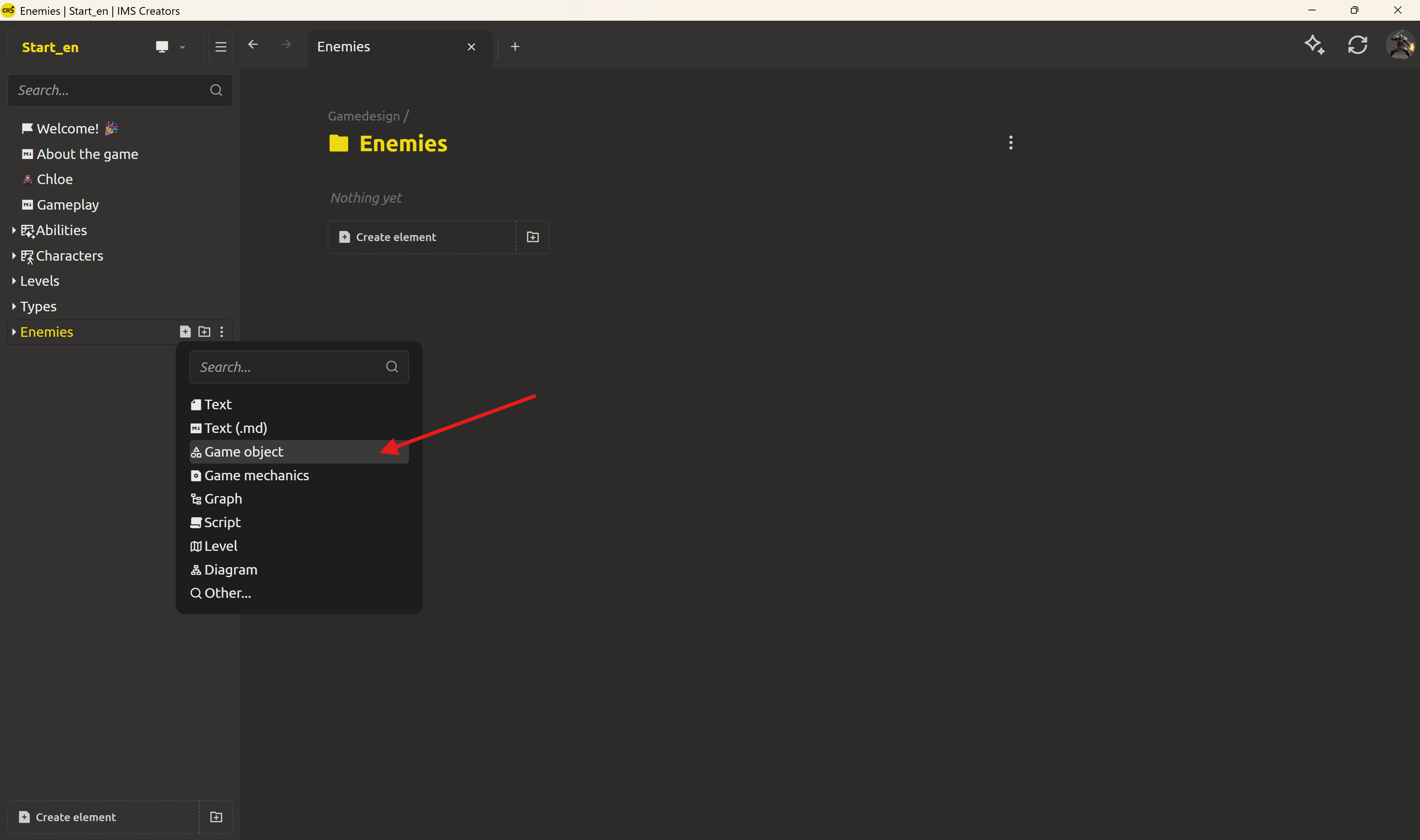
Now the hungrier one from the food court: click Create element → Game object again, name it Food-court runner, and give it Health = 40, Speed = 75, Damage = 5, Size = 2.
Two enemies, comparable at a glance. Same fields, different numbers.
Make variants without retyping anything
Say a heavier armored Mall-walker is needed. There's no need to rebuild the sheet from scratch.
Right-click the Mall-walker element in the column on the left and choose Duplicate. IMS Creators copies the whole thing and opens the new one - already named Mall-walker - 2, waiting to be fixed.
Rename it: right-click, choose Rename, and call it Mall-walker (armored). Then just nudge Health up to 120, Damage to 12, and Size to 1.5. One edit on a copy, and there's a brand-new enemy. That's the good stuff.
Renaming is actually safe here
Here's a small detail that saves a lot of trouble: renaming breaks nothing. Because links point to the element - not to a typed-out string - renaming Food-court runner to Gourmet sprint won't orphan any references that look at it. Elements are tied to each other through references, not through concrete values like a title or a particular parameter, so those references keep working no matter how titles or properties change.
To rename: right-click the element and choose Rename (or just double-click its title when it's open). Type the new name, confirm, done.
Take a look at what's on disk
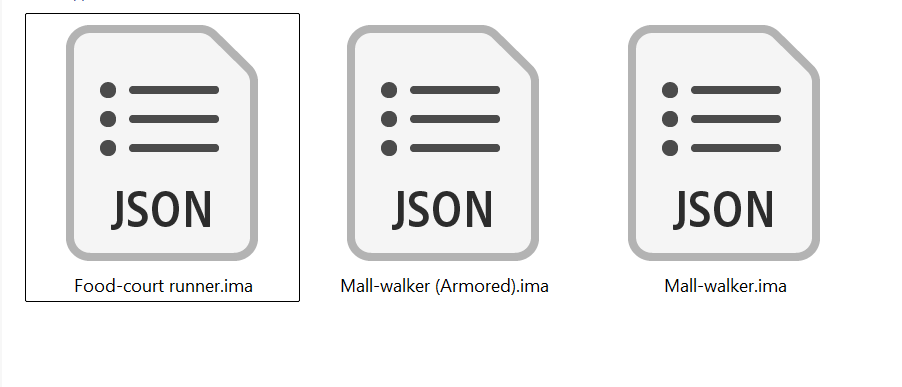
Open the project folder and peek inside Enemies/. Every enemy is just a file - Mall-walker.ima.json, Food-court runner.ima.json - an open JSON document holding exactly the fields that were typed in.
What do we get in the end
- Everything in one place. Open
Enemiesand see all the grouped notes in one folder. - Duplicate, don't retype. Any enemy you create later will take less time, because you will have a prepared base.
- Easy balancing. Common numeric fields (Health, Speed, Damage, Size) allow you to arrange parameters in a row and compare them.
- Engine-ready. Structured fields are data that can be easily read by the engine - we'll prove that tomorrow.
Next up: making the design and the code agree
Now there is an Enemies folder - one clean source of truth for the entire development team.
Tomorrow the goal is to make the design doc and the code finally agree: open that enemy .ima.json, look at the structured JSON behind it, and see how a real game engine can just load it.
Already over the scattered-notes treadmill? Download IMS Creators and bring your whole roster into one folder today: ims.cr5.space/desktop.
Ready? Make the design doc and the code agree - the next post in this series.
FAQ
What is the difference between a folder and a collection?
A folder is a plain container - it'll hold any mix of elements thrown at it. A collection is a folder whose job is to group a set of similar elements of one chosen type, so they behave like a comparable, organized list. We'll get to collections next week - for now, one Enemies folder is all the focus you need.
How do I create a folder?
Click Create folder (on the left panel or via a folder's menu), type a name, and click Create. It's ready for elements the moment it exists.
Will the enemies be easier to manage later?
Yes. The folder keeps them in one place today, and next week typed collections turn the whole group into a single editable grid - sort, filter, and balance every enemy at once.
How do I make a copy of an element?
Right-click it and choose Duplicate. IMS Creators copies the whole element and opens the new one, already named like Mall-walker - 2, ready to be renamed and edited.
How do I rename an element without breaking the links to it?
Right-click it and choose Rename (or double-click its title on the open page), type the new name, and confirm. Since IMS Creators links to the element itself - not to a typed-out name - references keep working after a rename.
Where do enemy game objects actually live on disk?
As plain files inside the folder - e.g. Enemies/Mall-walker.ima.json. Each is an open JSON document holding the element's structured fields, so any editor, git, and a game engine can read it.