
This tutorial is a part of the Getting started series — Day 2, Week 3.
The problem: one table can't serve every job
Yesterday your cards live in one grid - every row a real element, every column a real field. That's the collection unlocked. But notice what happens as soon as you actually work in it: every job wants a different arrangement of that grid.
A damage check wants Name, Damage, Cost, legendary flag - sorted by damage, high to low. A cost review wants next to no data at all - a clean card per element, the way you'd show a reviewer, with the numbers tucked behind the visuals. An audit wants every column including the ones you never look at, so nothing hides.
Rebuild those three layouts by hand every time, and yesterday's time-saver becomes a different kind of chore: thirty columns to fix, sort to reset, widths to redo - every single time you switch tasks.
What a view is
A view is a saved arrangement of a collection's data. Not a copy of the data - the arrangement of it: which of the three display types you're using, which columns are visible, in what order, at what width, sorted how, filtered to what. You set it up once, name it, and it's available the next time you need it.
The data underneath never moves. A view only changes how the same rows are shown.
Same data, three ways
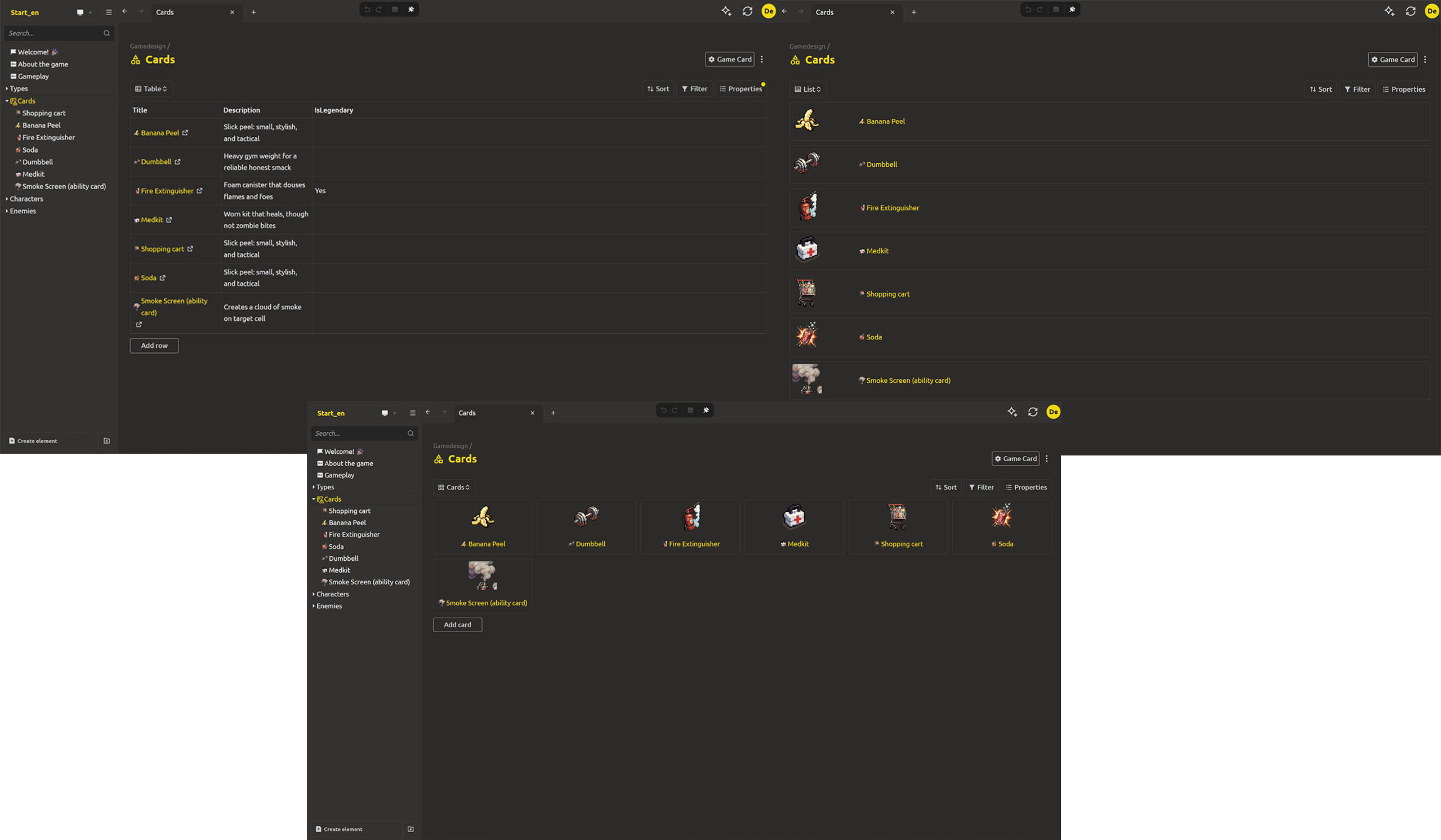
A collection can be displayed in three view types, and each type is the right tool for a different job:
- Table - the grid from yesterday. All columns at once, numeric, dense. Where comparisons and audits happen.
- List - each element as a full-height block. Fields as rows, one element per block that scrolls vertically. Good for reading cards top to bottom.
- Cards - a compact grid of cards, title and a handful of key fields each. Built for reviewing the deck at a glance - a showcase layout, not a spreadsheet.
The choice of display type is part of the view too. The same collection can be a table for one view and cards for another.
Create a view
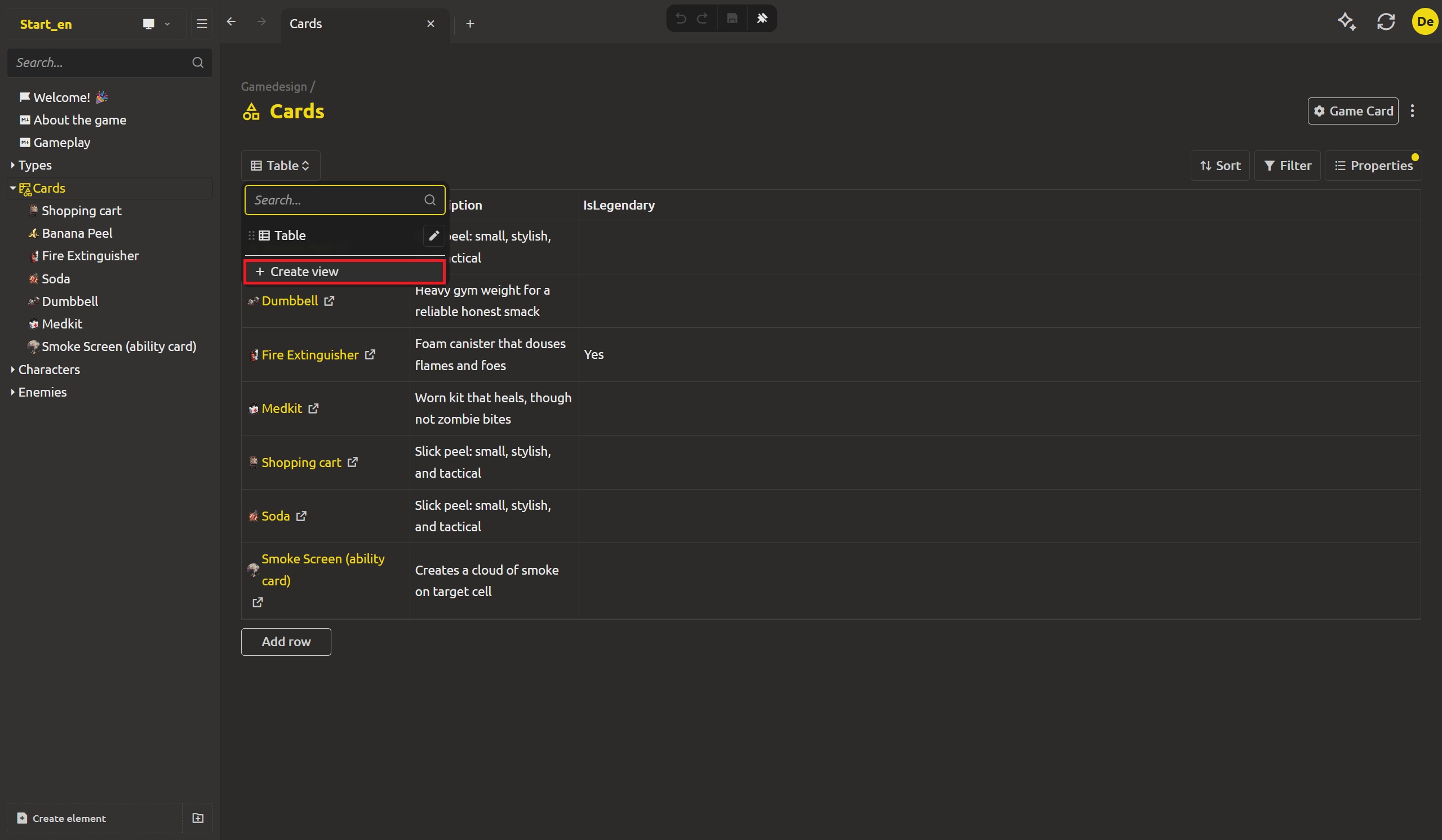
Open the collection's view list and choose Create view. Name it for the job it serves - that's the point - and pick the view type:
Damage graph- TableCosts only- CardsFull audit- Table
Now, for each view, shape it for the job.
Shape the view from three dropdowns
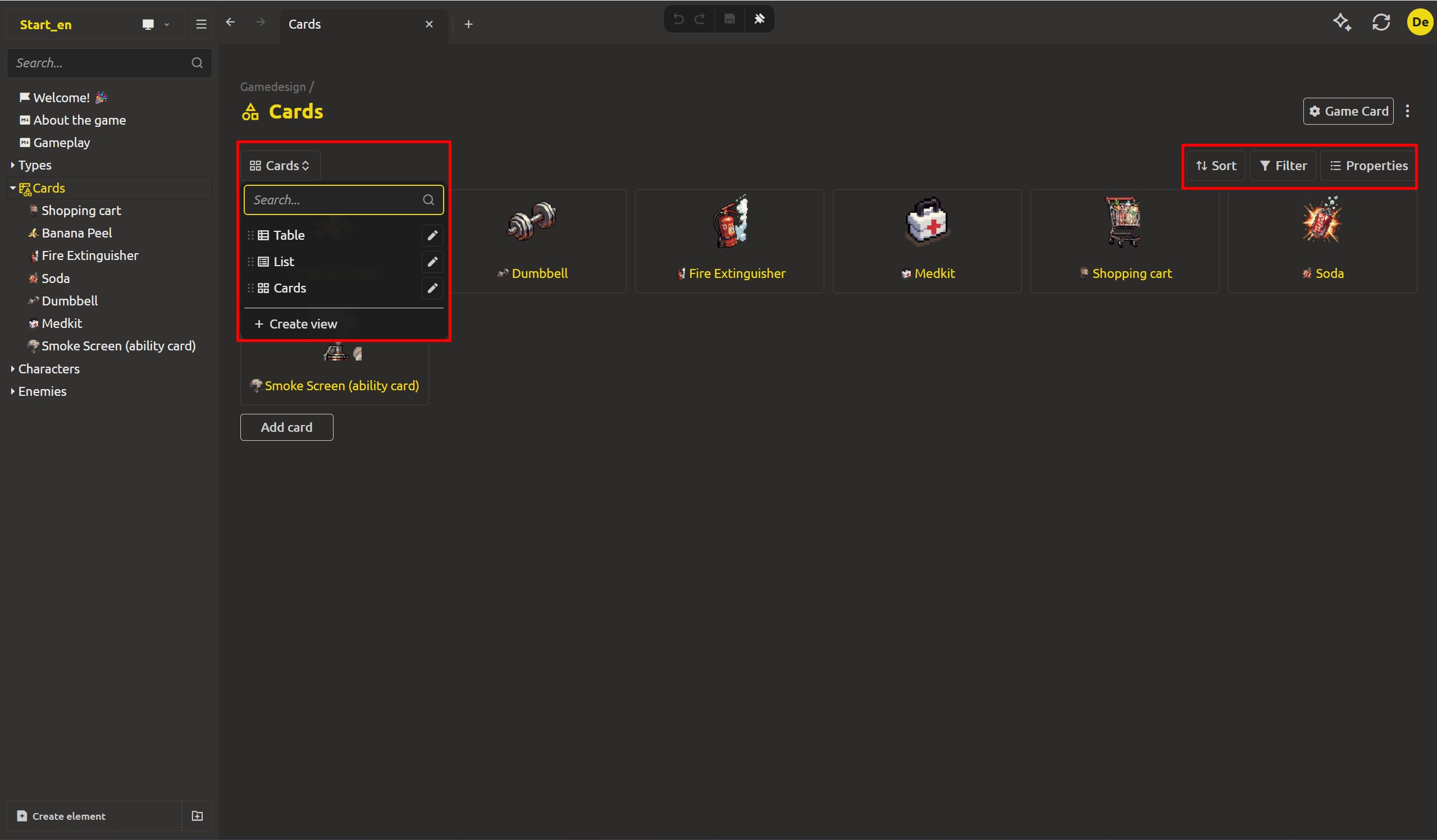
A view is shaped from the manage panel above the collection, which carries three buttons - Sort, Filter, and Properties:
- Sort - pick the order. Add a sort, choose the field and whether it goes ascending or descending; chain several sorts to order by multiple fields at once.
- Filter - give the view a custom filter, so it opens on the set of values you care about.
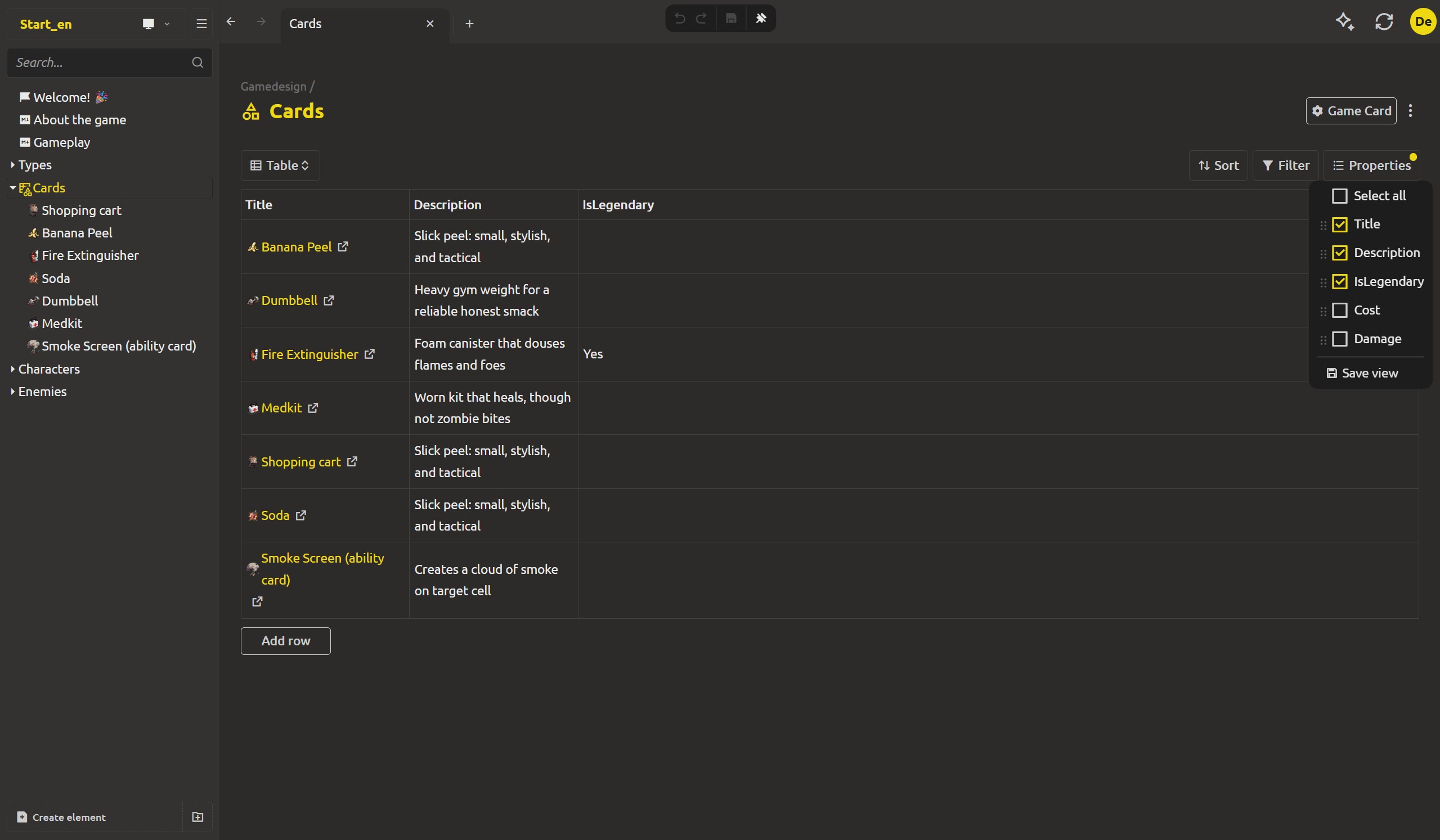
- Properties - set which fields are displayed. Check the columns to show, uncheck to hide, and drag to reorder them.
That's where the job's layout really comes from: the damage check drops Cost from Properties, the audit keeps every column. For the cards view, the same dropdown decides which key fields ride along on each card - so a cost review card shows the name, a cost, and nothing else.
Column size: drag the column side
Column width is set by dragging. Grab the side edge of a column header in the grid and pull it to the width you need - the view remembers the widths along with the rest of the arrangement.
Sort and filter live with the view
The sort and the filter you set are carried by the view itself. The Sort dropdown defines the saved order; you can also click a column header in the grid to cycle ascending, descending, off - so the Damage graph view is saved sorted by Damage, high to low. Tomorrow the filter expression topic meets the Filter dropdown, and filters become part of the same saved arrangement.
That's what makes the view powerful: it isn't just "which columns". It's the full working context for a job - columns, display type, sort, filter - all restored when you reopen it.
Your jobs, restored instantly
Now the three layouts from the start of this article exist as named views:
- Damage graph - a dense table: Name, Damage, Cost, legendary flag, sorted by damage.
- Costs only - a cards view: a clean card per element, no numeric columns.
- Full audit - every column, no sort, no filter - so nothing hides.
Switching tasks is now a dropdown click. The damage pass, the review, and the audit each open their own arrangement of the same cards. You don't rebuild the table for the job - the job opens its table.
Next up: filters
Views already remember your columns and sort. But as the deck grows, "sorted by damage" isn't enough - you need "only the cards above 20 damage". Tomorrow: filter expressions, typed into a bar and saved with the view, so your working set becomes part of the arrangement too.
Tired of rebuilding the table? Download IMS Creators, open ims.cr5.space/desktop, open your Cards collection, and create a view per job - a damage table, a cards review, a full audit.
Ready? Find every card dealing 20+ damage - the next post in this series.
FAQ
Is a view a copy of the collection's data?
No. A view stores only the arrangement - display type, visible columns, order, widths, sort and filter. The rows it shows are the same real elements. Change a value in any view, and it changes in the collection everywhere.
How many views can one collection have?
As many as you need. Views exist to capture each different job you do on the same data, so there's no practical limit - name them for the task and use whatever fits.
Where are views kept?
With the collection. A saved view lives inside the collection's data, so it persists across sessions and travels with the project.
Can sort be part of a saved view?
Yes. Sorting by a column header, or sorting on a property explicitly, is part of the view's arrangement and is restored when you reopen the view.
What is the difference between Table, List and Cards?
Table is the dense multi-column grid - where numeric comparison and auditing happen. List shows elements as full blocks, one after another, for reading an element's fields top to bottom. Cards is a compact showcase grid - a quick review layout, not a spreadsheet. Each view picks its own type.
Can I give a view a filter?
Yes. The filter you set becomes part of the view's arrangement - tomorrow's article on filter expressions covers typing them and having each view remember its own working set.
If I change a view but don't click Save, does it change the view for everyone?
No. As long as you don't click Save, the changes you make stay local to your session - re-sort columns, hide and show properties, drag widths, and the saved view keeps its last-saved arrangement. You can explore the collection the way you need for the current job without rewriting the layout your colleagues open. Click Save only when you want the new arrangement to become the shared view.