
This tutorial is a part of the Getting started series — Day 3, Week 1.
The problem: your character is buried in a paragraph you can't reuse
Yesterday we wrote the game concept as a Markdown page in a clean local project (if you missed it, here's how to turn your game idea into a real design page). The concept is the "what." Now we need the "who" - the characters.
This is where the big difficulty lies, which not everyone can immediately notice:
Chloe is a former mall security guard, 34 years old. She has 100 health and 40 stamina. Her role in the group is to slow enemies down and protect the weaker survivors.
It reads well, but it's a sheet of text. Ask yourself:
- Can you query it? "Which survivors have 40+ stamina?" You'll have to reread each paragraph on your own.
- Can you reuse it? You copy a paragraph into another document and hope that it will match together.
- Can you balance it? Health and stamina are numbers hidden in a sentence. You can't sort them, compare them, or upload them to the engine.
- Can you link it? Nothing points to Chloe from her abilities, items, or the quest where she appears. When you rename her, nothing follows.
Character design ceases to be a document and becomes routine, but it's easy to fix: make the character a structured element with fields
Why a structured game object
IMS Creators gives you an element type made exactly for this - the GameObject. A game object is still an element (a file on disk, part of the project), but instead of one big block of text it has fields: named, typed properties with real values.
| Prose paragraph | Game object | |
|---|---|---|
| Health | "100 health" hidden in a sentence | A real field Health = 100 |
| Stamina | "40 stamina" hidden in a sentence | A real field Stamina = 40 |
| Type | guessed from wording | A typed field - we'll set the types next week |
| Query | read it all by eye | filter, search, compare |
| Reuse | copy-paste and pray | duplicate the element, change one field |
| Rename | update every mention by hand | links follow automatically |
The created system will help not only in the current project. When we build links, balance tables, and uploads to the engine later, it's the structured fields that will ensure seamless migration between projects.
Create the first game object: Chloe
Let's build Chloe as a real game object. This takes a few minutes.
Step 1: Click "Create element"
In the left panel (or the top toolbar) find the Create element button and click it - the same button we used for the Markdown concept yesterday.
Step 2: Choose the type "Game object"
In the type selection menu, choose Game object (labeled with a shapes icon). This creates a structured element with fields - exactly what a character needs.
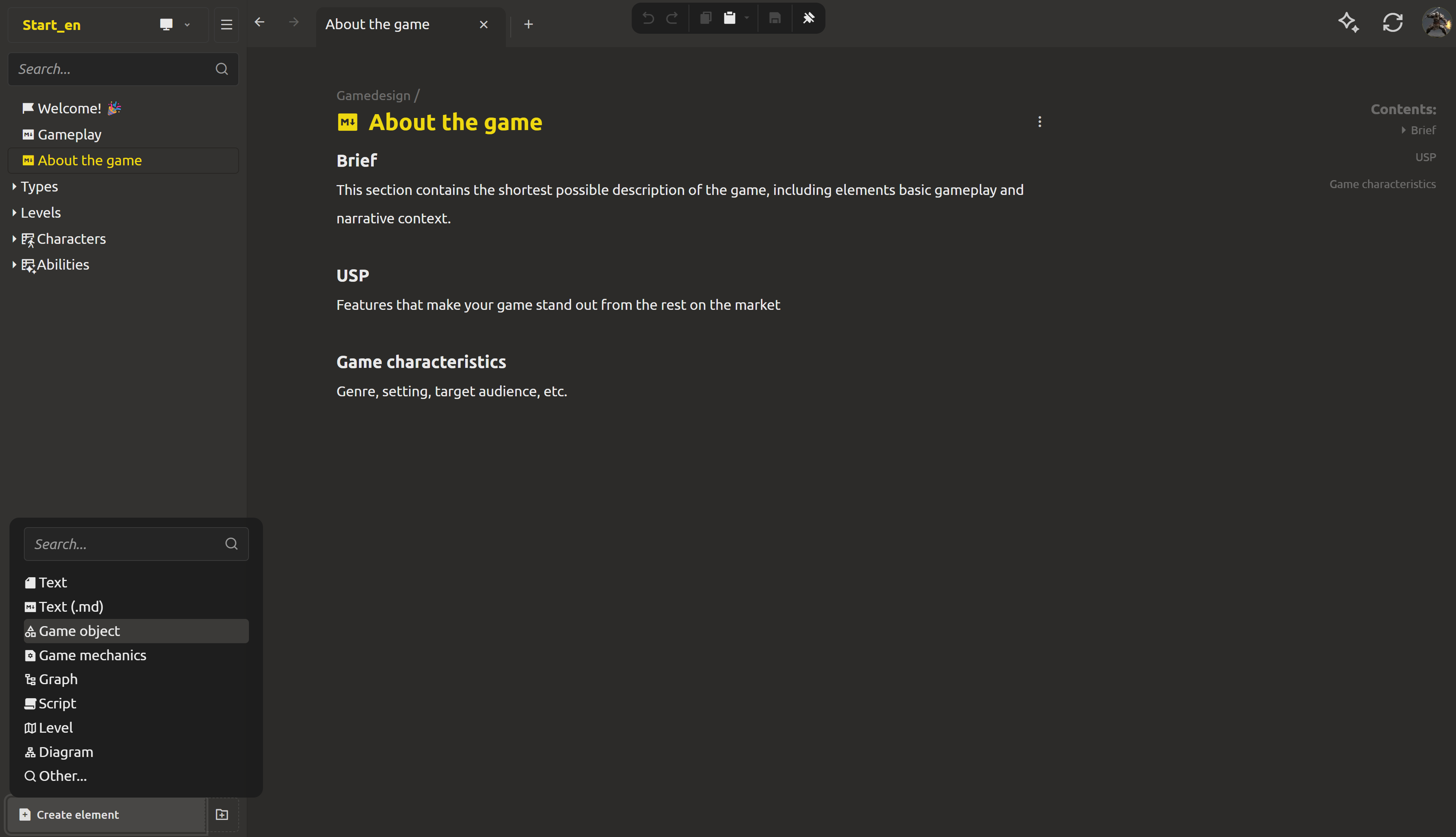
Step 3: Name the element "Chloe"
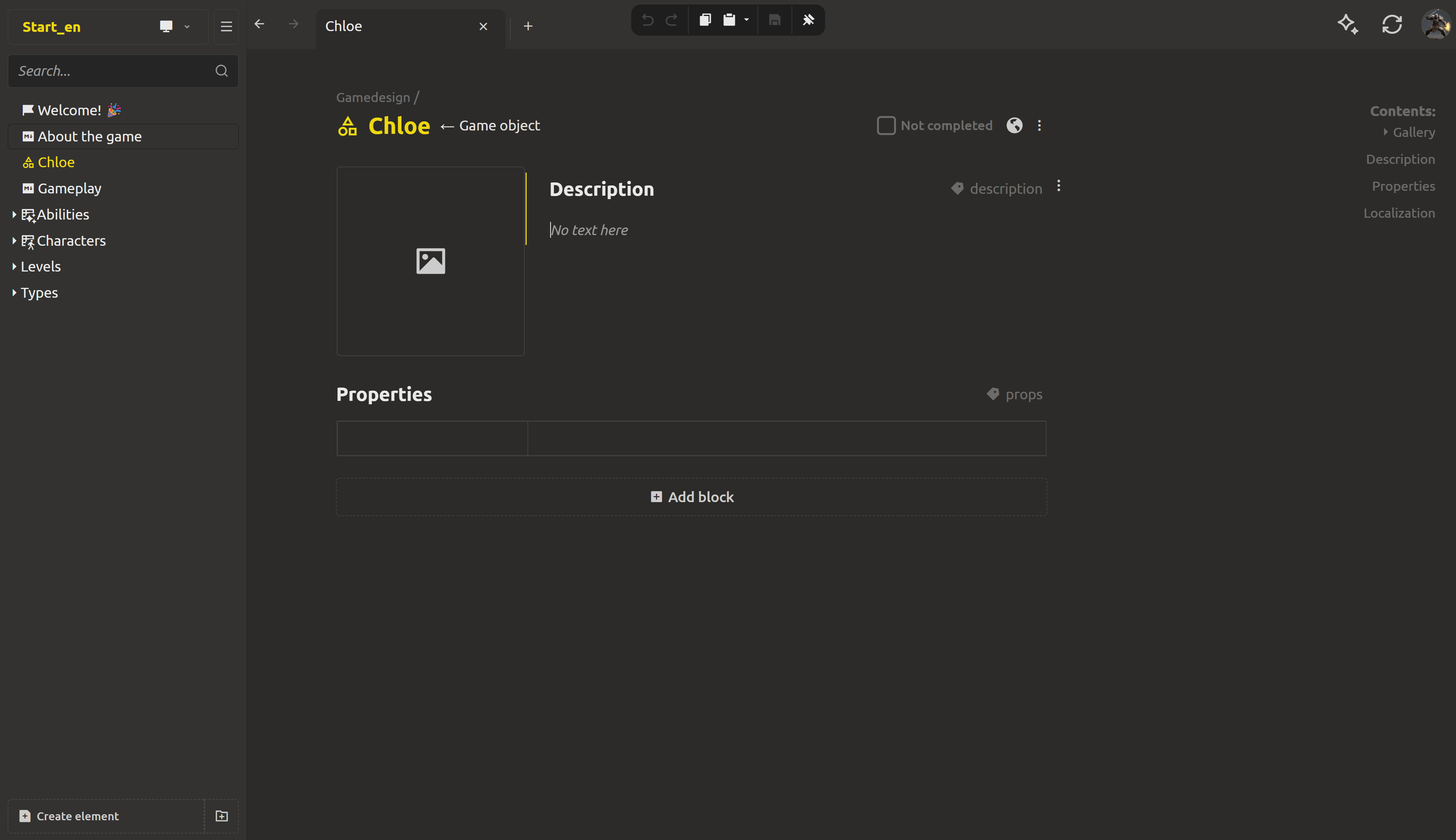
IMS Creators shows a name prompt. Type Chloe - this becomes the file name and the element title. You now have a fresh game object.
Step 4: Look at what a game object gives you
A new game object comes with a few ready-made blocks:
- Gallery - drop in her portrait or concept art.
- Description - the short prose intro.
- Properties - the structured fields. This is where the magic happens.
- Localization - translated names/descriptions for when the game ships in other languages.
Step 5: Add fields in the Properties block
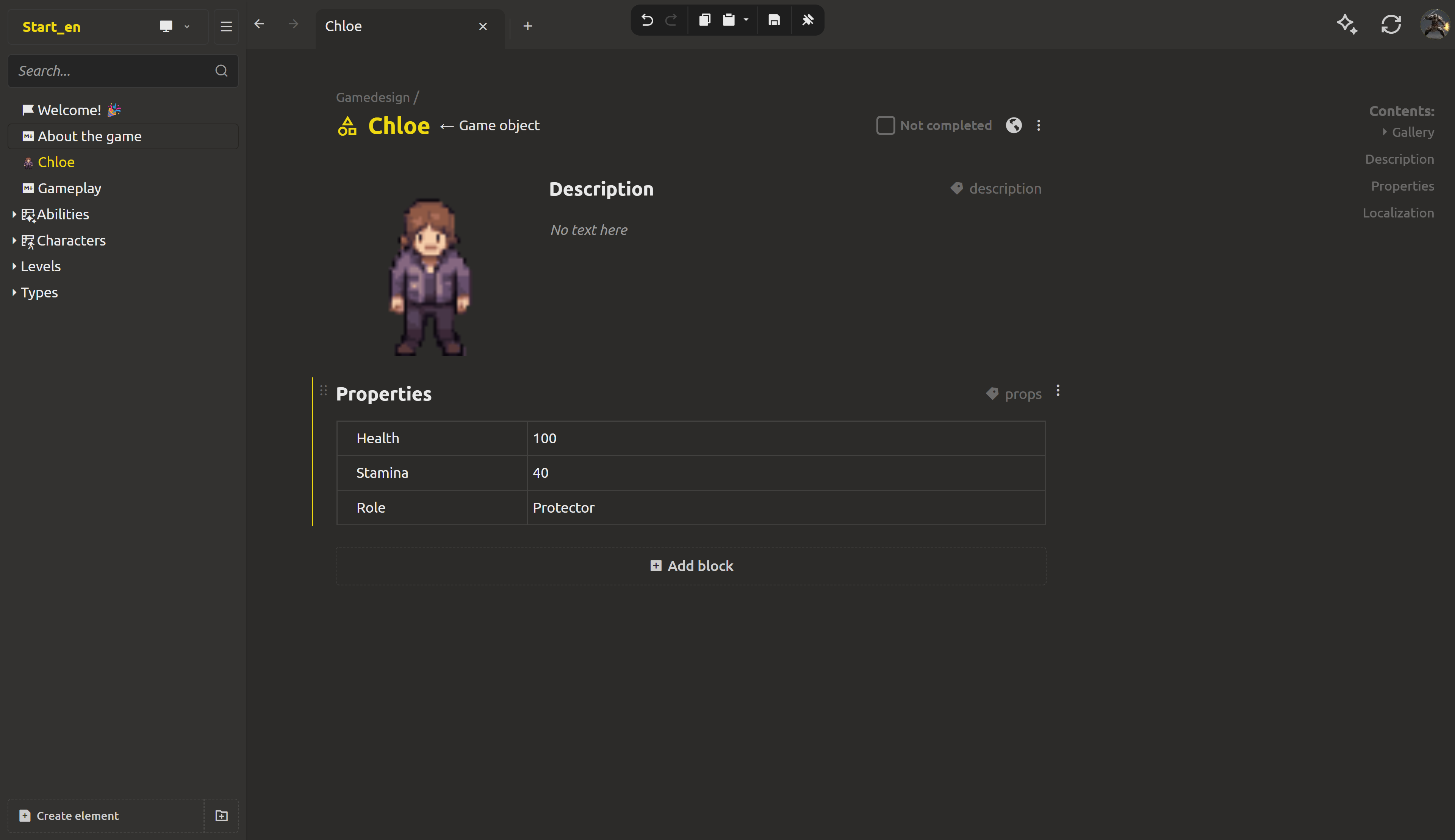
The Properties block is a compact two-column grid: property name | value. For Chloe we add three fields:
- Health - value
100. - Stamina - value
40. - Role - value
Protector.
To add a field, hover the row and click the + button (labeled "Add property after"). Keep the values plain for now - we'll give the fields their types next week, when typed properties kick in and the editor starts validating what each field can hold.
Each field's menu lets you Change settings, Duplicate, Copy, Paste and Delete it.
Step 6: She's a real, reusable element
Chloe is now a game object in your project, saved automatically right in the concept page, which is structured, available for queries and repeated use.
The point of structure only shows later, as the project grows:
- Reference her anywhere. When we link elements next, Chloe's abilities, items, and the quest where she appears will point at her element - not at a copy-pasted name. Rename her once and every link follows.
- Export her data. Her fields are real data, so the project can export them to JSON that a game engine reads - no manual transcription from a paragraph.
- Balance her numbers. When there are dozens of characters, you'll compare, sort, and rebalance Health and Stamina as values - not by re-reading sentences.
You might think "this is more work than writing a sentence." For one character, yes. But it will simplify your work in the very near future:
- Reuse. Duplicate Chloe and change one field, and you have Dmitri the sous-chef without rewriting a paragraph.
- Links. Later we link Chloe to her abilities and items. Rename her once, and every link follows - no more copy-pasted names breaking.
- Balance. When we add value tables, you'll sort enemies and weapons by number, not by reading.
- Engine export. Her structured fields become JSON a game engine can load directly.
- AI. Later, you'll ask your assistant "which survivors have crowd control?" and it will answer from real fields, not by scanning prose.
The moment a number lives in a field instead of a sentence, your design doc becomes data. And data is what tooling - engines, scripts, AI - can actually work with.
What's next: an enemy folder
You have Chloe, a structured character. One protagonist is lonely, but the monsters are coming.
In tomorrow's post we'll wrangle 15 enemy ideas into one folder: we'll create an Enemies folder, add Mall-walker and Food-court runner as game objects, and organize them so the whole bestiary lives in one place. We'll also start to see how her structure connects to the game's structure.
Ready? Wrangle all 15 enemy ideas into one folder - the next post in this series.
FAQ
What's the difference between a Markdown element and a game object?
A Markdown element is a text document - great for concepts and long-form writing. A game object is a structured element with typed fields: named properties like Health, Stamina and Role that hold real values. Both are elements; they just hold different kinds of data.
Do I have to fill in every field?
No. Add only what matters and leave the rest empty. You can add, rename, duplicate, and delete fields at any time. The sheet stays as clean as you keep it.
When do fields get their types?
Not this week - for now we just set plain values. Next week typed properties kick in: you'll open a field's menu (the three vertical dots in the field's cell), choose Change settings, and pick a Type - Integer number, Number, String, Text, Checkbox, Enum, Element selector and more. The type controls what the value cell accepts and how the field behaves later.
Can a character have more than just simple text/number fields?
Yes. Some fields are richer - for example an Element selector field can point to another element in the project (like an ability), or an Enum field can restrict the value to a fixed set you define. We'll use these throughout the series.
What if I already wrote the character as prose?
It happens. Create a game object, copy the key facts into fields, and paste the rest into the Description block. Five minutes of structuring now saves hours of querying later.
Where are game object assets stored?
In the project folder as Name.ima.json - a plain, open JSON file. You can open it in any editor, commit it to git, feed it to the engine, or hand it to an AI tool.