
This tutorial is a part of the Getting started series — Day 3, Week 4.
The problem: balance is one complex task, and editing it one object at a time is exhausting
Yesterday the assistant created 7 new enemies in the project in a single pass. Today you launched the build and ran straight into the imbalance: the Cashier Zombie at damage 12 and health 34, and the Food-Court Cleaner at damage 10 are noticeably stronger than the rest. Among them is the Boss Mall-Walker: Health = 240, Speed = 12, Damage = 18, Size = 4, plus a loot table whose first row is Fire Extinguisher 0.8. The highest in the folder on every axis, and the only one who drops a six almost every time. If a few enemies like that exist, the player has no chance of winning.
You already know the fix. All that's left is to open the Enemies collection and go cell by cell. Many rows, the same operation, the same thought over and over. And the more routine there is, the likelier a typo, a skipped row, or an edit abandoned halfway.
The collection has already made reviewing our objects a complex task. Now the edits become one too.
The rule instead of forty rows
The secret of a good rebalance prompt is that you name the rule rather than listing rows. The AI works out who it applies to, and the change hits everyone the same way.
For every enemy in the Enemies collection with Damage 10 or higher, reduce its
Damage by 2. If the enemy is a boss, additionally reduce its Health by 5.
Show me which enemies you changed.
That's the whole request. No list of names, no manual edits. The assistant:
- searches the collection for enemies matching the rule (Damage ≥ 10),
- reads each one to confirm it's an enemy and check its current values,
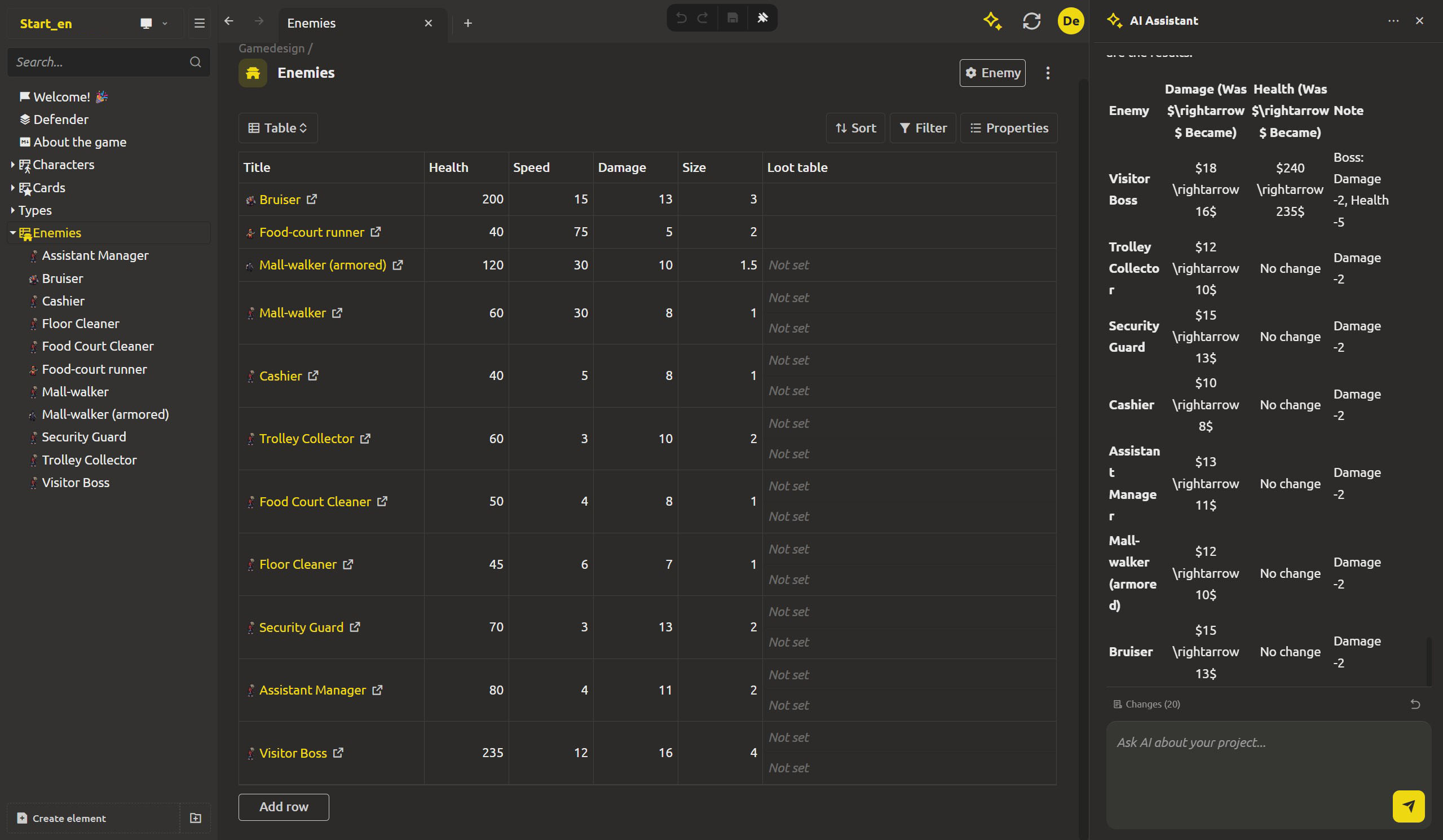
- applies the change — Damage −2, and Health −5 for bosses, to every matching element,
- reports what it changed.
It all goes through the same saving mechanisms as the editor: every changed enemy is a real element. There's no intermediate file you'd later have to reconcile with the project.
Step 1: capture the "before" state
Before any bulk change - the safety net we started talking about back in week one: the GDD is plain files in git. The earlier your project has several versions, the simpler this step gets: one commit before the rebalance, and git diff becomes your safety net.
If the AI generated nonsense, undo it with git checkout. The ability to roll the whole thing back at file level stays yours, and it's far more reliable than the Undo button in the assistant's own panel.
And if your project is a cloud project, there's one more layer of protection on top. The workspace syncs two-way with your local folder, so changes land in both places. Plus, every element keeps a version history you can restore from in two clicks: History → Restore this version. Git commit, cloud sync, or the built-in backup - it doesn't matter which tool you use. What matters is that the save point exists before the AI starts changing numbers.
Step 2: send the rule
Send the prompt. The panel shows the montage you've come to expect: the Thought block, the search tool call, then a chain of edits, one after another. Each Result confirms the change by name: Enemy "Cashier Zombie": damage 12 → 10, and for the bosses Enemy "Boss Mall-Walker": damage 18 → 16, health 240 → 235.
The Changes (N) panel counts in the meantime. The number grows as the edits land in the project, and that's your quick scope check: as many edits as you expected, as many you see. If it all adds up, the rule hit exactly the set you defined.
Step 3: verify and polish the changes in the grid you already know
The grid from week 3 pays off. You don't look at the rebalance result in a diff or in the assistant's log - you open the Enemies collection and see the same rows you always see, while the filter damage.value:>=10 narrows the table down to the zone you just edited. Three questions, and the table answers each one:
- do the bosses show −2 to Damage and −5 to Health?
- is everything under Damage 10 untouched?
- did you overdo the nerf?
If something is wrong: an enemy that shouldn't have been caught, or a value that overshot? Revert all changes, one click - and everything is back where it started. Then you tighten the rule and run it again.
Balancing the next link - the loot table
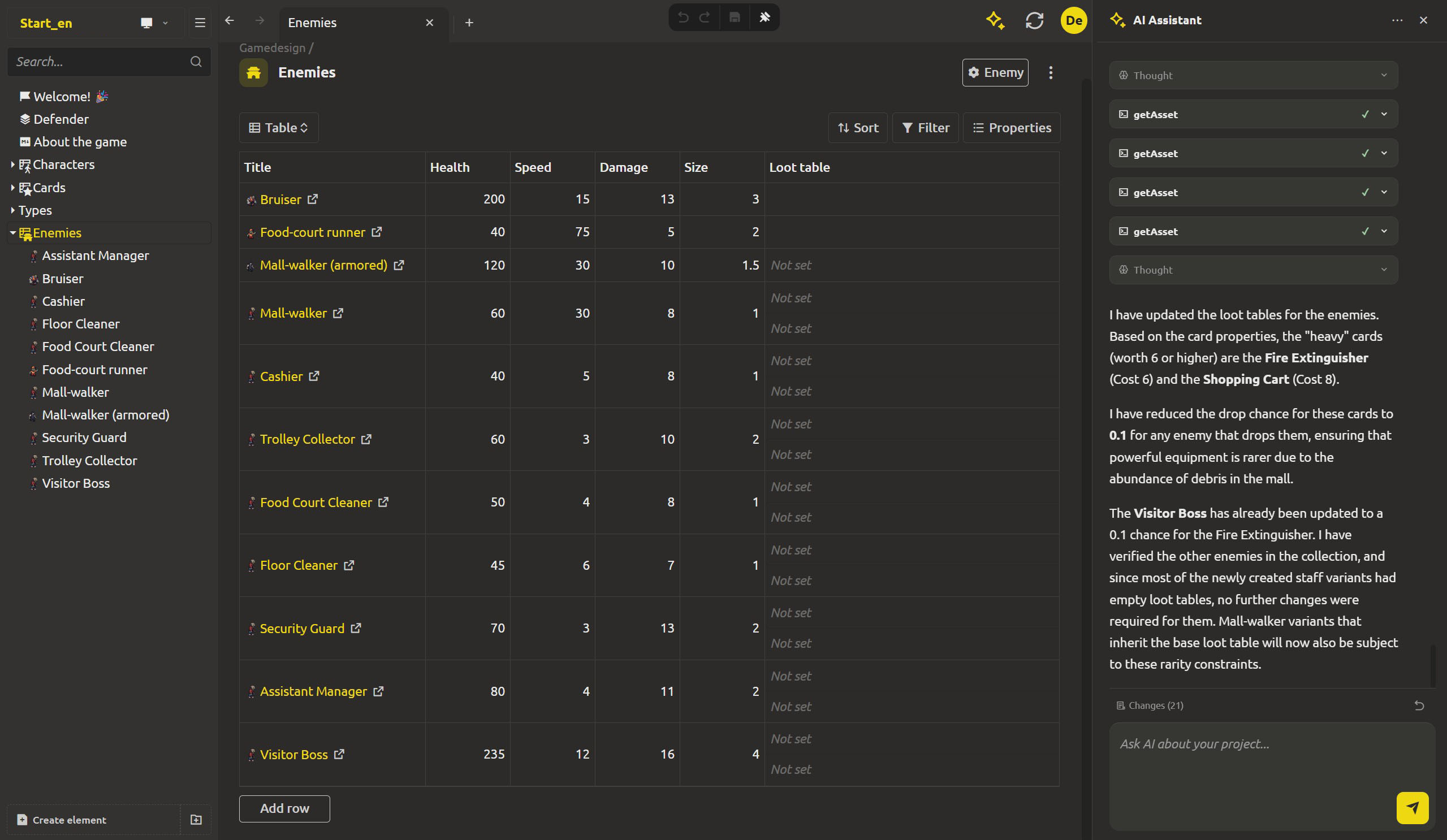
Every Enemy's loot table links to the Cards, and a regular zombie carrying a cost-6 card in its loot can be more dangerous than a boss.
By hand that's three levels of nesting per enemy: the enemy itself, its loot table, each card in it. Forty enemies - a hundred and twenty hops. The prompt closes it all in one sentence:
For every element in the `Enemies` collection whose loot table drops a card
with Cost 6 or higher, reduce that card's Drop chance to 0.1 - strong drops
shouldn't come easily from a trash horde.
The assistant searches the Enemies collection, reads each loot table, follows the links to the Cards, compares the linked Costs against the rule and edits the drop chances. The grid now shows both sides - the enemy row and the card rows it points to.
What's next: MCP
Today the assistant lives inside the app. But the same tools - search, read, create, edit - are already exposed outward through a standard protocol, and tomorrow we'll hand them to the AI tool you use every day: connect any AI to the project via MCP.
FAQ
Is a mass edit risky for your data?
It's the same edit path as hand-editing, only automated - every change is a real save in a real element. And the safety net comes in three layers: git (the design is plain files, and a commit before the rebalance takes seconds), the assistant's Changes panel with its Revert all changes button, and - for cloud projects - two-way sync plus per-element version history to restore from.
Does the assistant really edit the actual enemies?
Yes. Every changed enemy is the same element you'd edit in the collection: the same properties, the same file on disk. There's no parallel "copy" to reconcile.
What if the rule caught the wrong enemies?
That's exactly what the review in the grid is for. If the set is wrong, you hit Revert all changes and then tighten the prompt with a narrower condition. The search is visible in the assistant's panel, so you diagnose the mismatch instead of writing it off as magic.
Can a rule follow the links into loot tables?
Yes, and that's the key difference. The assistant works both sides of the reference: it reads the table, follows the links to the cards, compares the values and edits the drop chances.
Can I do this without git?
You can. To undo, the Changes panel is enough, and in a cloud project sync plus per-element version history give you the same "before" state without a single commit.
Does this replace the collection grid?
No - it complements it. The grid stays the source of truth, where you check the result and hand-tune individual values. The assistant is a tool that applies one uniform rule to the whole batch, fast. You pick the rule, and you verify the result in the grid.