
This tutorial is a part of the Getting started series — Day 4, Week 4.
The problem: the assistant you already use is inside the app
Three days this week, the AI assistant has been reading, creating drafts and balancing your design - inside the editor, where its tools are. But the tools you use every day: OpenCode, Cursor, Claude and others are not integrated into your workflow at all. They know your code, but they have never seen your design - the structure you built all month simply doesn't exist for them.
That shouldn't be the case. The project has a way to give those tools the same access the in-app assistant has - a local, standard interface to your design data. One setting, and the tool you already use is integrated into your workflow.
What MCP is
MCP (Model Context Protocol) is a standard way for an AI tool to talk to a program: a single, common interface that any client can connect to, instead of each tool inventing its own plugin.
The desktop app runs an MCP server for each opened project. It presents the game design as tools - the same operations the in-app assistant performs: searchAssets, getAsset, listAssets, createAsset, changeAsset, deleteAsset, createWorkspace, listWorkspaces - and as ready-to-read resources: the project files laid out as addresses, and its documentation.
External AI tools connect to that server the same way they would connect to any other MCP server. Same protocol, no plugin, no data pulled out of the project.
Step 1: open the MCP settings
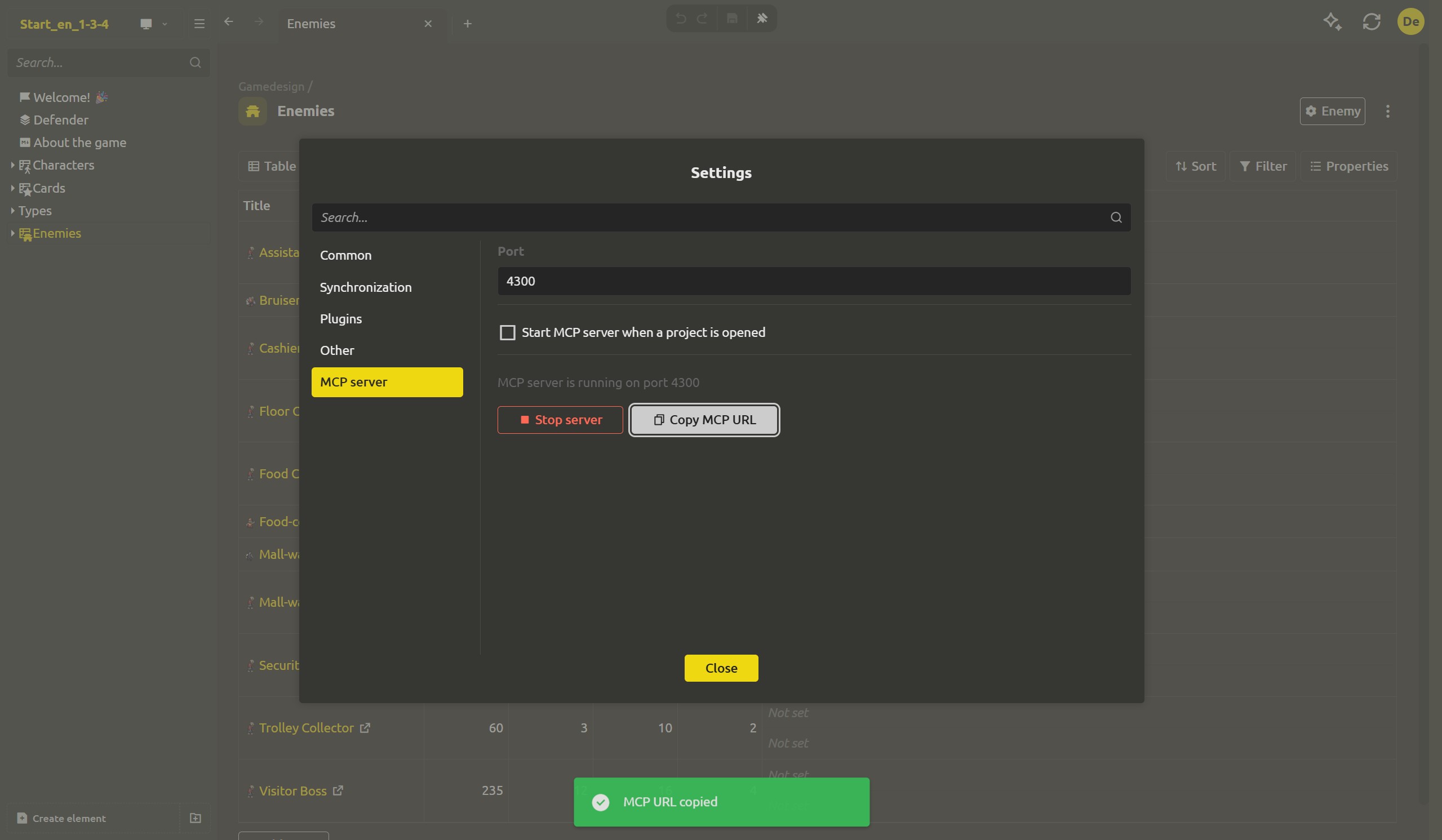
In the desktop app, open Settings → MCP server.
- Port - which port the server is on. Default is 4300, and it always binds to localhost - nothing is published to the network.
- Start MCP server when a project is opened - check this if you want the server to start together with the project, instead of manually.
Step 2: start the server and copy the URL
Hit Start server. The status line flips from "MCP server is stopped" to the running state, and the app confirms the port. When the server runs, the Copy MCP URL button becomes active - one click, and the URL is in your clipboard:
http://localhost:4300/mcp?path=C%3A%2FDocs%2FDead%20Mall
The path part keeps the server focused on your project, and it is that project folder in full, URL-encoded: the space became %20, the colon became %3A. Copy the line as is and don't retype it by hand. The URL is the only thing the tool needs to connect.
Step 3: connect OpenCode
OpenCode reads the list of MCP servers from its config. Open C:\Users\<you>\.config\opencode\opencode.json - the global config that applies to every folder - or opencode.json in the root of the project you work on. Add the server:
{
  "$schema": "https://opencode.ai/config.json",
  "mcp": {
    "imsc": {
      "type": "remote",
      "url": "http://localhost:4300/mcp?path=C%3A%2FDocs%2FDead%20Mall",
      "enabled": true
    }
  }
}
"type": "remote" because the server speaks HTTP instead of running as a local command. "enabled": true makes OpenCode start it on launch.
Save the file, run opencode in your project folder, and check the connection:
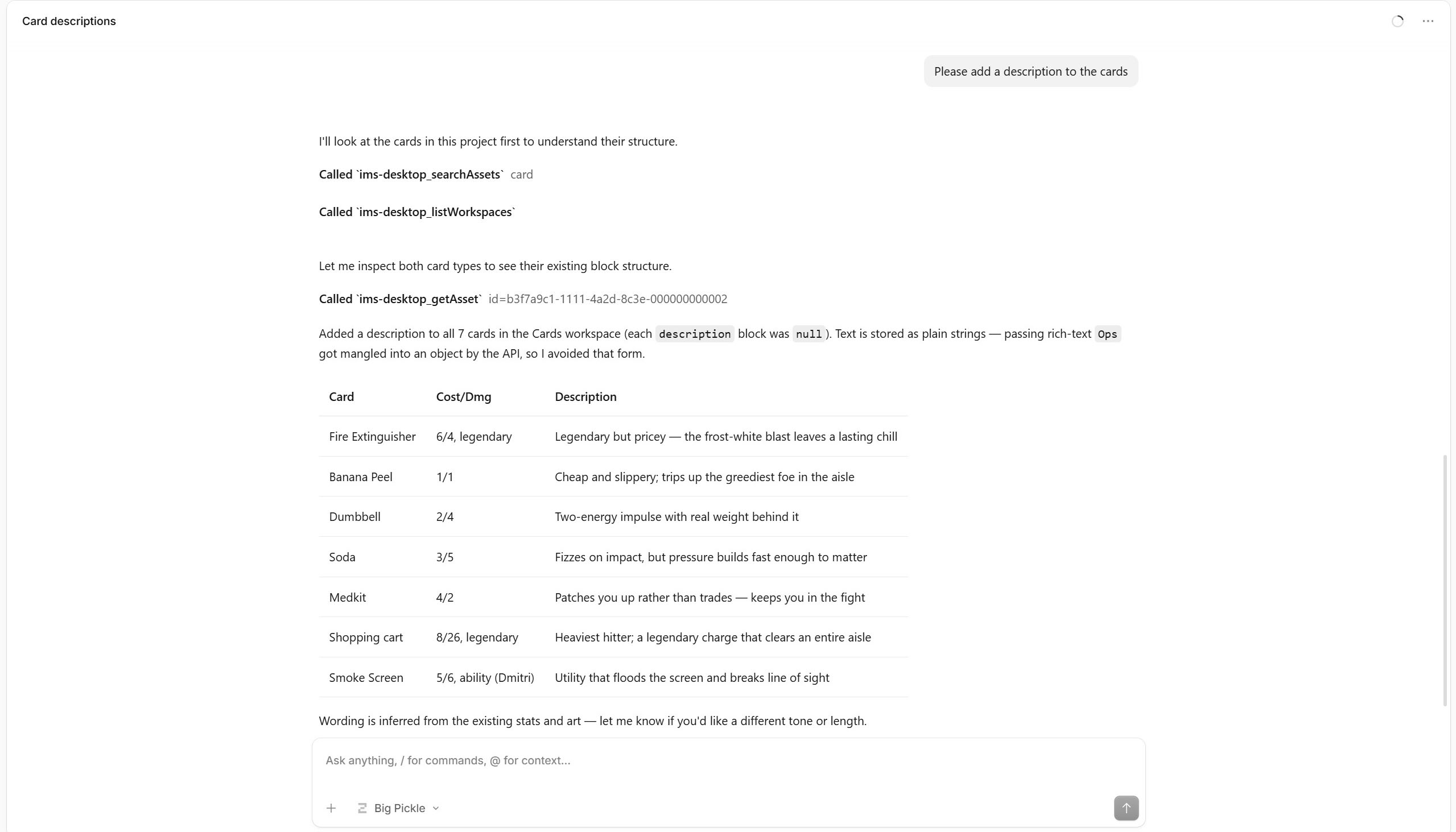
opencode mcp listThe server should show up as imsc with the status connected. Its tools are now available to the model alongside the built-in ones, and in the conversation the calls appear under the server name - imsc_searchAssets, imsc_getAsset, imsc_changeAsset. That imsc_ prefix tells you at a glance that the answer came out of your project and not out of the model's guesses. OpenCode asks for permission on the first call - allow it, and from there it goes through the same approval cycle as the other tools.
- "In the Dead Mall project, which survivors have crowd control?" - and get the same answer as Day 1, because it reads the same data.
- "Nerf every legendary card that costs 6 or more" - and it will run the same batch change across the project, from the same chat where you are already working on code.
Your AI of choice, your design data, the edits tracked by the app the same way.
What data the server returns
The server matches the in-app assistant in capabilities. The ready-to-use resources are the GDD itself, laid out in structures the AI can fetch: ims://project for the project overview, ims://project/workspaces for the workspaces, ims://project/assets for the assets, plus ims://blocks and ims://field-types for the base objects and field types that define your structure. And ims://docs - the data format reference worth reading before any edit. The AI can read what the design is - and answer from it.
Security by default
- Localhost only - the port runs on 127.0.0.1, unreachable from the network.
- Per-project bindings - each project has its own server and its own URL; a session opened against one folder can't reach another project's data.
- No idle sessions - a connection that stays silent for about 30 minutes closes itself, and the next client request opens a fresh session automatically.
- The server is the only writer - files change exclusively through the safe tools, which preserve the meta-blocks the app relies on.
Standard protocol, your files stay under your control.
What's next: working with no network at all
With MCP, an external AI can work on your design over a local connection. Tomorrow is the last piece of our puzzle: running the AI model itself on your machine.
FAQ
What AI tools can connect?
Any tool that works with MCP - OpenCode, Cursor, Claude Desktop and others. The protocol is the same; only the way the config entry is written differs. OpenCode expects mcp with "type": "remote", Cursor and Claude Desktop expect a mcpServers block with a url. Either way you just paste the URL you copied.
Is the server visible to the network?
No. The server binds to localhost (127.0.0.1), so it's reachable only from your device. Nothing about the project is exposed to the local network or the internet.
Is my project data sent anywhere?
The data stays on your computer - the server serves the project to whatever local client connects. If that client then sends the content to a cloud model, that is the client's own behavior (same as using the in-app assistant with a cloud provider); the server itself only talks locally.
Why does the URL contain the project folder?
The path part identifies which project the server belongs to, so one client can be pointed at the right project and the server stays bound to that folder. Each project gets its own server and its own URL.
What happens if the project moves?
Copy the URL again from the settings and paste the new one into the OpenCode config. The old path no longer exists, and nothing can connect to it anymore.
Can I connect an AI agent without MCP?
Yes - your design is plain data (.json and .md files), so any agent can read it directly and even edit it with your supervision. The difference is that an agent can rewrite a .json and drop the meta-blocks the app relies on (references, types, structure). MCP eliminates that: the server is the only writer, and it preserves everything necessary, working through the same safe tools the in-app assistant uses.
Does the in-app assistant still work?
Yes - unchanged. MCP is just an addition: the same tools inside the app and over the standard protocol. Use whichever is closer to you.