
This tutorial is a part of the Getting started series — Day 5, Week 3.
The problem: the habit that collapses
Yesterday exporting the Cards collection became one judgment-free click: right-click, choose a format, pick a folder - done. One click is easy. Remembering to click it is not.
Balance is a stream of small fixes - this card's cost is too high, that card's damage too low - and each fix ends with the same decision: do I re-export now, or after the next edit? The late-night version of that decision is "I'll export at the end", and at the end the box sits unopened and the game runs on yesterday's numbers. Then you're back to the Week 1 problem - the editor says 4, the build says 2, and nobody can tell you which one is true.
A one-click export is a tool. An automatic one is a guarantee.
Auto-export: the collection writes the files
Auto-export connects the collection to a destination folder, and keeps the files there up to date with the data. Configure it once in the project; from then on, save an element and the files regenerate - no export click, no reminder, no decision.
In your project, open the export setup: click the burger menu next to the current project name, choose Export, then Setup auto export. When it opens, the page shows just one control - the Add configuration button.
Step 1: add a configuration
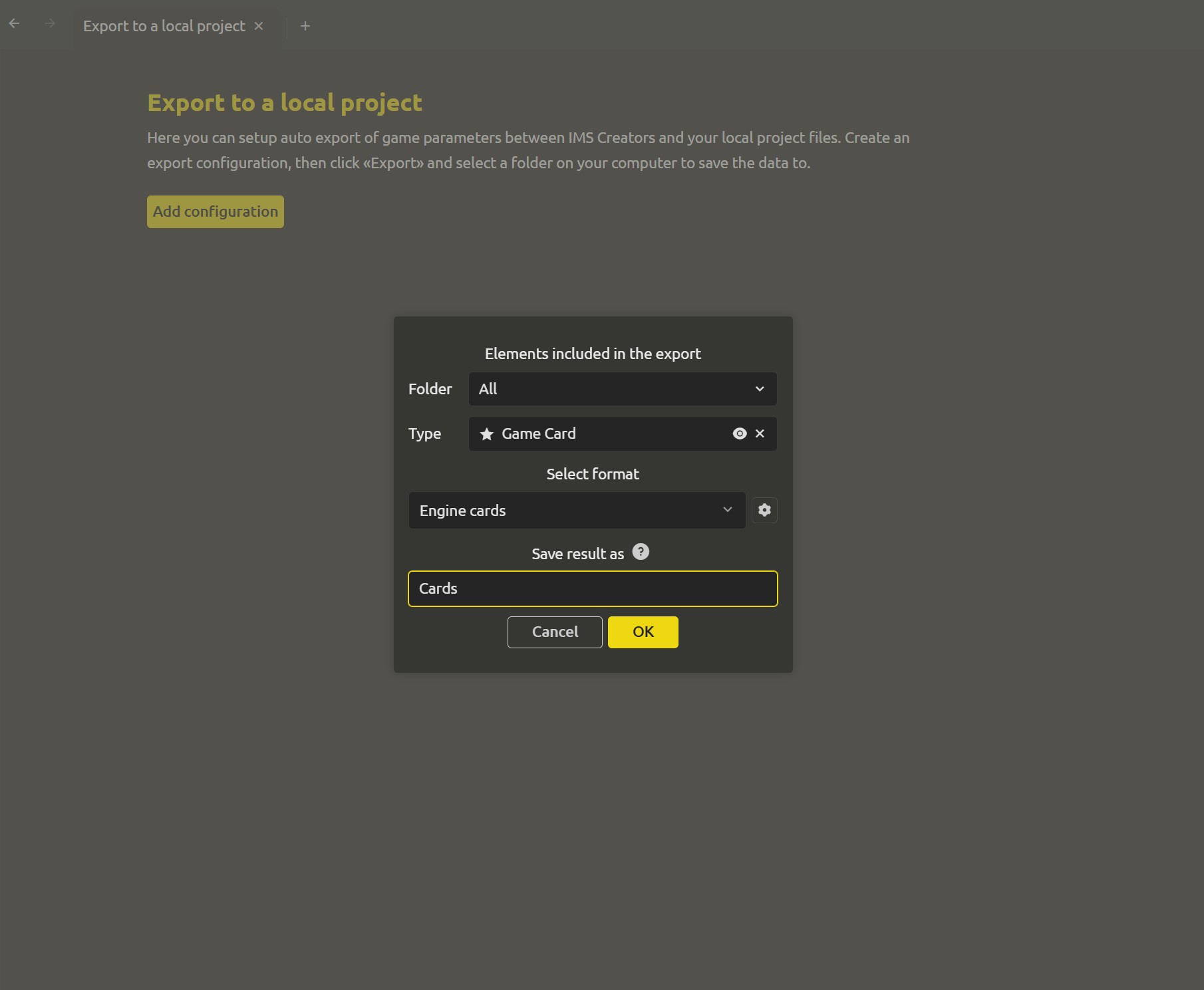
A configuration says which set of data goes where, in what form. Add one for the cards:
- Folder - the source: select the
Cardscollection. - Type - Game Card (the set is already typed; the config inherits it).
- Select format - the format built yesterday: Engine cards, the JSON format with Select fields.
- Save result as -
cards; with JSON grouped into one file, that becomescards.json.
Add another configuration pointing a CSV at a folder for the team, by all means - the same collection, different consumers, all automatic.
Step 2: pick the root directory
The root directory is the destination for everything auto-export produces. This is the moment to connect the two worlds: have the Godot project folder handy and point the export there. The exported files land right where the game will read them, side by side with the engine's own files - the same "design by code" placement you used in Week 1, extended from one enemy at a time to whole sets of data.
Step 3: switch on the sync
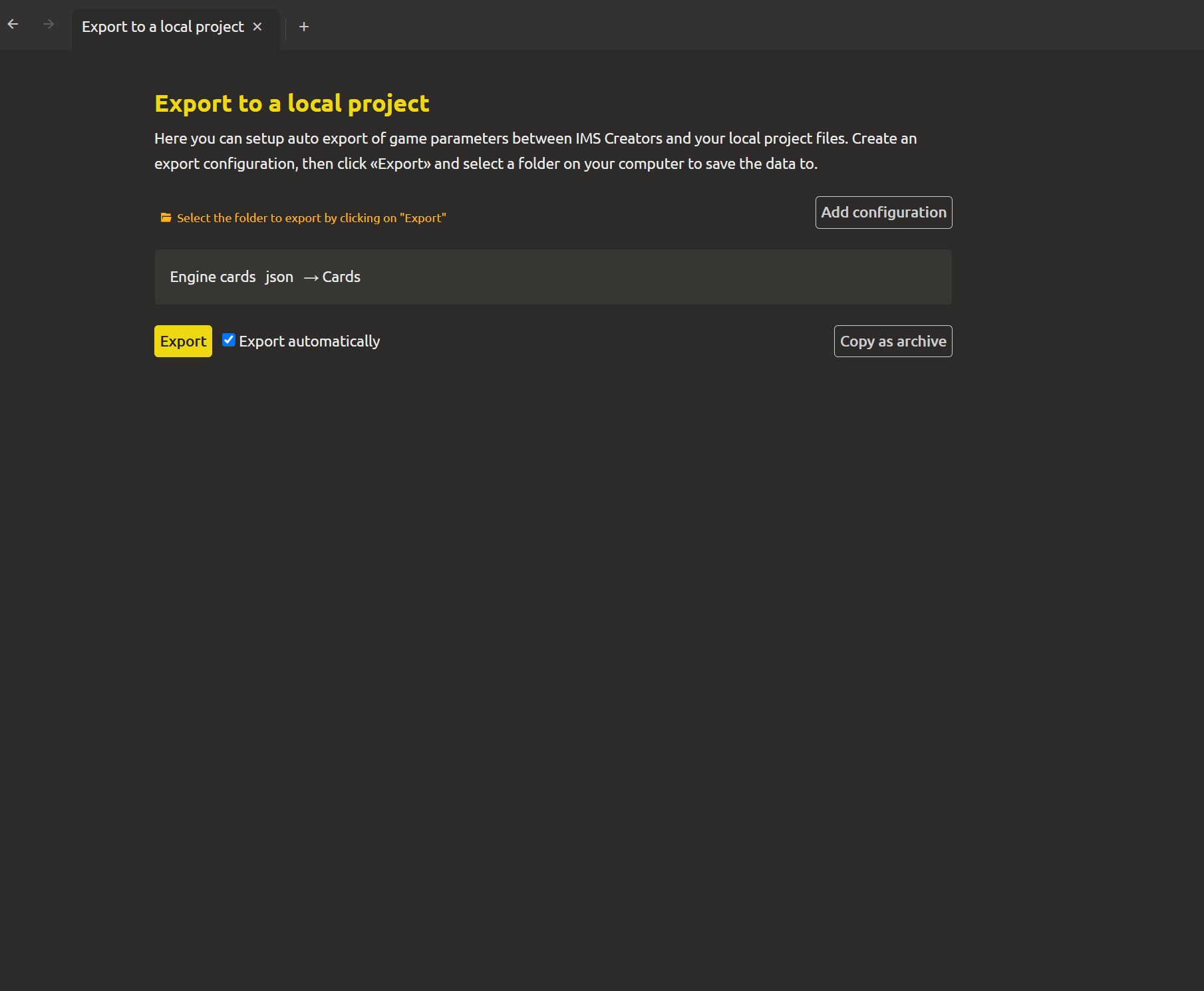
Two controls sit at the bottom of the setup page:
- Export - runs the export right now, as a one-shot manual sync. Still useful for the very first run.
- Export automatically - turns on the watcher. From this moment, saving an element in the project triggers a regeneration of everything this setup exports.
The loop: IMS Creators and Godot, one source of truth
Here is the whole loop, end to end. The game (Dead Mall, your Godot project) reads a file called cards.json that the auto-export writes. The deck data shown in battle comes from that file - not from constants, not from a copied table:
var cards = JSON.parse_string(FileAccess.get_file_as_string("res://cards.json"))cards is an array; each entry is one exported card in the shape the format's Select fields + script produce. Set the output names so the keys already match what the engine expects:
[
  {
    "name": "Fire Extinguisher",
    "damage": 4,
    "cost": 6,
    "legendary": true
  }
]
Now the flow that used to rely on remembering to click:
- Open the Cards collection.
- Bump the Fire Extinguisher's Damage from
4to6. - Save the element.
- About a second later,
cards.jsonregenerates with"damage": 6. - Reload the scene - or re-read the file - and Godot applies the new value.
The step between 3 and 5 is the point of the whole week: it happens without you. The editor and the running game are reading the same underlying truth, and the mechanism that keeps them in agreement isn't discipline - it's the saved setup.
If you want changes to appear without a manual reload, a live re-read does it: give the game a small poll or a reload_data() that re-reads cards.json, bind it to a hotkey, and the balance sandbox becomes live - tune a number, save, and see the game change while it's running.
Week 3 recap
The spreadsheet's two sins - a parallel copy of the data, and manual transcription - are both gone. Here's the arc:
- Typed collections turned balance into editing one grid, every row a real card, every edit a real save across the whole set.
- Views gave each job its own arrangement of that grid - columns, display type, sort and filter, restored in one click.
- Filters replaced scrolling with queries -
damage.value:>20, ranges, combined sets that re-answer themselves against today's data. - Custom export projected the collection into the shapes consumers need - engine JSON via Select fields and a reshaping script, team CSV for spreadsheets.
- Auto-export connected the collection directly to your Godot project, so the exported files stay true with zero contact.
One line of GDScript to read them, one configuration to write them, and the design and the build stop being able to disagree. That's the same promise from the first week of the series - one source of truth - now carried to the final consumer, standing on everything built in between.
What's next: AI
The data pipeline is complete - you have a game design system you can trust, data you can export and watch live in your engine. Over the coming articles the series sheds the routine and amplifies you with AI. We start with asking your design document questions and getting real answers. Then we take on drafting and rebalancing objects, connect MCP, and set the whole workflow up locally.
FAQ
What exactly does auto-export do?
It watches your project and regenerates the files of each configured export whenever you save elements. A configuration pairs a source set (collection + type) with a format and a save name; the setup's root directory is where the files land.
How quickly do the files update after I save?
Almost immediately, after a short debounce on the order of a second - enough to absorb a burst of edits and then write each file once, fully regenerated. You don't need to flush anything by hand.
Where should the root directory point?
Anywhere you need the files - but for a Godot game, point it at the Godot project folder, so the exported files land exactly where the scene reads them. That's the configuration that closes the loop between editor and engine.
Is auto-export risky? Can it destroy my exported files?
It rewrites the exported files it manages, derived from the current data - it doesn't touch your hand-written code or scenes. The exports are plain text, so anything unexpected is visible as a diff in git and can be rolled back. The "Export automatically" checkbox flips it off at any time.
Do I still need the manual Export button?
It's the one-shot version - run it right now, once, instead of waiting for the next save. Handy for the first export and for on-demand refreshes; the automatic mode is what keeps the files true day to day.
Can the collection data be edited while Godot is reading it?
Autosync defers the write rather than clobbering the file mid-read, and a re-read is a clean new load. Atomic enough for a balance workflow: you edit, save, the file regenerates, and the game reads the refreshed file on its next reload.
What relationship does this have to the Week 1 .json reading?
Week 1 made the point that design files are data by having Godot read .json directly (see Make the design doc and the code agree). This week's auto-export keeps that same promise for whole sets: instead of the engine parsing raw design files, the export projects them into the engine's own JSON, still written automatically - so the truth still flows from the editor to the build without a human in the middle.