
This tutorial is a part of the Getting started series — Day 2, Week 3, Month 2.
The problem: someone accidentally changed the game balance
Imagine: an artist needs to check the stats of one enemy, so you send them a link to the project. They open the data and decide to help a little — changing three card drop chances. The problem is only discovered during the next playtest: the game economy is already broken, and none of the five people with access know who made the changes.
The team needs to see the design and work with it, but that doesn't mean everyone needs access to the entire project. In the previous lesson we looked at what roles exist in the team. Now let's see how to assign each of them the right permissions in workspaces.
Configure rights for each workspace
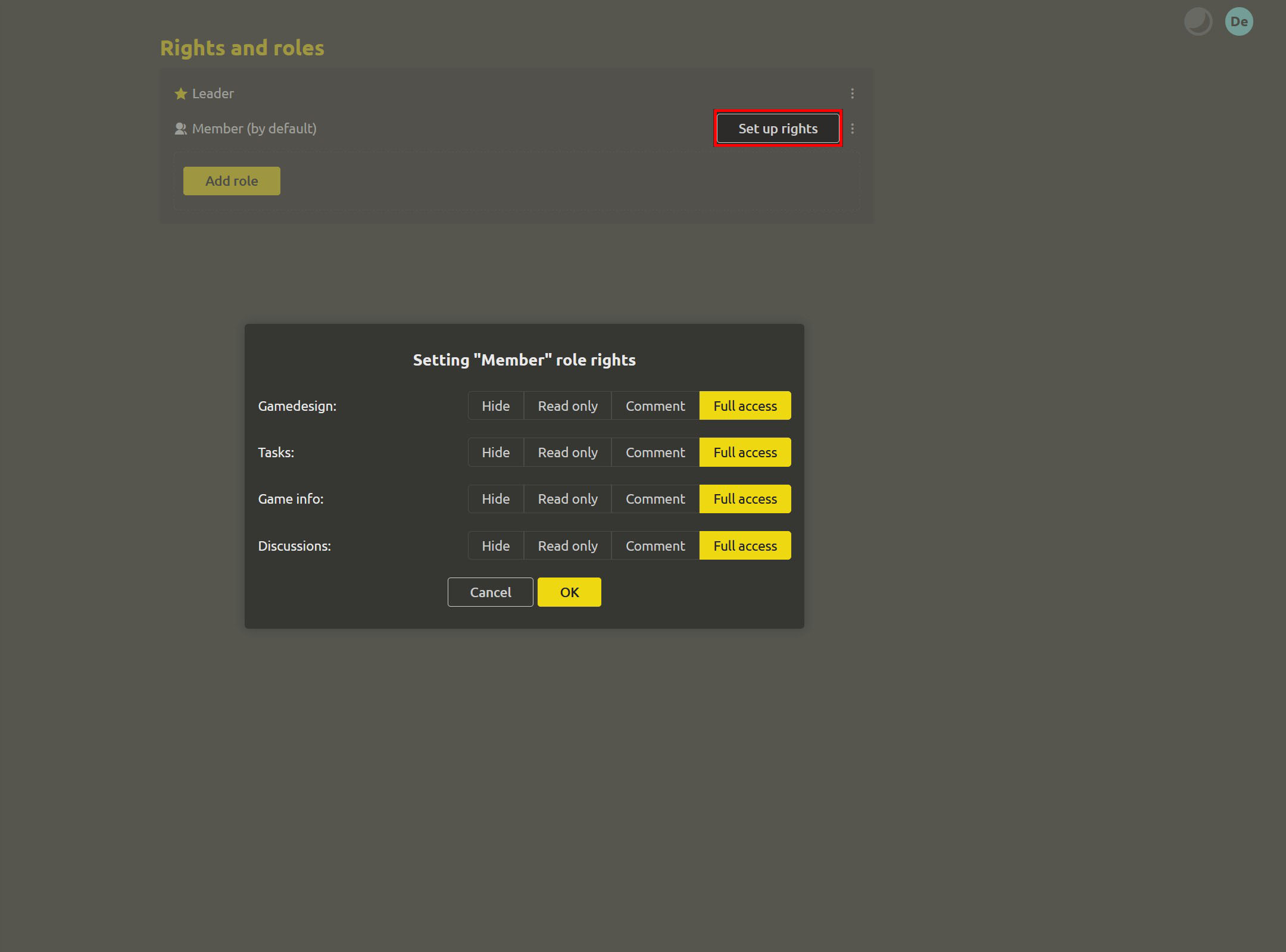
Go to Settings → Rights and roles and click "Set up rights" next to the role you need. This opens the "Set up role rights" dialog with a table of workspaces: design, tasks, planning, discussions, and others. For each of them, you can choose a separate access level:
- "Full access" — view and edit any data in the workspace.
- "Read only" — view content without the ability to change it.
- "Comment" — read materials and leave comments.
- "Hide" — completely remove this workspace from access for the selected role.
Base your choices on each participant's actual tasks, not on giving everyone access to everything just in case. For example, an artist can be given full access to design but only read-only access to tasks. A producer can have full rights in all workspaces, while an external tester can comment on design without access to other sections. If certain information is not intended for a participant, select "Hide": that workspace will disappear entirely from their project view, so, for example, budget discussions remain available only to those who need them.
For individual folders and cards, configure access precisely
Workspace-level permissions are usually enough, but sometimes you need to set an exception. For example, give a publisher access to only one folder, or prevent changes to a card until the official announcement.
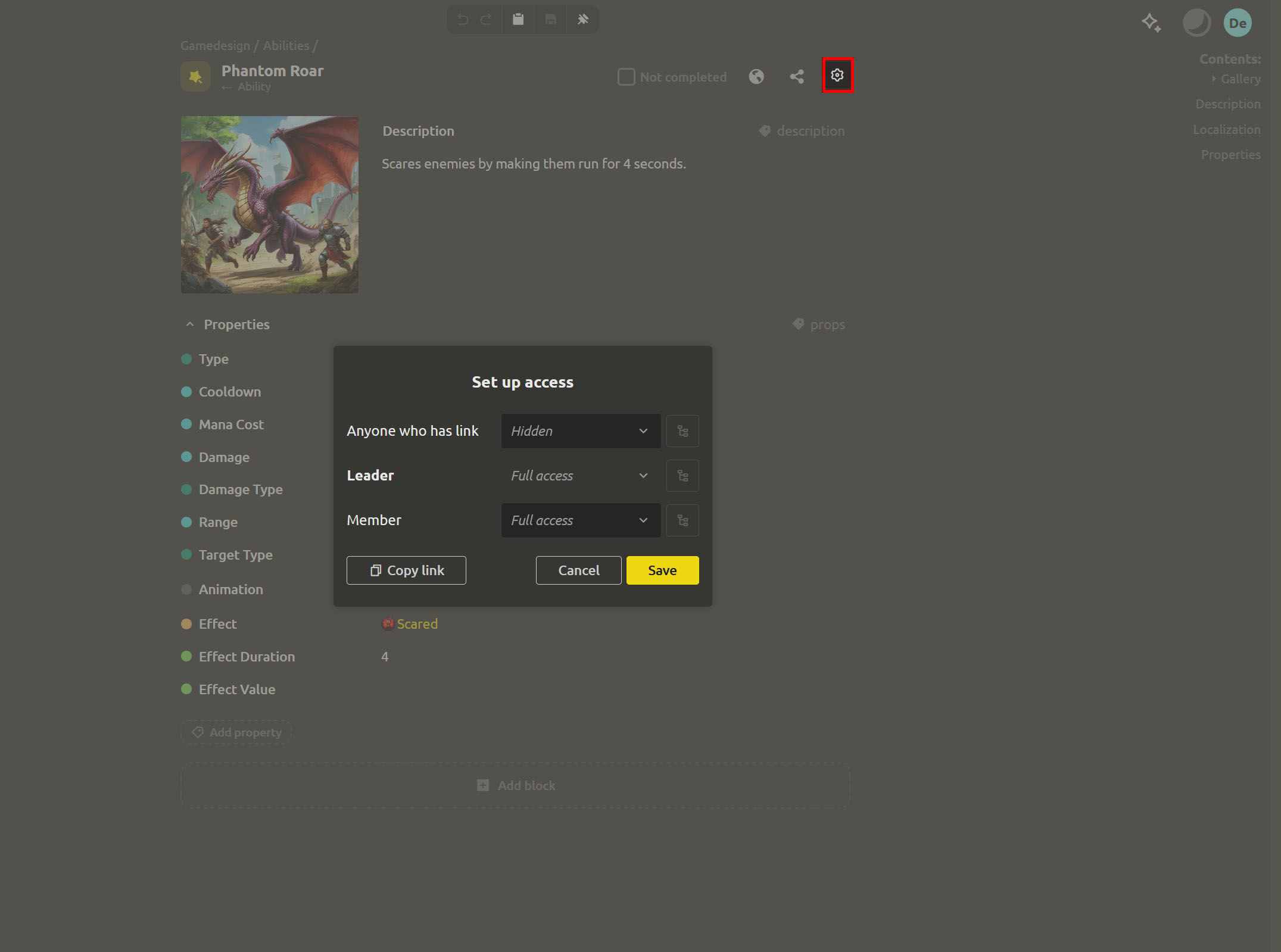
For such cases, open the menu of the element, folder, or board you need and select "Set up access". In the dialog that appears, you can set rights for each role: "Hidden", "Read only", "Comment", or "Full access". There's also a separate row for "Anyone who has link" — useful for sharing materials with someone who isn't in the project. The "Copy link" button lets you copy the link to the selected object immediately.
There are two useful details that simplify setup:
- Permission inheritance. If no separate rules are set for an element, a tree icon appears next to it, and a tooltip says: "Rights are inherited from parent folder". For a workspace, the wording is "Default rights". It's enough to configure access to a folder so that the same rules apply to its contents. If a separate rule is no longer needed, click the cross in the corresponding row — the element will inherit rights from its parent again.
- You cannot change rights for your own role. Your row is blocked, so you won't accidentally lock yourself out of your own project.
After saving, you'll see the message "Settings saved", and the new rights will take effect immediately. There's no need to re-invite participants or send them a new link.
Roles and links solve different tasks
Don't confuse the two ways of granting access. Roles are intended for the permanent team: it's convenient to view and change them in one place. Link access is suitable for those who are not in the project — for example, a publisher, a freelancer, or a playtester who needs to view materials once.
What's included in cloud PRO
Team management features are part of the cloud space:
Cloud space PRO costs 300 rubles per month per participant; you can try it for 30 days without linking a bank card. PRO includes role management, granular document access, change history, link access, sync with the desktop app, 2 GB per participant, API, and metrics.
During the trial period, all these features are available in full, so you can configure rights for your real team and see how it helps in day-to-day work.
What's next: find out who changed the data
Properly configured rights help avoid accidental edits. But if changes do appear, the project history will come in handy: in the next lesson we'll look at how to find out who and when changed the data.
Next: "Who changed this number? Open the change history"
FAQ
If I set rights on a folder, will they apply to everything inside?
Yes. By default, elements inherit rights from the parent folder, and the folder itself can inherit settings from a higher level. Separate rules are only needed for exceptions, and the dialog always shows which rights are currently in effect.
Are "Hide" and "Read only" the same thing?
No. In "Read only" mode, the participant can see the workspace but cannot make changes. "Hide" completely removes it from the project for the selected role: it won't appear in the list or search and won't be accessible via link. Simply put, reading allows you to familiarize yourself with materials, while hiding completely closes access to them.
Can I share one card with someone outside the team?
Yes. Open "Set up access" on the card, configure rights in the "Anyone who has link" row, and then click "Copy link". The external user will only get access to this card. When access is no longer needed, disable the corresponding rule — the link will stop opening the material.