This tutorial is part of the Getting started series — Day 1, Week 2, Month 2.
The problem: the sprint exists only in chats and in your colleagues' heads
The programmer is sure the artist is already finishing the assets for his task. The artist, on the other hand, expects the programmer to wire up the game logic. Meanwhile the producer is peering into three different chats, trying to tell whether the work has moved at all. The design is clear and the decisions are made, but what is actually happening with the tasks — nobody can see.
The thing is, the design itself is stored in the project, while the information about the progress of work stays in chats and in the participants' memory. To close this gap, move task statuses to where the team actually works on the project — into a shared workspace.
The task board right inside the project
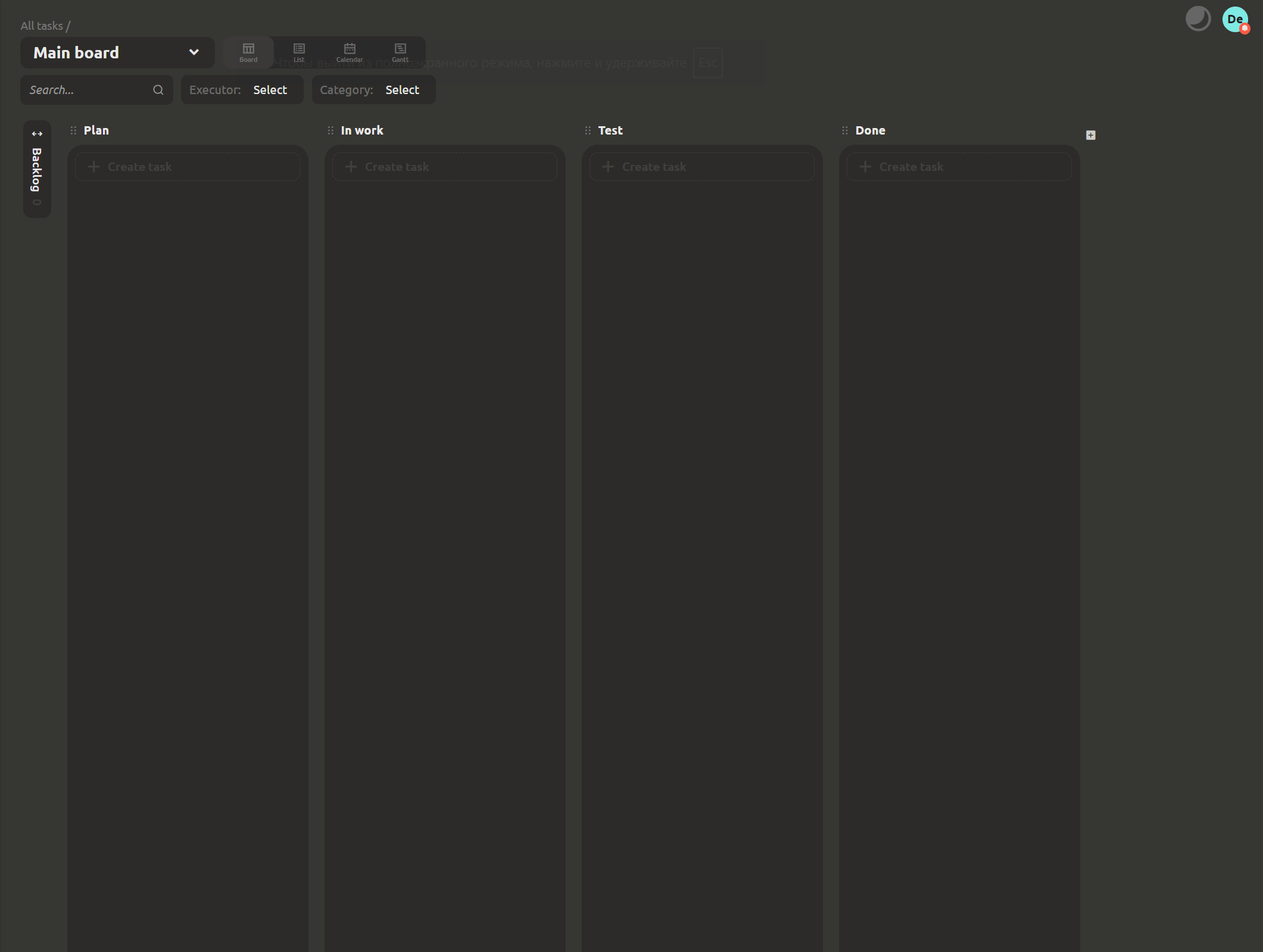
In a cloud project, the Tasks section is a Kanban board. Columns are your workflow, cards are tasks. The main difference from external tools: it sits together with the game design. If a question comes up about an Enemies or Cards element, its task is always one click away.
This gives the whole team one clear picture of what is going on — there is no need to reconstruct the progress of the week from chat messages anymore.
From idea to a card the whole team sees
Open the Tasks section: the first time you enter, you will be greeted by the Main board with ready-made columns. Create a card and describe in it a small, specific action whose result can be checked. Then move the card between columns as you go — this way the team sees in real time what stage the work is at.
There is a simple rule: if a task is hard to describe in one sentence, it probably makes sense to split it into a few clearer steps. And if a task is not displayed anywhere, the other participants may simply not know about it.
Note: at the top of the section there is a view switcher — Board, List, Calendar and Gantt. In this lesson we will focus on the board: for everyday work with a sprint it is the clearest option. The other ways to look at the same tasks will be covered in future articles.
Keep order on the board
Do not pile every task into the active columns indiscriminately. For ideas and requests you have not gotten to yet, there is the Backlog — a kind of inbox. Completed tasks can be moved to the Archive. Keep in the working columns only what the team is actually working on during the current week, and let everything else wait its turn or go to the archive once it is done.
When the board is not overloaded, it is easier to assess priorities and understand what the team should focus on right now.
One task board or several?
You do not have to stop at the Main board: create as many boards as the team needs and set up custom columns for each one to match a specific process.
For example, you can create:
- a development / production board — for tasks on creating and building the game;
- a marketing board — for posts, trailers and store materials;
- a bug reports board — for collecting user reports that still need to be triaged.
This way each team gets its own, clear workspace. Developers will not be distracted by marketing tasks, and bug reports will not get lost among general to-dos. At the same time, the set of stages can be tuned to a specific process: for example, the bug reports board can use the chain "New → Triaged → Fixed → Verified", while production runs "To do → In progress → Review → Done".
What's next: we will assign owners and deadlines
A card helps you understand what exactly needs to be done. But for full-fledged work it is also important to know who will take the task on and when it needs to be finished. That is what the next lesson is about.
Next: "I thought you were doing that" - owners, watchers, deadlines
FAQ
Why place the task board next to the game design?
Because tasks are usually tied to specific changes in the game. When a card lives in the same project as the element in question, you do not have to explain which enemy, game card or folder is being discussed.
What do the columns on the board mean?
Columns reflect the stages of your workflow — for example, To do, In progress, Review and Done. You can rename them, add new ones and pin the ones you use most often. Different boards can have different sets of columns. And the default columns a new board is created with can be configured in Settings → Base objects → Task column.
Should absolutely every task be on the board?
No. It is better to show in the active columns only what the team is working on right now. Keep ideas and future tasks in the Backlog, and move completed ones to the Archive. This keeps the board clear and stops it from turning into an endless to-do list.
Do I need to pay to use the board?
The board is available in cloud projects. The desktop app remains free and works offline, while the cloud workspace is part of the PRO version with collaboration features and includes a 30-day trial.