
The problem: your design lives in 5 places and nothing is connected
Character ideas are available in Google Doc. The list of enemies is in the notebook. The characteristics of the weapon are in the table that you opened once in March. The concept of the game is to chat with oneself, where this message is also quickly lost among the rest of the garbage. And the prototype of the game itself? It's a folder on your desktop that you're afraid to look into.
None of these files are linked to the others. Renaming a character means updating it in 4 places. Balancing a weapon means checking the table against the document and against your memory. And when you want to hand it all over to an AI assistant or colleague, you don't even know where to start.
This is the most common problem for game designers even before they have written even a line of code.
Why a local-first project fixes it
The answer isn't another note app. It's one folder on your disk that contains everything about your game - and nothing else.
A local IMS Creators project gives you:
- One folder, your files. Every document, every game entity, every attachment lives in a single directory you control. You can also export everything in JSON format to any engine without any problems.
- Files you can read. Plain
.mdfiles, open JSON - you can open them in any text editor, version-control them with git, or point any AI tool at them. - Structure that makes sense for games. Not generic documents - game objects, characters, enemies, weapons, all linked and queryable.
- Works offline, works forever. No internet? No problem. Your project lives on your machine.
You don't need to upload anything. You don't need to create an account. You just need one folder.
Create a Local project (with a starter template)
Let's set it up. This takes about 60 seconds.
Step 1: Download and install IMS Creators Desktop
Go to ims.cr5.space/desktop and download the app for Windows. Install it and launch.
Step 2: Choose "Create new Project"
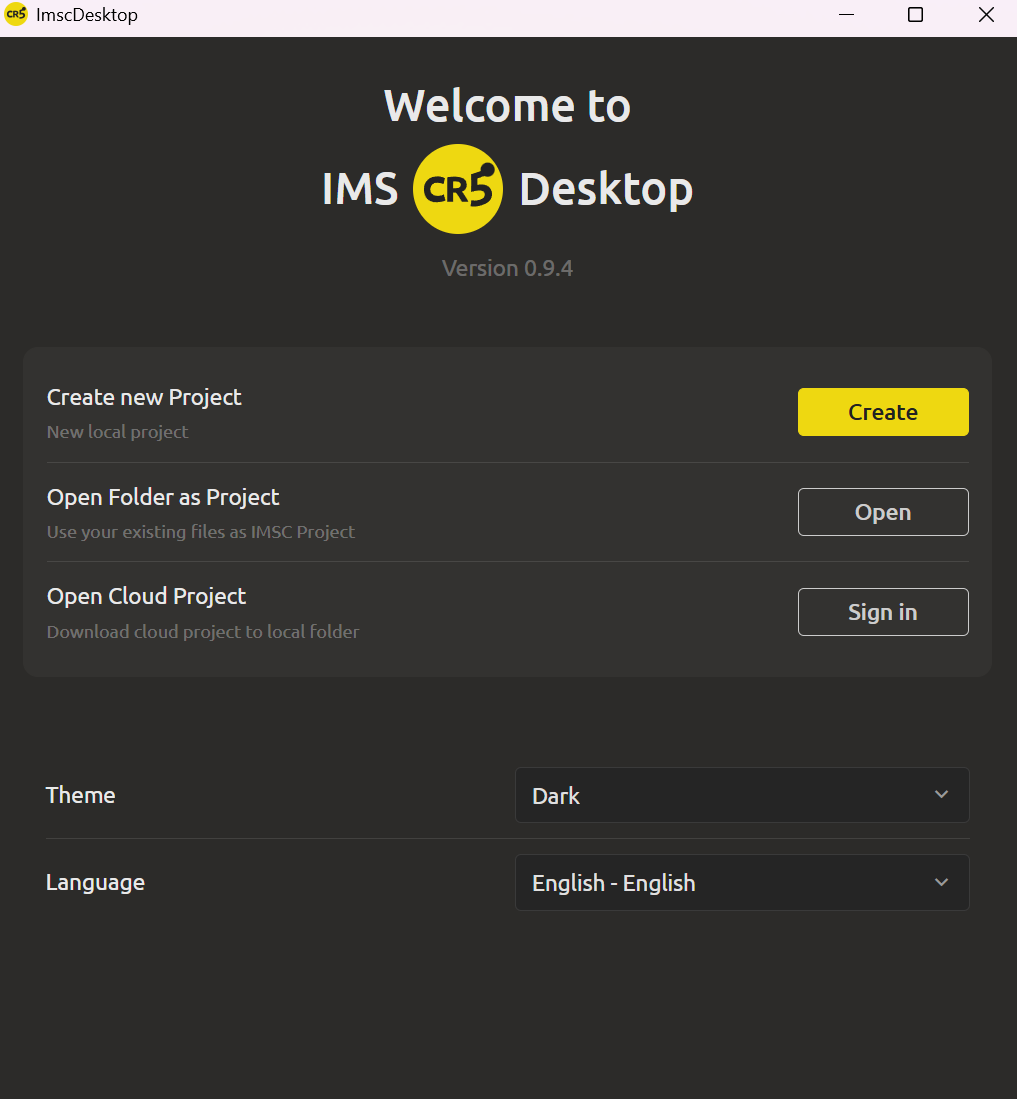
On the welcome screen you'll see three options. Click Create to start a new local project.
Step 3: Fill in the project details
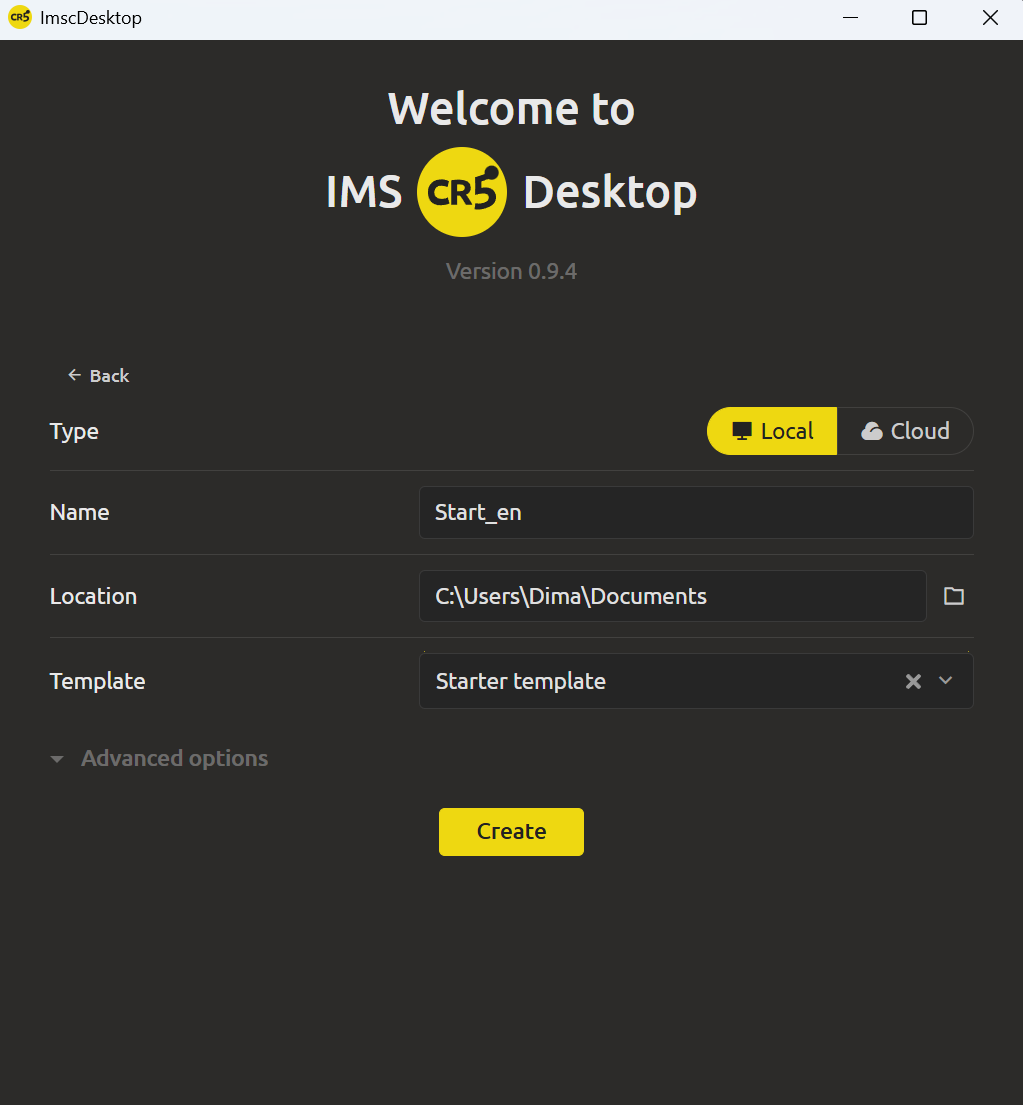
You'll see a simple form with four fields:
- Type - make sure it's set to Local.
Cloud synchronization in IMS Creators is needed to ensure that the same projects (GDDS, entities, balance data, tasks, etc.) remain relevant and the same between teams, devices, and the web version with the desktop application.
- Name - give your project a name. We'll use "Zombie Mall Crawl" throughout this series - a humorous roguelike where survivors crawl through a zombie-infested megamall.
- Location - this defaults to your Documents folder. You can change it to any path you like.
- Template - pick a starter template. The template gives you a pre-built structure so you're not staring at a blank screen. Choose the game design template for your language.
Step 4: Click Create
That's it. IMS Creators builds your project, imports the starter template, and opens it in a new window.
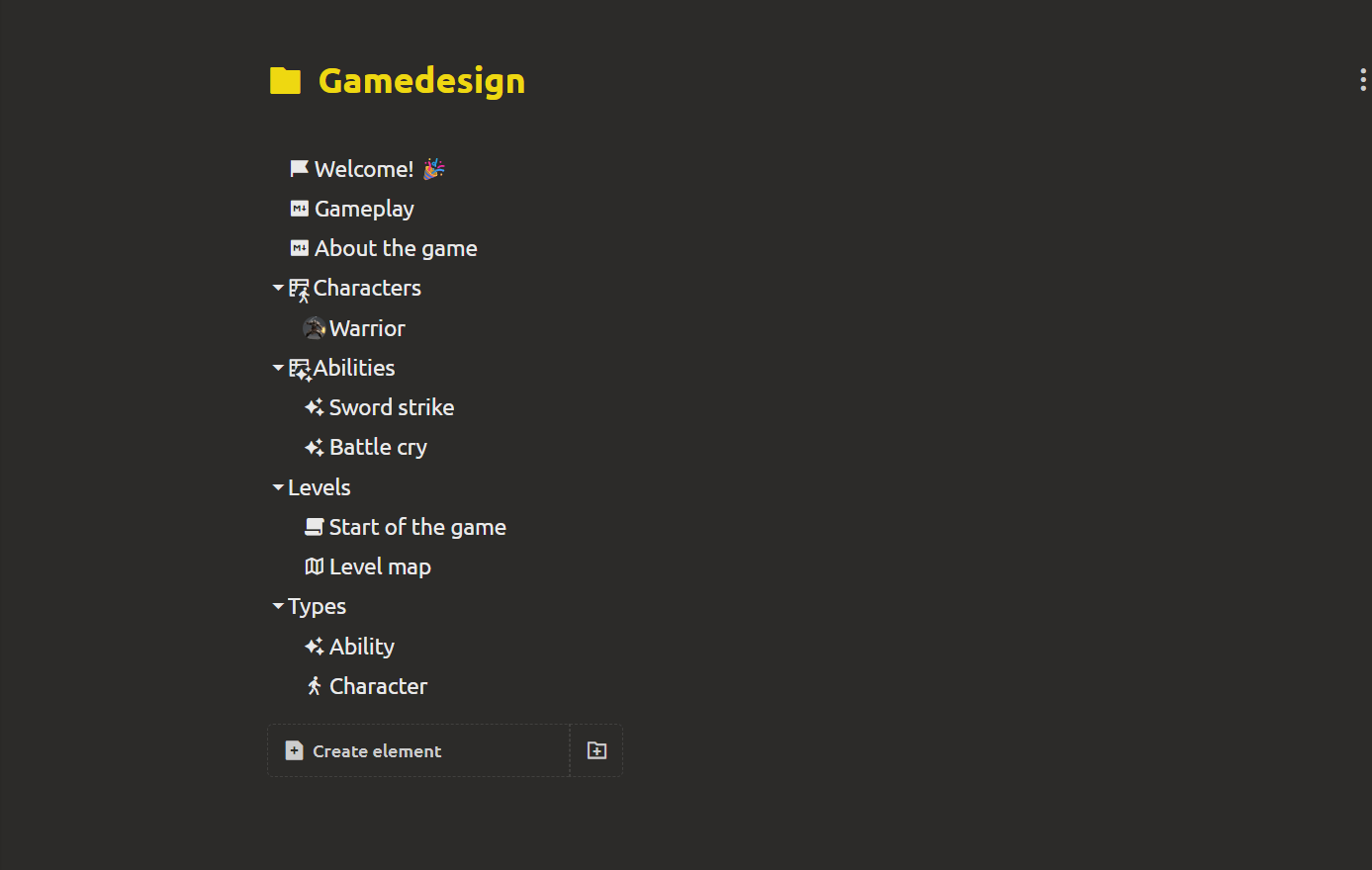
You now have a real game design project - with structured elements, not just a blank document.
What you get on disk
Open the project folder in your file explorer and take a look. Here's what IMS Creators just created for you:
Gamedesign/
├── .imsc/
│ ├── index.json
│ ├── settings.json
│ └── ...
├── attachments/
├── Welcome!.ima.json
── About the game.md
├── Gameplay.md
├── Types/
│ ├── Types.imw.json
│ ├── Character.ima.json
│ └── Ability.ima.json
├── Levels/
│ ├── Levels.imw.json
│ ├── Level map.ima.json
│ └── Start of the game.ima.json
├── Abilities/
│ ├── Abilities.imw.json
│ ├── Battle cry.ima.json
│ ── Sword strike.ima.json
└── Characters/
 ├── Characters.imw.json
 └── Warrior.ima.json
Let's break down what each piece means.
.md - Markdown files
Plain Markdown files you can open anywhere. The Game Overview.md file contains your game concept - core idea, player fantasy, one-line pitch. Double-click it in Notepad and you'll see readable text, not proprietary garbage.
.ima.json - Asset files
Every game entity (character, enemy, weapon, item) gets its own .ima.json file. This is structured JSON - an element with an id, title, type, fields, blocks, and references. You can read it in any text editor or feed it directly to a game engine.
.imw.json - Workspace files
Each folder of related elements (like Enemies/) has an .imw.json workspace file that defines the container. It's the metadata that tells IMS Creators "these elements belong together."
attachments/ - Uploaded files
Images, diagrams, concept art - anything you drag into the app lands here. It's a normal folder of files.
.imsc/ - Project metadata
This is IMS Creators' internal bookkeeping - your project id, settings, AI chat history, and the local database. You don't need to touch this folder. It's automatically managed.
Why this matters
All that we have created is plain text. Your design data lives in files that you can:
- Version-control with git
- Read in any text editor
- Share by zipping the folder
- Feed to AI tools directly
- Import into your game engine as JSON
This isn't a note app with an export button. The files are the format.
Back up your project now
Your project lives on your disk, which means you're responsible for it. Here are three ways to make sure you never lose your work:
- Cloud sync (PRO)
- Copy the folder
- Git
What's next: write your game concept
You've got a project. You've got a starter template with sample characters and enemies. But the first thing you should do is write your own game concept - the core idea that drives everything else.
In tomorrow's post, we'll turn your game idea into a real design page using a Markdown element - a plain file you own, readable for years, and the foundation for everything that follows.
Ready? Turn your game idea into a real design page - the next post in this series.
FAQ
Do I need to create an account to use a local project?
No. A local project works entirely offline, no account required. You only need an account if you want cloud sync (PRO feature) or AI features that use external providers.
What operating systems are supported?
IMS Creators Desktop currently supports Windows, macOS and Linux.
Can I open my project in another tool?
Yes. Your .md files are standard Markdown - open them in VS Code, Obsidian, or any text editor. Your .ima.json files are standard JSON - parse them with any language. Nothing in your project is proprietary.
What happens to the .imsc/ folder if I delete it?
IMS Creators will recreate it the next time you open the project. Your design data (the .md, .ima.json, and .imw.json files) is unaffected. However, you'll lose AI chat history and local settings.
Can I use a local project and cloud sync at the same time?
Yes. A local project can be synced to the cloud with a PRO subscription. The local files remain the source of truth, and cloud sync keeps a backup and enables multi-device access. Pro-version opens up the possibility to edit files online and access to command functions such as tasks, access, and more
What if I want to change the project name or move the folder?
Just rename or move the folder like any other directory. IMS Creators will follow it. Update the project location in the app if needed.
How is this different from just using Markdown files in a folder?
A plain Markdown folder gives you documents. IMS Creators adds game-specific structure: typed entities, references between elements, workspaces (groups of related elements), value tables, and an engine export pipeline. You get the simplicity of files with the structure game design actually needs.
Can I put my project on a USB drive or network share?
Yes. Since it's just files, you can store your project anywhere your OS can read - USB drives, network shares, NAS devices. Just open the folder in IMS Creators.
How do I save project versions using Git?
If you are familiar with git, your project is ready for git from the very beginning. Open the terminal in the project folder and run:
git init
git add .
git commit -m "Initial project setup"
The folder .imsc/ has already been excluded from git (it is in `.gitignore'). Your Markdown and JSON files will be perfectly versioned.