
This tutorial is a part of the Getting started series — Day 3, Week 4, Month 2.
The problem: everyone talks about progress, but nobody knows the exact numbers
Every team has its own idea of readiness, so the same number can mean completely different things. The artist says the art is almost finished, the programmer says the feature already works on their machine, and the producer is probably just estimating the total amount of work left. In the previous article we added checkpoints and deadlines to the plan. Now let's deal with the second important part of planning: figuring out how ready each element of the project really is.
You will not have to type the percentage by hand — otherwise it is easy to forget to update it, and the number soon stops matching the actual state of things. In IMS Creators the readiness is calculated automatically from the checklist that every element with progress tracking carries. In other words, the percentage shows not someone's subjective opinion, but how many items are actually done.
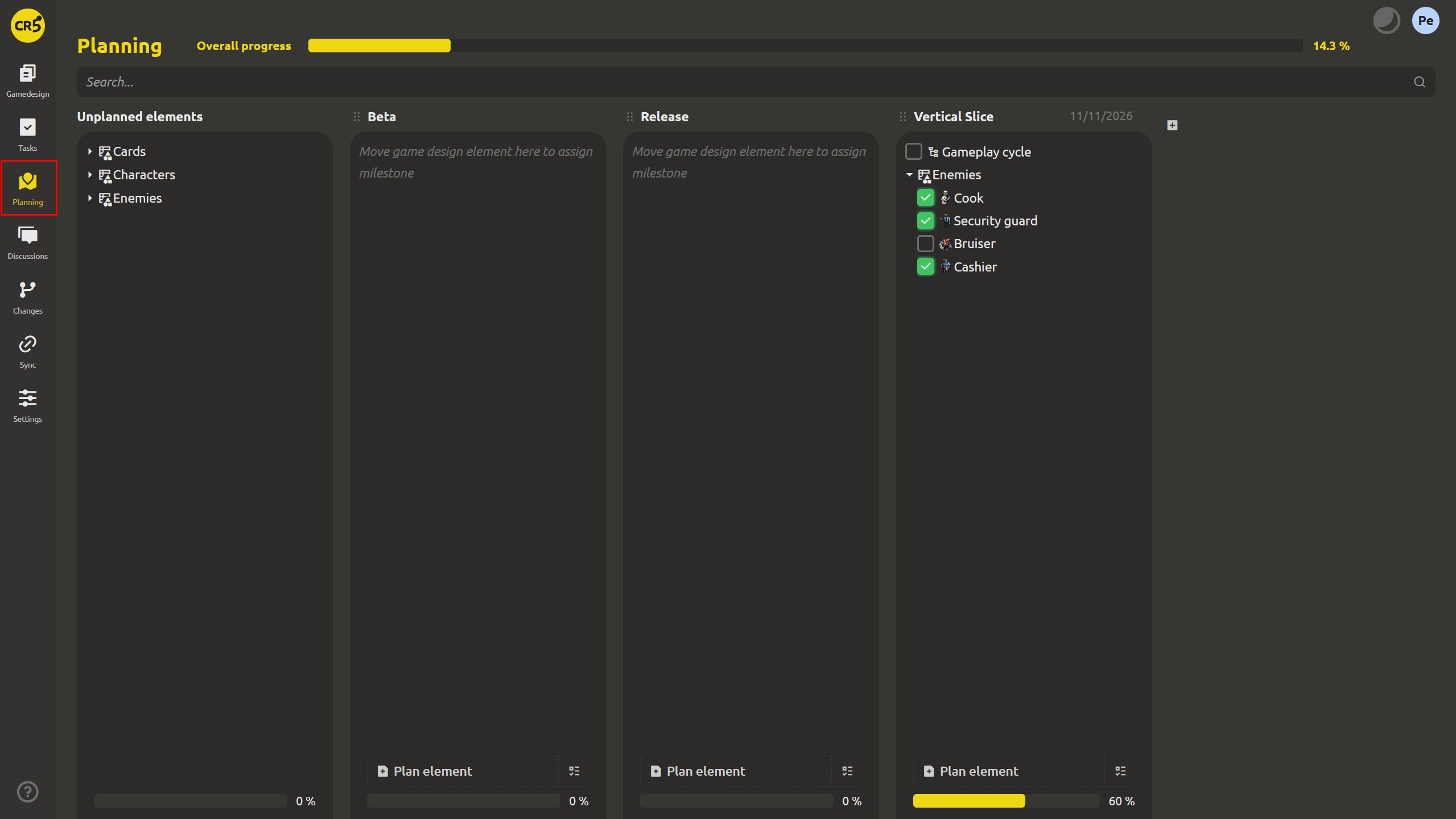
Element completion: where to see the progress
Next to the element's title you get a checkbox and one of three statuses: Not completed, Completion: 66%, or Completed. Click the status to open the Element completion dialog: there the state is shown in more detail, with the checklist underneath.
There are two important rules to how the progress is calculated:
- The percentage cannot be set by hand. It is calculated from the number of ticked items in the checklist. For example, if two items out of three are completed, the element shows 66%. The system rounds the result down, so incomplete progress never looks higher than it really is.
- 100% means the work is finished. While at least one item in the checklist stays unchecked, the progress will not go above 99%. Full readiness appears only after every item is completed — this way the system will not let almost-finished work pass as done.
Building a checklist for an element
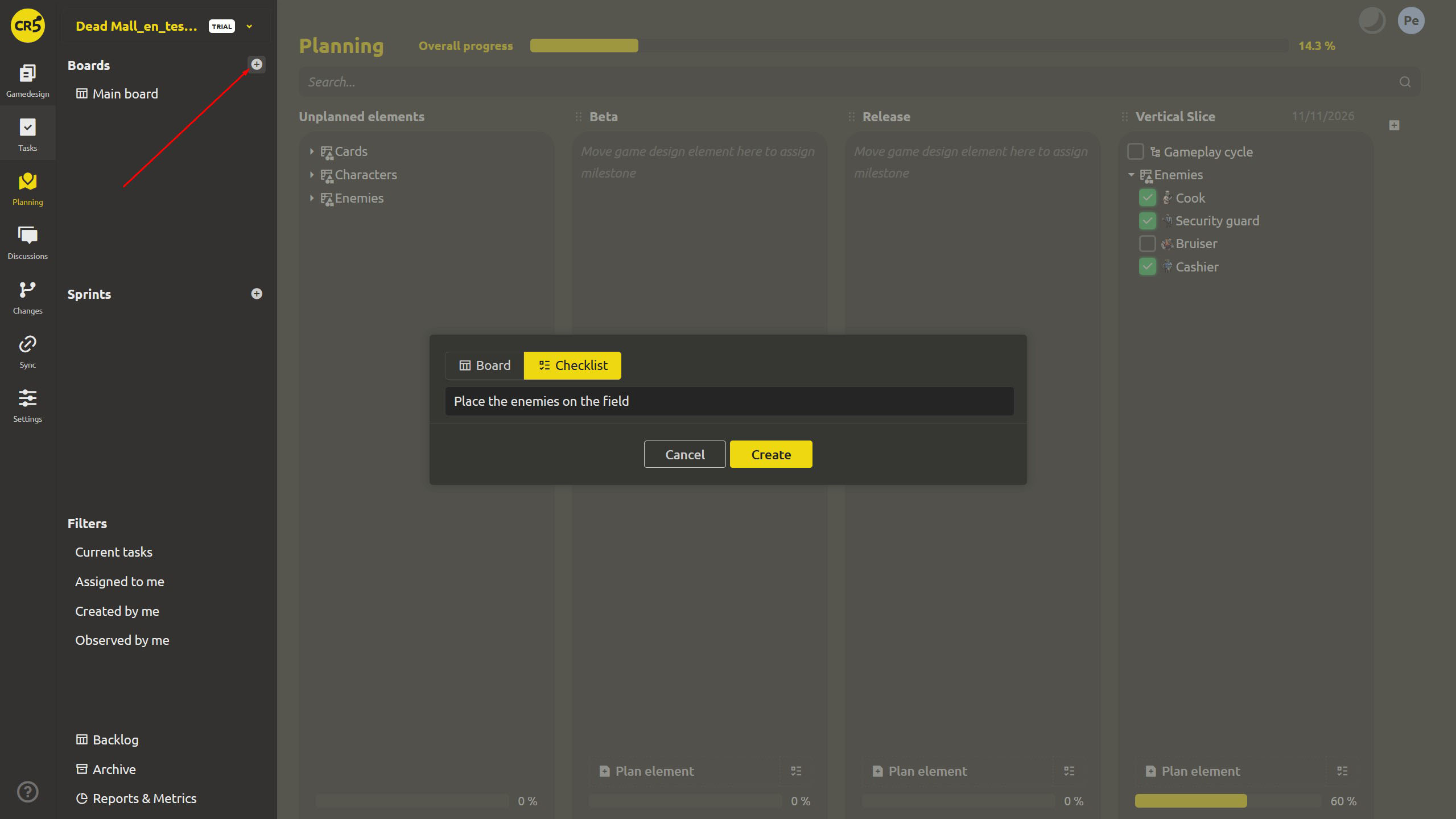
To add a checklist, open the dialog and click Add TODO-list. A new list titled TODO appears, and you can add the items you need:
- Type a title into the placeholder Enter new task title and press Enter. The item appears in the list, and a new empty line is added below it automatically — you can move straight on to the next one.
- Tick the checklist items as they are completed. The element's readiness percentage updates automatically and looks the same in the element itself, the Planning column, and the completion dialog.
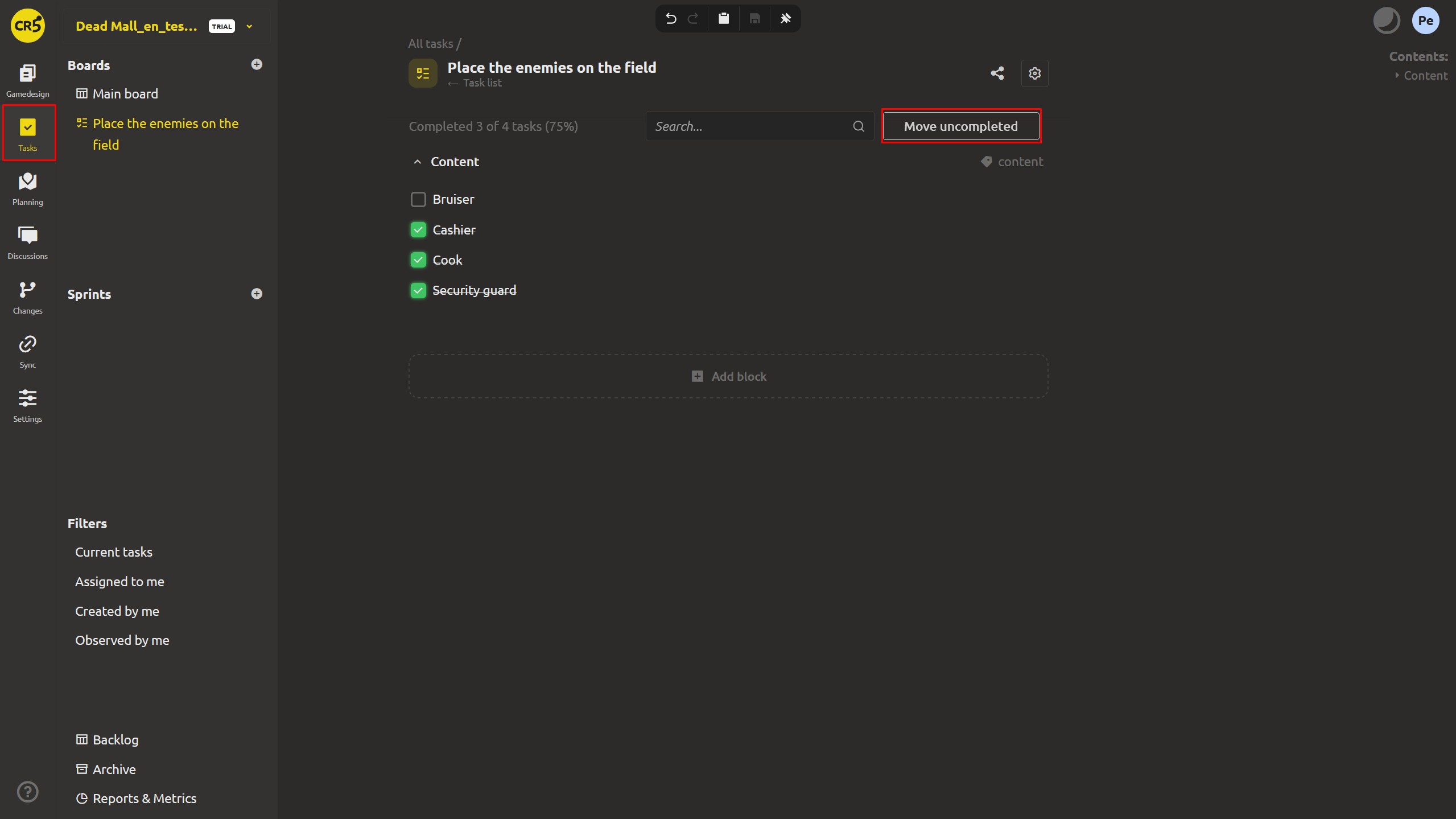
The list also has extra tools: a counter reading Completed 2 of 3 tasks (66%), a search box for finding an item - useful when the list is long - and a separate button for dealing with uncompleted tasks.
Move uncompleted: separate finished work from what is left
Imagine an element that is 60% done, while its checklist still has plenty of unchecked items. If you leave it as it is, tomorrow it will be hard to tell what exactly has been done and what is still to come. The Move uncompleted button helps split this work in a single step. When you press it, the system asks for a name for the new element (prefilled with the original name), moves all the unticked items there together with their bound tasks, and opens the created element right away.
The original element keeps the completed items, so it reflects the work already done. Everything that is still to come ends up in a separate element with its own checklist and its own readiness percentage.
Mark as completed: close the bound tasks in one action
When the element is really done, tick the checkbox in the completion dialog. If there are still unfinished items or tasks inside, IMS Creators first shows a Mark as completed confirmation and asks: "Do you want also mark as completed all attached tasks?".
Confirm the action, and the system does everything required: it completes the tasks referenced by the element as well as the tasks bound to the checklist items, and the remaining plain items are ticked as completed too. After that the element's progress reaches 100%. You will not have to hunt down and close each bound task individually.
The dialog also shows which milestone the element belongs to, with the option to pick a different one. If no milestone is assigned, the label Not set is shown; if the project has no milestones at all, "Milestones not configured". This information is available in the cloud version only, while the desktop app keeps the element's readiness and its checklist.
What's next: connecting the checklist to the board
While every item is ticked by hand, everything is simple. But if the same tasks already exist on the board, you have to update the information in two places at once — and it is easy to forget one of them. In the next lesson we will show you how to bind the checklist to the tasks on the board so that they sync their progress with each other.
Next: "Stop updating readiness by hand - bind board tasks to a checklist" (Week 4, Day 4)
FAQ
Can I set the readiness percentage manually?
No. The percentage is always calculated from the checklist, so everyone on the project sees the same, up-to-date figure. It will not drift away from how many items are actually done.
Why does the progress stop at 99%?
Because 100% means full readiness. While at least one item is unchecked, the system caps the value at 99%. Tick the last item or move the element to Completed — and it will count as finished.
What exactly does Move uncompleted move?
All the unchecked checklist items, with their titles and their bound tasks, go into a new element. The new element opens right after the move, and the original keeps the completed items. If the list in the original element empties out after the move, the empty list is deleted.
Does the completed tick close the bound tasks automatically?
The system will ask you to confirm the action first. If you agree, IMS Creators completes both the tasks linked to the element itself and the tasks bound to the checklist items. How the two-way binding between the checklist and the board works is covered in more detail in the next article.