
This tutorial is a part of the Getting started series — Day 1, Week 3, Month 2.
The problem: one shared space — different approaches to work
Last week you invited the team into the cloud project. Now five people open it: the artist, the programmer, the sound designer, an outside tester, and you. And that is exactly the new problem: everyone can edit everything. The tester renames a workspace. The artist "tidies up" a folder you were mid-edit in. Nobody is malicious; the project simply has no way to say who is who.
Week 2 made the work visible. This week is about the people doing it - starting with the fact that a shared project is not the same thing as a shared level of access.
Roles describe people, rights describe places
Two words do two different jobs, and keeping them apart makes the whole setup click:
- A role describes a person: what they are in this project - a full member, a lead, a visitor.
- Rights describe a place: what that role may do in a specific workspace - the design, the tasks, the settings.
A role is the badge someone wears; rights decide which doors that badge opens. Today you assign badges. Tomorrow - doors.
Where roles live: Settings → Rights and roles
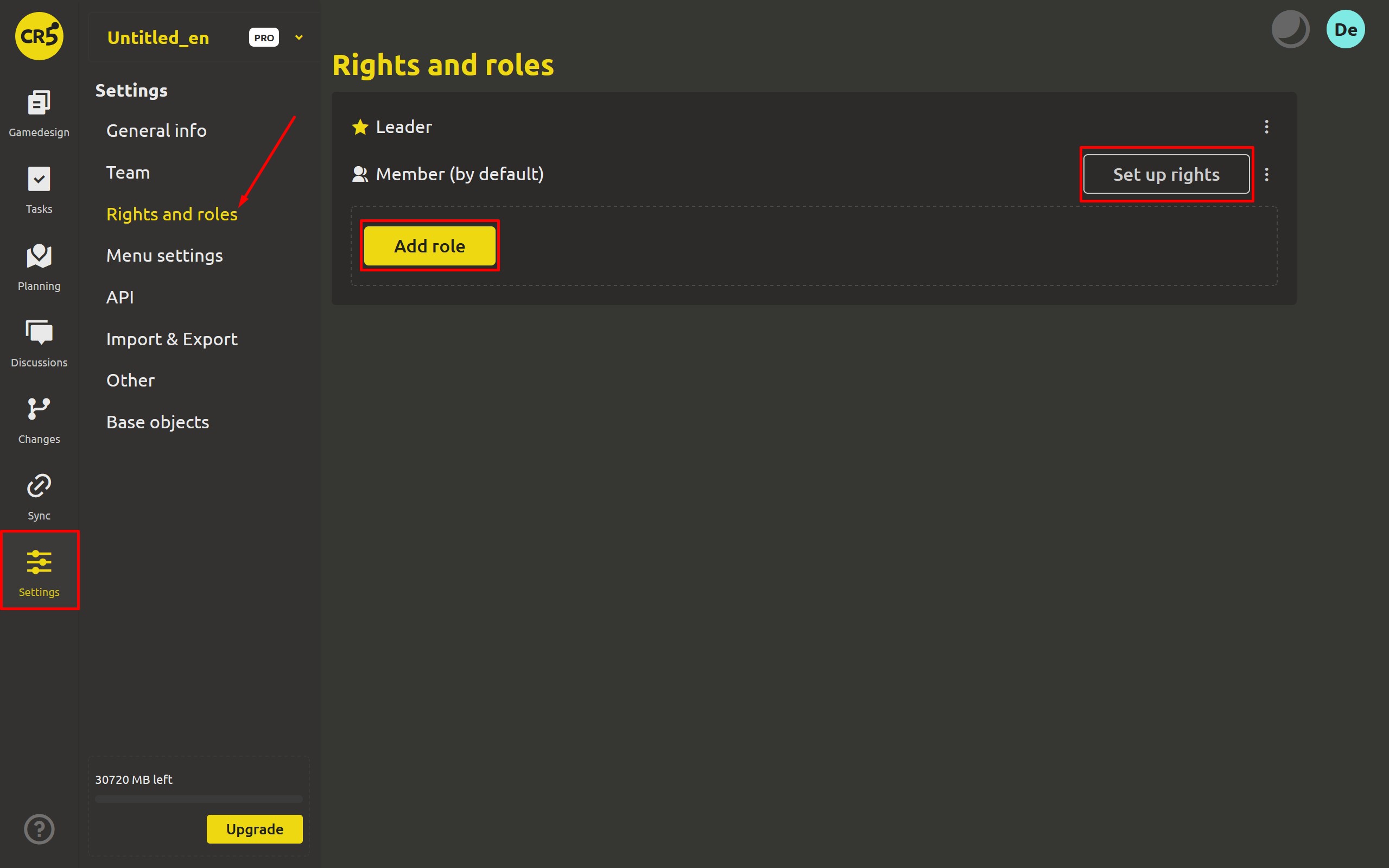
Open Settings → Rights and roles. The page lists the project's roles, with a star on the administrative one. Two roles exist from the start:
- Leader - the project's Admin. Only a Leader sees this page's management buttons and can add, edit and delete roles.
- Member - the standard team role. Every invitee receives it by default, as covered in the invitation article.
There is also Guest - the most limited role, the fallback when no role applies (it stays out of the list on purpose). Together they cover the honest minimum: someone who runs the project, someone who works in it, and someone who only looks.
Changing a person's badge happens on the team page: Settings → Team → Change [member] role - with the usual "Are you sure you want to change role?" confirmation. The member counter next to it shows seats, so people and roles stay on one screen.
When the default roles are not enough
Two roles are enough for a duo and too few for a studio. An outside tester should not be a full member, and a community manager should not touch the balance. That is what Add role is for.
The dialog is deliberately simple: a title and one checkbox - Make role default. The help text explains it in one line: "If you set a default role, all new project members will have that role." So a studio can make "Artist" the default and stop assigning it by hand after every invitation.
Each role's menu carries Edit role and Delete role, and the default role is marked (Set by default). Deletion is honest about the consequences: "All members with this role will get the default role" - nobody loses access; people simply fall back to the standard role. Neither the Admin role nor the default role can be deleted.
Who can manage roles
Let's be blunt, because this is the main safety setting: the Rights and roles page and its buttons are available only to a Leader, and role management is part of the PRO cloud workspace. The team works in the project - it does not redraw the rules of access to it. Next to every non-admin role sits a Set up rights button - that is Tuesday's article, where a role meets the workspaces.
Honest limits
- Roles live in the cloud workspace - that is PRO at $4/mo per teammate with a 30-day free trial and no credit card. During the trial everything in this article works in full.
- The desktop app has no team layer at all: roles, invitations and the team page are a cloud concept. Your local projects are simply yours.
What's next: limit what each role can touch
A role by itself changes nothing about the work yet - it is a badge without doors. Tomorrow each role meets the workspaces, and a single card can get its own rules.
Next: "One artist shouldn't be able to rewrite your balance - rights, down to one card"
FAQ
What is the difference between a Leader and a Member?
A Leader is the project's Admin: manages roles, invites and removes members, and cannot be removed from the project. A Member is the working role that every invitee gets by default. Both do everything their rights allow; only a Leader administrates access itself.
Do I need custom roles?
If the whole team should work the same way everywhere - no, Member and Leader are enough. Create roles as soon as access has to differ: an outside tester reads and comments, an artist edits the design but not the tasks, a publisher sees one folder.
What happens to people when I delete their role?
They keep access - the confirmation dialog automatically moves them to the default role. If no default role is set, they fall back to basic member access. Nothing is silently revoked.
Can I manage roles in the desktop app?
No. The desktop app is a free, offline tool for the design itself - roles, invitations and rights are part of the cloud workspace, where the team layer lives.