
This tutorial belongs to the Getting started series — Day 3, Week 2, Month 2.
The problem: the task board lost its structure
At first, the task board seems like the perfect place for everything: every new idea, task and wish goes right there. But a couple of weeks later you already have 40 cards across seven columns. Some of them are waiting for their moment, others are long done but simply stayed put. In the end it becomes harder and harder to see what you need to pick up right now.
For the board to really help you work, keep only the current tasks on it.
Columns should be convenient for you first of all
Every team has its own workflow, so you do not need to copy the perfect Kanban scheme from various sources. Set up the board so that it reflects how you actually work: in the settings you can rename, add and pin columns, as well as use the Edit / Delete / Pin actions.
The main goal: at the start of the workweek, whoever opens the board immediately sees what is going on and which tasks need attention.
Backlog as a place for future ideas
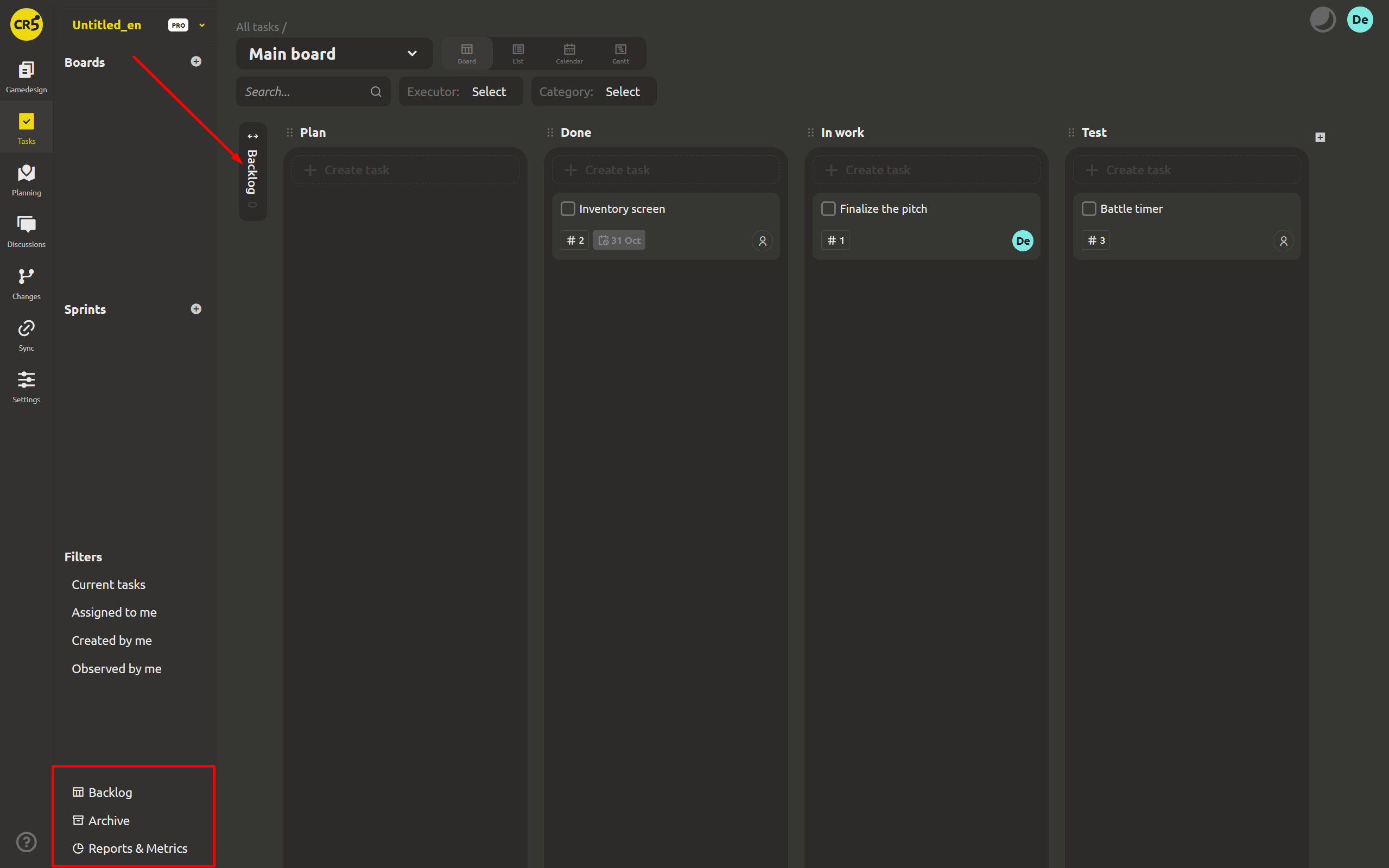
The Backlog collects everything that is not yet ready to be worked on: ideas, bugs, wishes and preliminary requests. Do not rush to move every new thought straight into the active columns; keep the information in as clear a form as possible and do not overload your team.
This way the working board keeps not just possible plans but concrete commitments the team has already taken on. When a task is ready to start, drag it from the backlog into the right column.
Archive for finished work that may come in handy
If a task is done, it does not have to stay in the "Done" column for months. Move the card to the Archive — either by hand or by dragging it onto the pinned Archive item at the bottom of the menu. And if a lot of completed work has piled up, use Move all completed tasks to Archive.
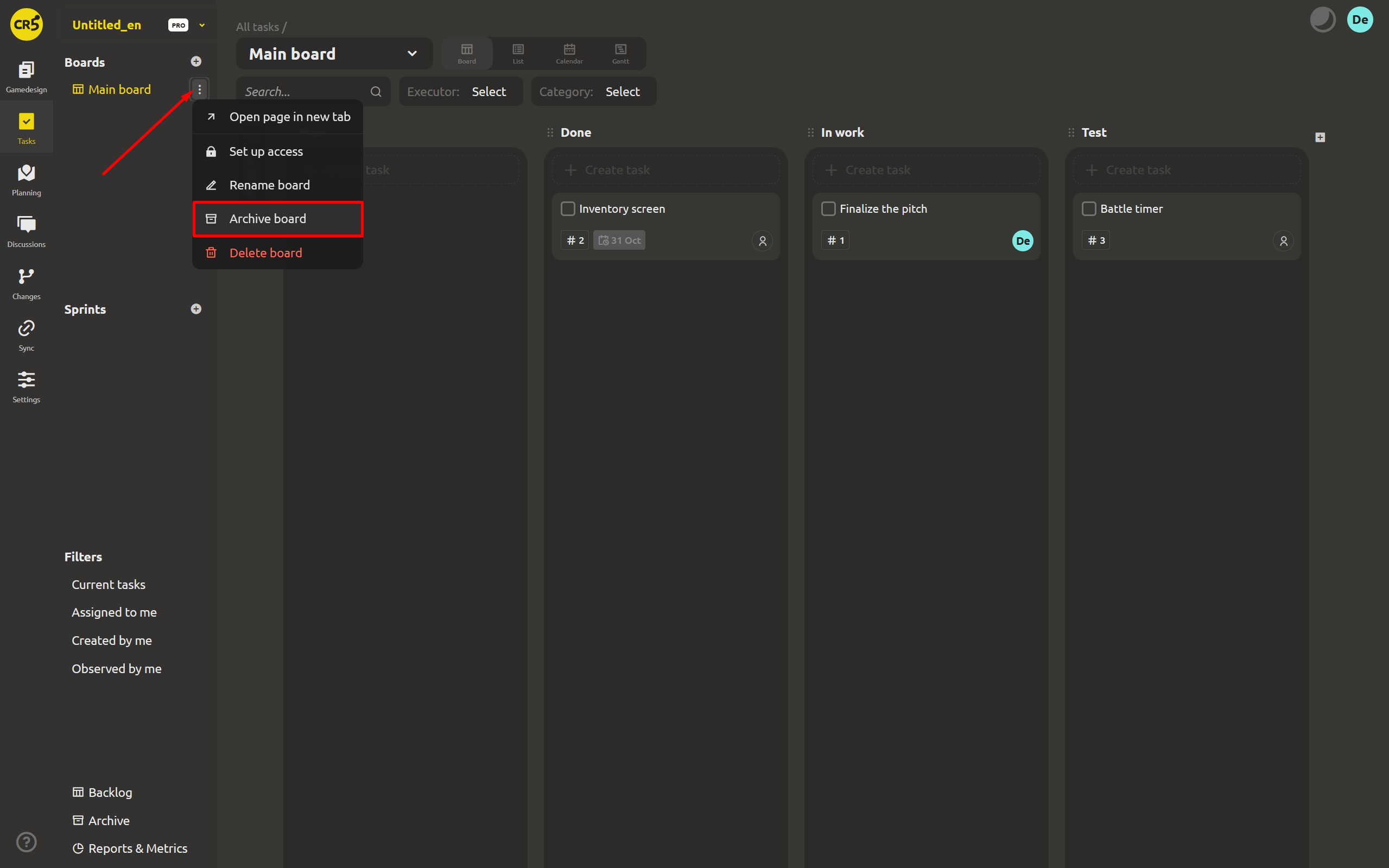
The archive is not just a place where old cards go. On the Archive page you can pick the category you need — Boards, Check lists or Sprints — and see all the information you need. If something is needed for work again, press Restore to bring it back with one click.
Whole boards can be archived too: choose Archive board and confirm — the board and its tasks will all be moved to the archive. Later you can restore it without losing the cards. If the archive is still empty, you will see: "Nothing archived yet".
In the end, everything falls into place: the backlog holds what you have not gotten to yet, the active columns show the current work, and the archive collects the finished. And the main point is that tidying up does not mean you delete anything permanently.
When there are many tasks, checklists come to the rescue
Not every small thing deserves to become a separate task card. A short list may be enough to check that a stage is ready, a boss needs a list of requirements, and a bug needs a few steps to reproduce. If you put every such detail on the board, it will quickly be overloaded again.
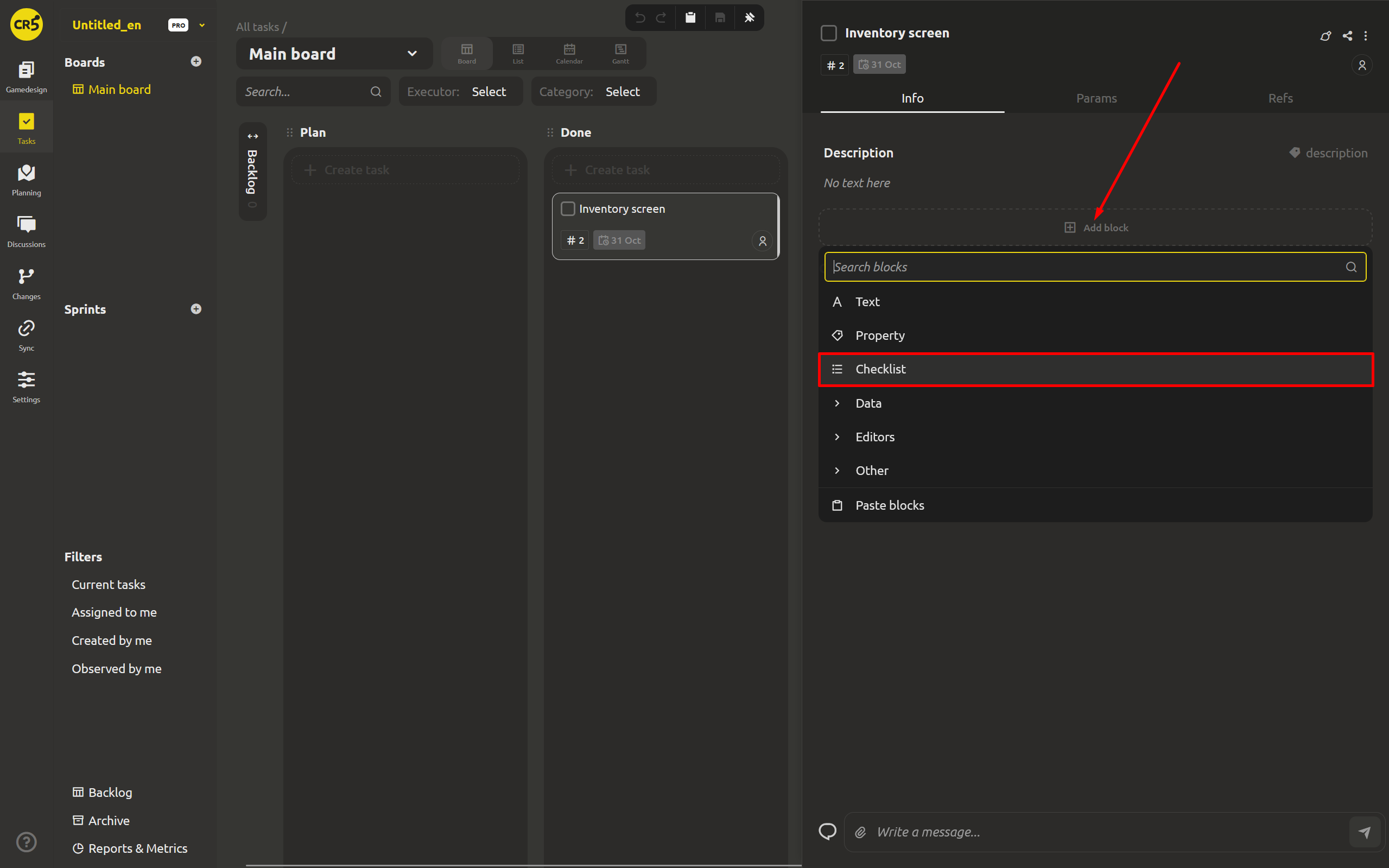
A Checklist lets you keep small lists right on the design element. Each item can be checked off as you go, and the system counts the progress itself — for example, "Completed 4 of 7 (57%)". The checklist stays next to the element it belongs to; you do not have to look for the list elsewhere.
On top of that, checklist items can easily become full tasks when needed. You can create a task right from an item: its text becomes the description, and the design element's name becomes the title. Or you can attach an existing task from a board or from the backlog.
Once attached, the checklist follows progress: as soon as you close the task on the board, the matching item will be checked off automatically. If the link is no longer needed, you can detach the task — the item becomes a regular list entry again.
In short, checklists help you keep the small details under control without overloading the board, and they also let you quickly turn a single item into a full task when it really matters.
What's next: sprints, deadlines and four views of the tasks
When the board is organized, it is easier to track current work. But there is still one question left: when is the task due? In the next article we look at how to plan work with sprints that have dates and goals, set deadlines via the Start at and Deadline fields, and look at the same tasks in four views: Board, List, Calendar and Gantt.
Next: "Two-week plans fall apart - run them as sprints and watch them on a Gantt"
FAQ
How many columns should I add?
Go by the real stages of your team's work. In the default format you will have 4 columns: Plan, Today, In progress, Testing. Usually the fewer columns there are, the easier the board is to read.
What should be sent to the backlog, and what left on the board?
Put ideas and rough requests in the backlog for work the team has not yet agreed to take on at this stage. Move to the board the tasks you have already started and assigned an owner to, and if possible, set a deadline too.
Is a card deleted after archiving?
No. Archiving removes cards from the active view but does not delete them. You can send to the archive not only tasks but also whole boards, checklists and sprints — all of this can be found and restored on the Archive page.
Can I set up the board for my own process?
Yes. You can rename, add, pin, edit and delete columns as your workflow changes. Different boards can use different sets of columns, and the default settings for new boards are set in Settings → Base objects → Task column.