This tutorial is a part of the Getting started series — Day 4, Week 2, Month 2.
The problem: the plan lives in a spreadsheet and the tasks live on the board
The sprint plan stayed in a spreadsheet that the team opened only at the kickoff, while the board showed tasks but not the deadlines they had agreed to meet. Just a few days pass, and the plan no longer matches the actual work. To figure out whether you are on schedule, you have to call a meeting, even though you would like that information on demand.
To connect the plan to day-to-day work, you need two things: a dedicated slice of time in which the team expects to reach its goal, and a view where deadlines are easy to see. IMS Creators has sprints and several ways to display tasks for exactly this.
Create a sprint and give it a goal
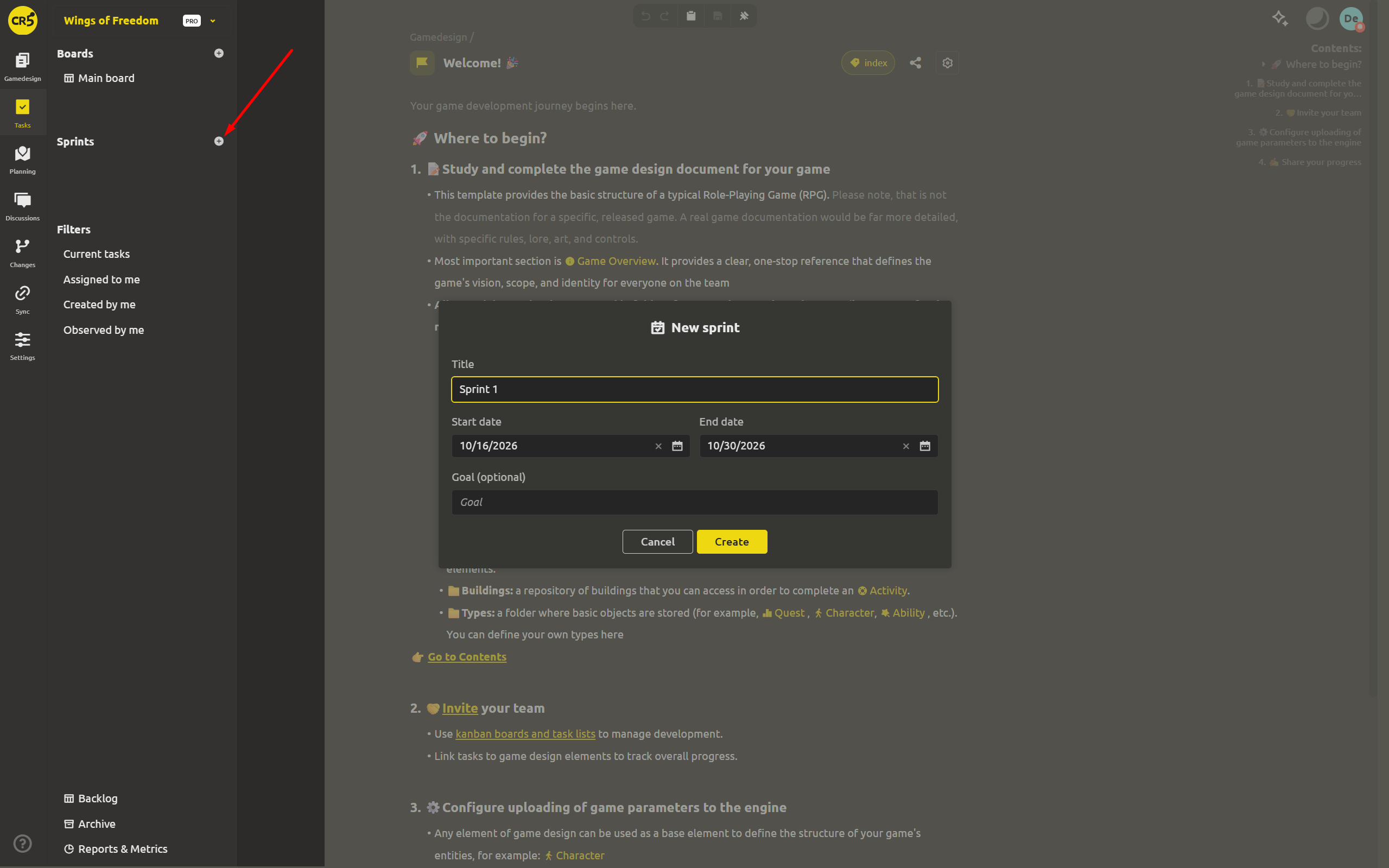
In the Tasks menu, find the Sprints section and click the create button. The dialog asks for four parameters:
- Title — the system suggests
Sprint 1,Sprint 2, and so on; you can rename everything to suit your needs. - Start date — set to today by default.
- End date — automatically set to two weeks later, which is convenient for a classic two-week cycle.
- Goal — briefly describe the result the team wants to achieve in this period.
After creation, the sprint gets a status that depends on its dates: Planned — before the start, Active — during the specified period, Ended — after the end date or after you close the sprint manually.
Add tasks from the board
Until you add tasks, the sprint stays empty. There are two simple ways to include work in it:
- Drag a card from the board onto the sprint in the Tasks menu. A notification "Task has been added to sprint" appears, and the task itself becomes linked to the selected period.
- Open the task you need and select a sprint in its parameters. There is also a Sprint filter on the board with a No sprint option, which helps you quickly find tasks that have not been planned yet.
The task is not copied or moved from its column: the sprint simply becomes one of its parameters. The card stays in its usual place, and the sprint page collects all tasks linked to it in one list.
Track how the sprint is progressing
The sprint page collects the key information about the selected period: the status, the date range, the goal, and two totals for the included tasks — SP (story points) and the estimate in hours. Two buttons are available here as well:
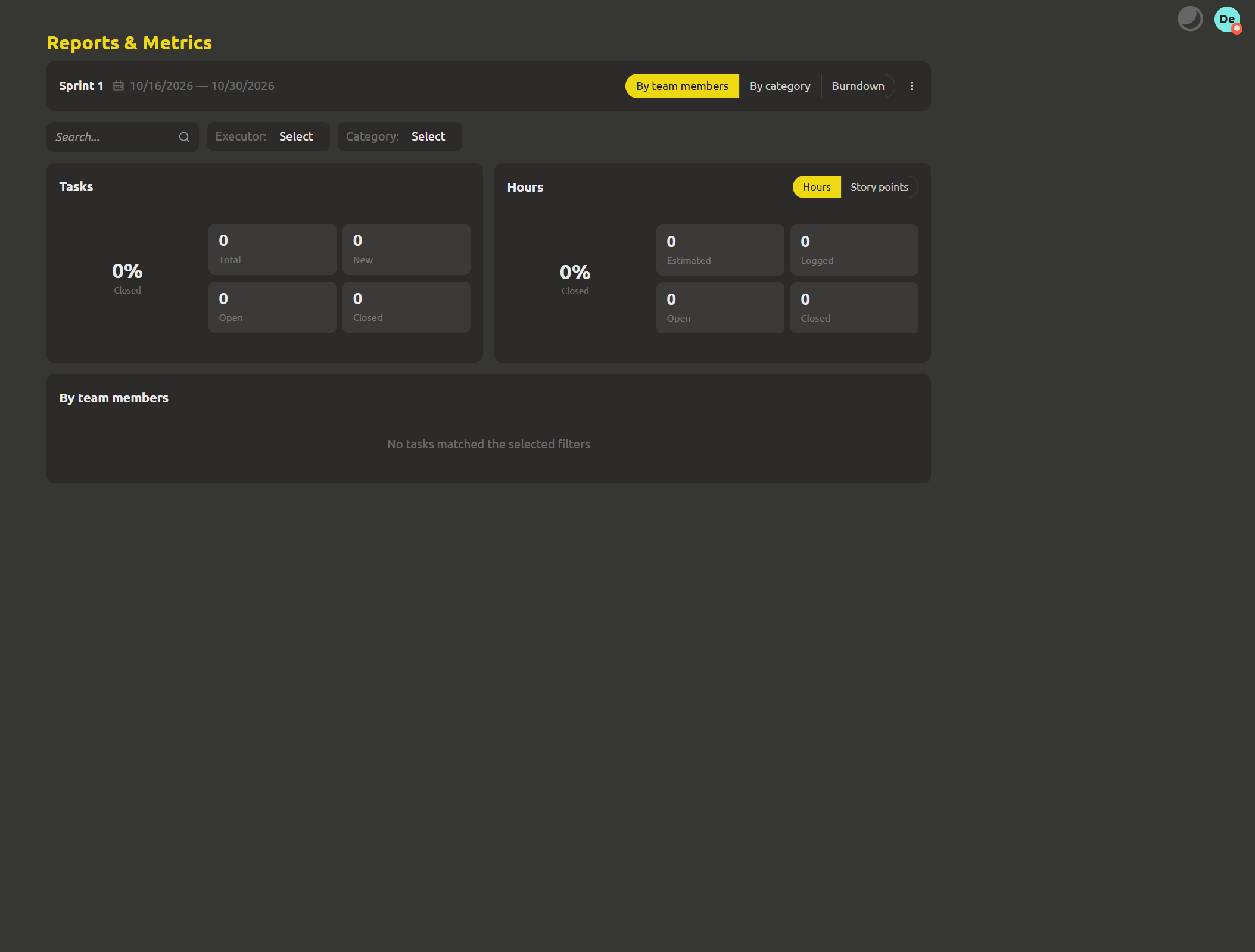
- Reports — opens the report for the dates of this sprint. It contains summary metrics, a breakdown by category or by team member, and a burndown chart. All of this data can be viewed both in hours and in story points.
- Close sprint — lets you finish the sprint early. The end date becomes today, and unfinished tasks are excluded from the sprint so that you can start the next planning cycle with a clean slate.
The report header already shows the sprint name and dates, so you do not need to select a time range separately: the report automatically shows data for the required period only.
If needed, a sprint can be archived or deleted through its menu. When you delete a sprint, the tasks themselves are preserved — they simply stop being linked to it.
Four ways to display tasks
Every task page has a switcher in the header. The tasks themselves stay the same, but each view helps you see a different side of the work:
- Board — cards are arranged in columns, so the current state of the process is easy to assess at a glance.
- List — tasks are shown as rows with their parameters; convenient when you need to compare details or run an audit.
- Calendar — shows tasks by the days they are planned for.
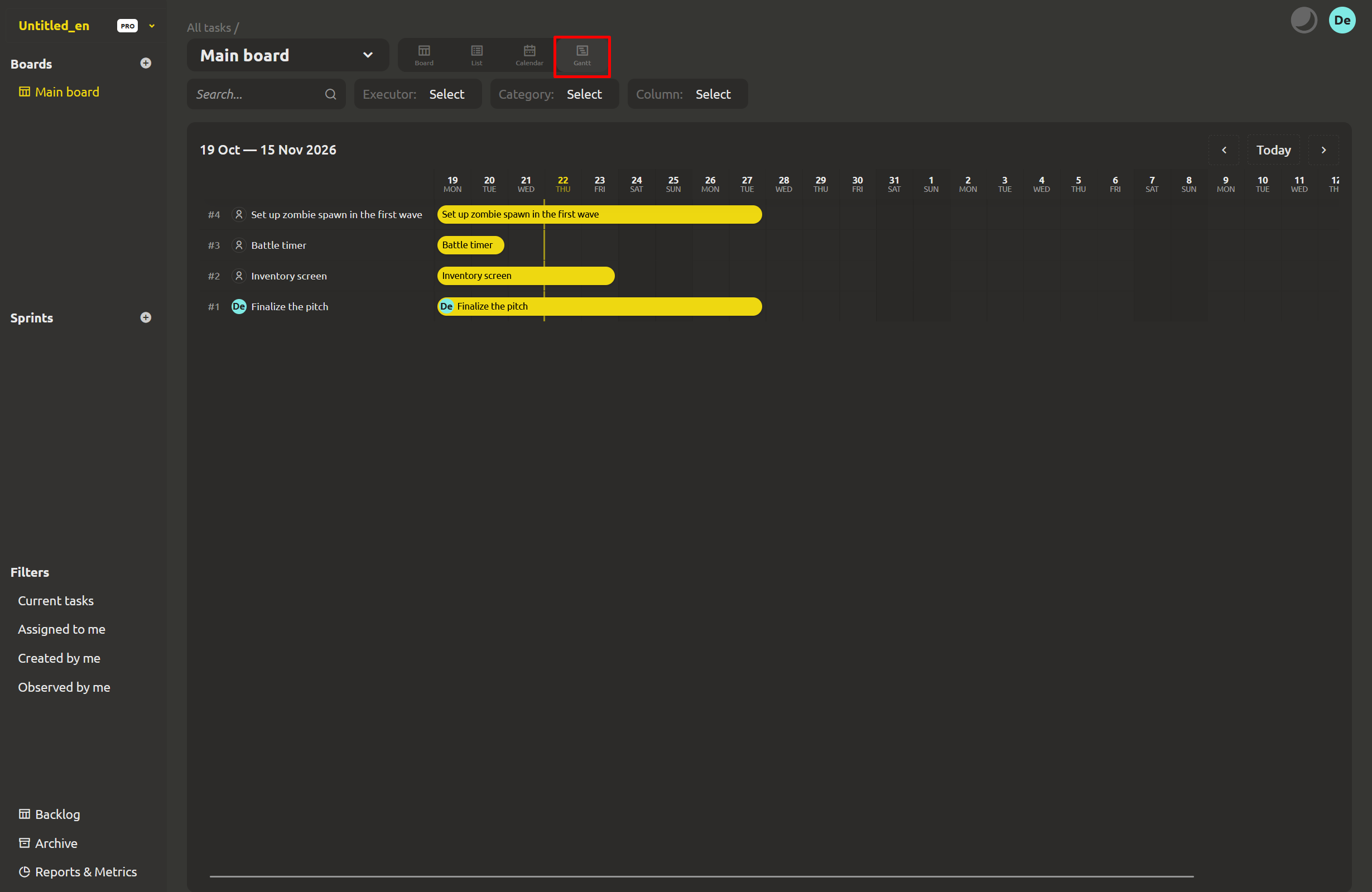
- Gantt — a timeline where each task has a bar that reflects its dates.
Gantt chart: adjust the plan to real deadlines
On the Gantt chart, a task's bar spans the period from its Start at to its Deadline. If only one date is specified, the task is displayed as a single day. You can change the dates right on the timeline:
- Drag the whole bar to move the task to another period.
- Drag the edges of the bar to change the start or end date.
- Use the calendar below the tasks as a guide: weekends are shaded, and the vertical today line helps you see where you are relative to the plan.
- Switch the displayed period with the prev / Today / next buttons.
If a task does not have dates yet, hover over it: a + icon appears with the action "Set start date". This lets you add the task to the timeline without opening its card. If there are no tasks for the selected period, the system shows the message "No tasks in this period".
When you open a sprint, the Calendar and Gantt automatically limit themselves to its dates. As a result, you see exactly the period the team has committed to rather than the entire task history.
What's next: discuss work in the context of the task itself
Dates help keep the plan under control, but they do not solve another problem on their own: important decisions can still get lost in conversations. The next step is to move discussions to where they are actually needed and leave comments next to the relevant game design element.
Next: "Decisions vanish into chat history - discuss next to the design"
FAQ
What is a sprint?
A sprint is a dedicated slice of time in the Tasks menu with a title, start and end dates, a goal, and a set of linked tasks. It can have the status Planned, Active, or Ended, and its tasks are summarized by two metrics: SP and estimated hours.
What happens if I close a sprint?
The end date changes to today, and unfinished tasks stop belonging to this sprint. They remain on the board — only their link to the sprint changes. Before closing, a confirmation dialog appears to warn you about this.
Do I have to set both Start at and Deadline?
No, you can specify just one of the dates, or both. The Calendar and Gantt chart will display the data you have: if both dates are set, the task will occupy the corresponding period, and if only one is specified, it will occupy a single day. The Start at and Deadline fields are optional, but with two dates a two-week plan is much easier to grasp on the timeline.
Can I use the Gantt chart in the desktop app?
No. Tasks, sprints, and all four views are available in the cloud workspace. The free desktop app is intended for working with the design and syncing it, while the board and timeline live in the browser — where the team plans and coordinates work.