
This tutorial is a part of the Getting started series — Day 4, Week 3, Month 2.
The problem: deadlines discussed in the morning, forgotten by lunch
At a meeting, someone casually says: "I think, two days". The estimate isn't recorded anywhere, and by Friday it turns out the work took the whole week. The team discusses deadlines again, trying to reconstruct the original agreements from memory. The board already helps understand what needs to be done and who is responsible for it — we talked about that in Week 2. But it's still unclear how much work lies ahead and how much time it actually takes.
The solution is simple: add two indicators to each card to spend just a couple of minutes tracking time each day.
Two indicators for each task: time and complexity
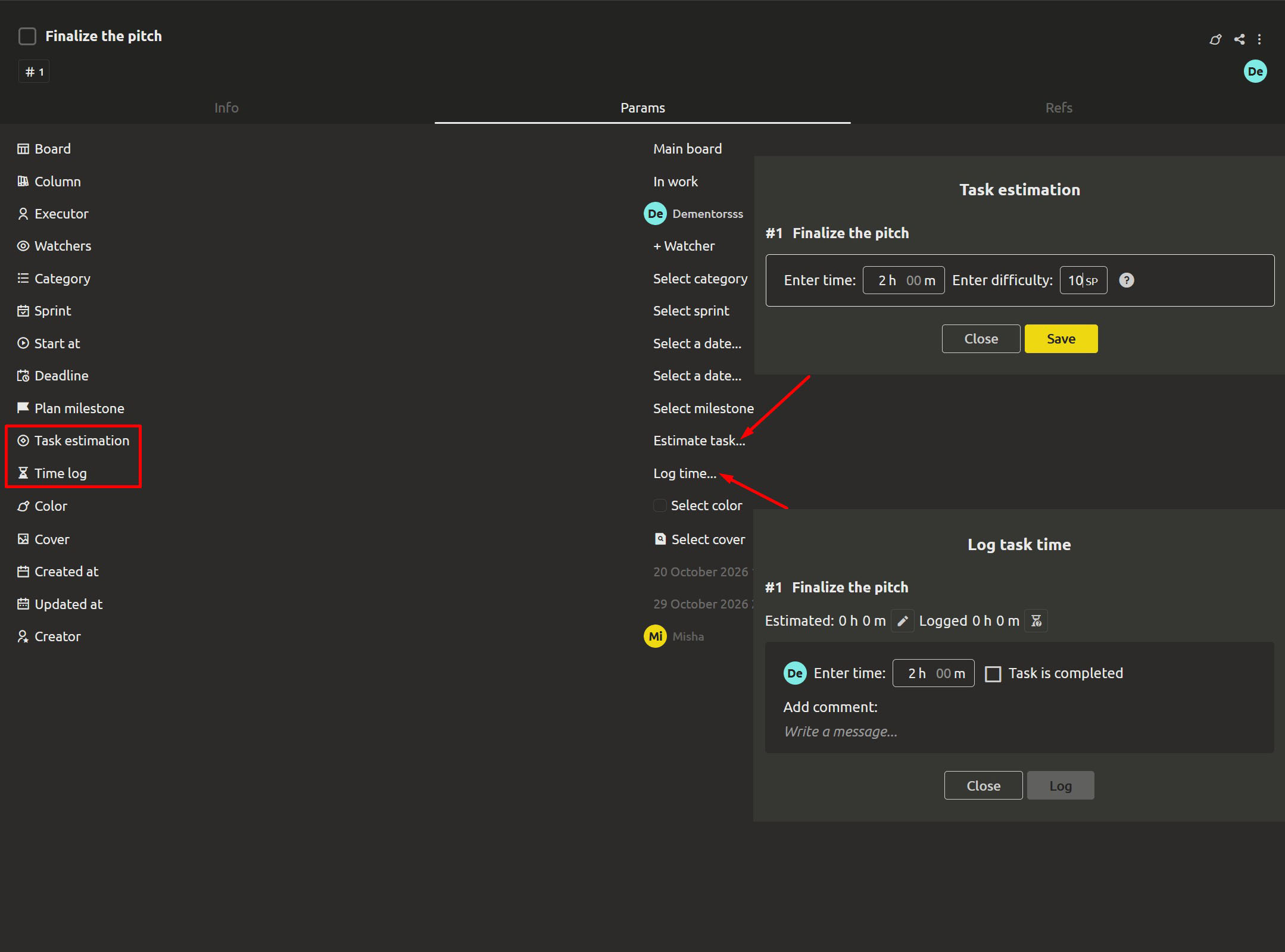
Open a task and select "Task estimation". The dialog that appears will show the task number and name, and below — two fields for estimation:
- "Enter time" — how many hours and minutes, in your plan, are needed to complete the task.
- "Enter difficulty" — estimation in story points. Next to it there's a hint: "SP (Story Points) — a relative measure of task complexity used in agile development methodologies". This is a way to compare the volume of work with other tasks, not a promise to finish it by a specific date.
Fill in the fields you need — the estimate will be displayed directly on the card and in the "List". Also, the data will go into the sprint summary, where SP and planned hours are summed up. You already got familiar with these totals in last Thursday's article.
Why use relative estimates? They help compare tasks without arguing about the exact number of hours. For example, a task of 5 SP is roughly half the volume of a task of 10 SP. After several sprints, the team can estimate new tasks more easily based on overall experience, rather than a vague "well, probably two days".
Track actual time spent: time logging
The estimate shows how much time is planned to be spent, and time tracking helps you see how it actually went. When working on a task, click "Log task time" and fill out the entry:
- Select who is logging time. By default, the current user is selected.
- In the "Enter time" field, specify how much time was actually spent.
- In the "Add comment" section, explain what the time was spent on, for example: "Half the time was spent fixing the import".
- If this entry means the task is already completed, check the "Task is completed" box — there's no need to open a separate window.
All entries are saved in the "Logged time" list. If no time has been logged yet, the message "No time is logged yet" will appear. If necessary, entries can be edited or deleted. It's better to track time as you work, rather than trying to remember everything on Friday evening — those memories are rarely accurate.
Dates answer "when", estimates answer "how much"
Now you can connect the features you learned in Week 2. The "Start" and "Deadline" fields set the task's time frame: in the "Calendar" you can see how much time is allocated for the work, and the Gantt chart shows this interval as a bar that can be dragged. The estimate complements the deadlines and helps you understand whether it's realistic to meet them.
For example: if a task has 3 days allocated but the estimate is 16 hours, the plan may be quite realistic. But if the same 3 days have 40 hours of work, the deadlines will likely need to be revised. Thanks to the estimate, this becomes noticeable already on Monday, not late Thursday evening. The sprint page sums up both indicators — SP and hours — and the burndown chart uses this data to show how the team is progressing toward completing the planned work.
What's important to know
- Tasks, estimates, and time tracking are available in cloud projects.
- The cloud space PRO costs 300 rubles per month per participant; new users get a 30-day trial period without linking a card.
What's next: turn the data into a report
Spending a couple of minutes tracking time each day helps collect useful data without extra effort. And on Friday, you'll learn how to turn it into a report that clearly shows the team's progress and saves you from manually compiling another status update.
Next: "Progress you can show — the metrics report instead of a status update"
FAQ
Do I have to specify both hours and story points?
No, you can choose the format that's more convenient for your team. Hours help plan work by calendar, while story points help compare the relative complexity of tasks. Many teams use only one of the indicators. In the report, you can switch between hours and story points, so it's better to choose the option your team is ready to update regularly.
Where can I see the estimate without opening the task window?
The estimate is displayed as a badge directly on the card and in the "List". On the sprint page, at the top, the total values of SP and hours are collected — so you can quickly assess the total volume of work.
Can multiple team members log time on the same task?
Yes. In the "Log task time" window, there's an option to select a user. Each entry stores the author, time spent, and comment, and all entries are displayed together in the "Logged time" list.
Can I change the estimate after the task is completed?
Yes. In the change history, information is saved about who and when changed the estimate. Time tracking entries can also be edited or deleted.