
This tutorial is a part of the Getting started series (Week 4, Day 4, Month 2).
The problem: one task, two records
In the previous article we taught the project's elements to compute their readiness from a checklist. But in real work the team follows tasks on the board more often. For example, the "fix the hitbox" item lives in the checklist while the same work is a separate card on the board.
So one task has to be ticked in two places. One person updates the checklist, another moves the card, and after a few days the statuses stop matching. In the end it is unclear which record reflects the real state of affairs.
The fix is to bind the board task to the checklist item. Then the team no longer has to maintain two copies of the same information: updating the status in one place is enough.
Create a task or attach an existing one
Open the menu of the checklist item you need. Next to Delete item you will find two options:
- Create task - the app opens a pre-filled form. The title follows the template "Element: item" (for example "Level 3: fix the hitbox"), and the item's text goes into the description. The item's own tick resets: from now on its state is determined by the bound task.
- Attach task - this option is for work that already exists. The list lets you pick a card from a board or a task from the backlog. If you pick a backlog task, the app asks which board to move it to, landing it in that board's first column right as it binds.
Both commands are available only if you have editing rights in the tasks workspace and the team menu is enabled. Binding is built for team work, so in solo mode these actions do not appear.
What a bound item looks like
Once bound, the checklist item becomes interactive. Instead of a plain line you get a link to the task with the Task label, an assignee selector, and a colour strip that helps you spot the card.
Click the link to open the task preview right on the current page. To open it in a separate tab, use Ctrl/Cmd + click. The Detach task command in the menu breaks the link without removing either the item or the task.
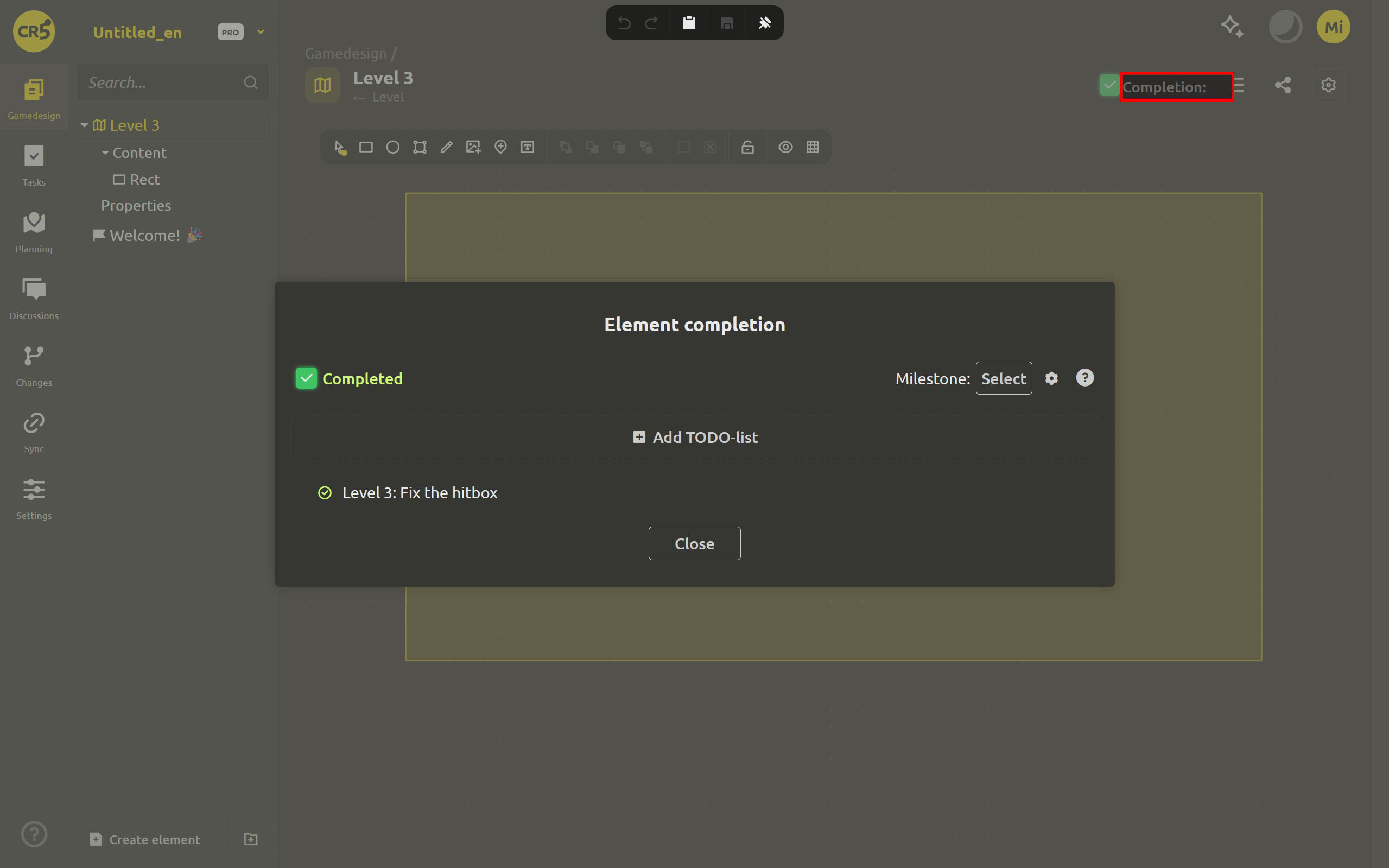
Statuses sync in both directions
The main advantage of the link: no more manual syncing between the checklist and the board. They work with a single status:
- Tick the checklist item - the bound task on the board also moves to completed.
- Finish the task on the board - the checklist automatically picks up its status. The element's readiness percentage recalculates, and the new value shows on the element itself, in the dialog and in the Planning column.
- Mark the element completed - the mechanism from the previous lesson kicks in: the bound tasks close together with the element.
One task, one current status. The team can look at it in the checklist and on the board alike, without updating anything by hand.
Deleting the item? Decide what to do with the task first
If you delete a checklist item that has a task bound to it, the app asks: "Task is attached to the item. What should I do with it?"
You can pick one of four options:
- Detach - remove the link, keeping both the item and the task.
- Delete - delete the bound task.
- Move to archive - move the task to the archive.
- Move to backlog - return the task to the backlog.
The app remembers your choice and suggests it the next time you delete. That way you do not accidentally lose someone's card along with the checklist item.
What to keep in mind
- The link works in the cloud version. The local app keeps its checklists local. You can tick items by hand there, but there is no task board in this mode to bind them to.
- Creating and binding tasks requires rights. The team menu must also be enabled and the tasks workspace must be editable. A project viewer can see the link but cannot change it.
- Readiness is still computed from the checklist. The bound task feeds it its status instead of creating a second independent metric you would have to maintain separately.
What's next: summing up the second cycle
The plan now has dates, elements report their own readiness, and board tasks update the bound checklist items. In the next lesson we will gather this data into a single overview and look at the whole month at once.
Next: "When is the game actually ready?" (Week 4, Day 5)
FAQ
Do I need to create a card for every checklist item?
No. Unbound items can be ticked by hand; they take part in the readiness calculation exactly the same. Bind only the items whose work is already happening on the board. The point of the feature is to remove duplication, not to make the team create hundreds of extra cards.
Which status wins if I tick both?
There is no need to pick a winning status: it is the same information. The checklist gets its state from the bound task, and ticking the item in turn updates the task. So the statuses cannot drift apart.
Can I assign someone directly from the checklist?
Yes. The bound item has the task's assignee selector. Pick another member and the task on the board gets a new owner; no need to open the card.
Does binding work in the desktop app?
No. Binding needs a task board, and it is available in the cloud project. In the app a checklist stays a local list whose items you tick yourself.