
This tutorial is a part of the Getting started series — Day 2, Week 2, Month 2.
The problem: guesswork instead of agreements
A task is already on the board and even sits in the "In progress" column, but who exactly is responsible for it is unclear. One team member is sure the task is theirs, a second thinks the same, and someone else simply assumes a colleague will pick it up. Friday arrives, and nothing has moved.
Visibility of tasks alone is not enough. It is important to agree on three things: who does the task, who needs to follow its progress, and when it must be ready.
Assign an owner - lock in the agreement
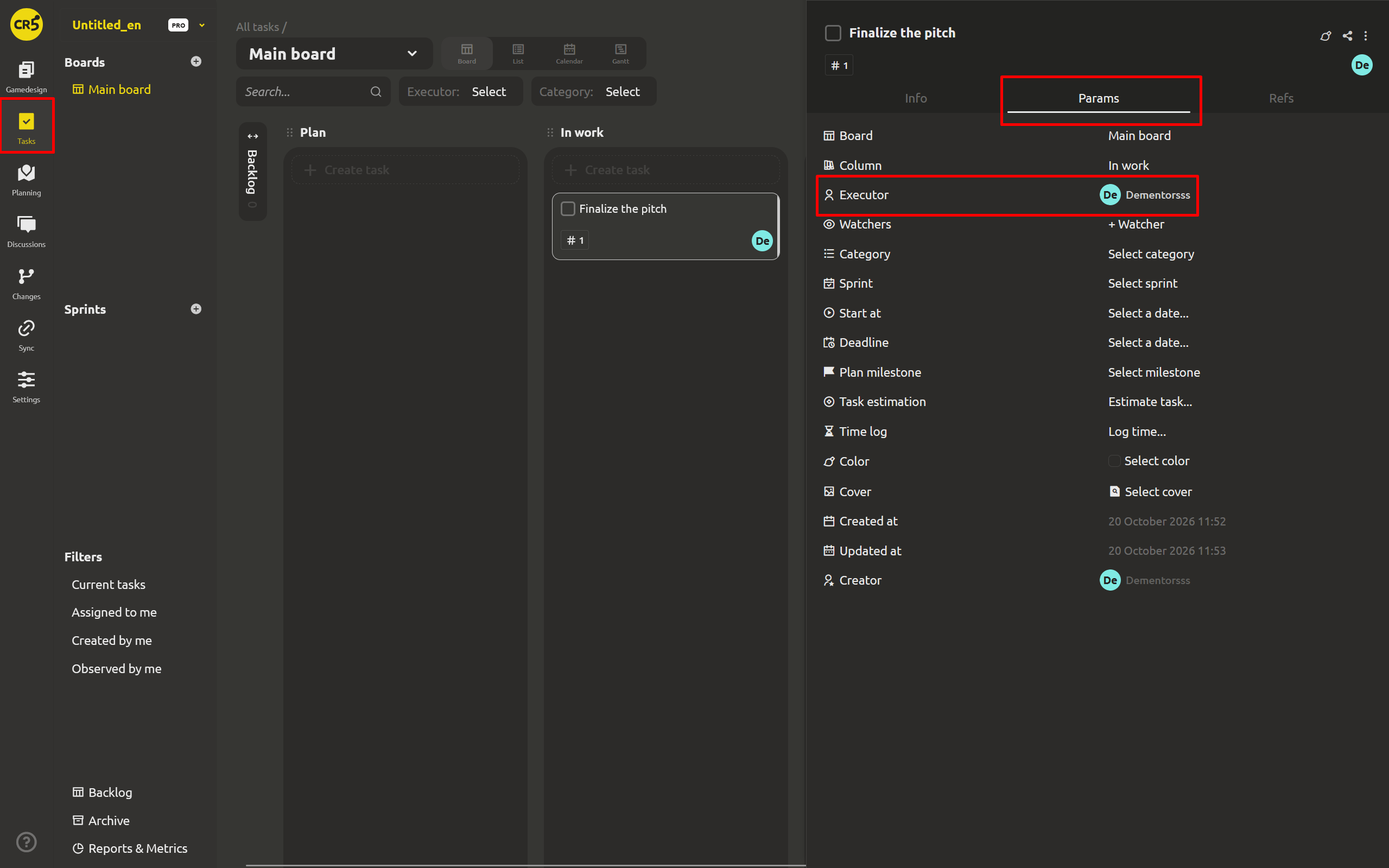
Every card on the board has an Assign user button. Until an assignee is selected, it shows Nobody. Once you name a specific person, there is far less reason for the phrase "I thought you were doing that". The owner is the one who takes on the commitment to move the task toward a result.
Add watchers who need to stay in the loop
Not everyone who cares about the result has to do the task themselves. Sometimes it is enough to understand how the work is progressing and whether it will affect your own plans. To do this, click + Watcher and add colleagues who need updates. They follow the changes without becoming extra assignees.
Watchers are especially useful when a task touches several areas at once: for example, an artist delays work on assets that a programmer depends on, or design changes affect the interface.
Discuss the task where it lives
Not every message requires its own card. It all relates to a specific task, so it is more convenient to discuss such questions directly in it rather than in a chat where a message gets lost among new ones within a day.
For this, every task has comments - a separate thread right on the card. Here you can write a message, reply to a colleague, add a reaction, or attach a file, keeping the whole conversation next to the task. An unread indicator shows that a new reply has appeared in the discussion.
For now, we are talking about discussing a single task. Later in the series, on Day 5, we will look at Discussions - it is intended for communication and interaction across the whole project.
Set the dates: start, deadline, categories, and calendar
Now a task can have two dates, and each has its own role. Deadline shows the day the work must be finished, and Start at shows when work is planned to begin. If you set both dates, the task occupies the entire span between them: that is the segment shown in the calendar and as a draggable bar on the Gantt chart. If only one date is set, the task is marked in the calendar on that day.
Grouping by categories also remains available; it makes it easier to understand what the team is busy with during the week.
Dates are not for micromanagement; they are there to see real constraints in advance. If a day is already full of tasks, you will have to decide what to move and what really must be finished on time.
Important: if a task has Start at set, it appears in the calendar from the first day of work, not only by the deadline. That way, tasks planned for the middle of a sprint do not stay unnoticed until the last moment.
What's next: backlog, archive, checklists, and columns that fit
Now the board shows not only what needs to be done, but also who is responsible for it and when the result is expected. The next step is to learn how to keep things in order: use the backlog for incoming ideas, move completed tasks to the archive, set up columns for the team's workflow, and add checklists for small steps that do not need their own card.
Next: "Your board became a junk drawer" - backlog, archive, and columns that fit
FAQ
What does "Nobody" on a card mean?
It means that no one has taken responsibility for the task yet. If the card is already in the "In progress" column but the field still shows "Nobody", it is time to assign an owner.
Who is better added as a watcher rather than assigned as an owner?
Those who need to follow the progress of the work but will not do it directly. For example, a producer who needs to understand how a related task is progressing, or a team lead who needs to see the changes.
Does the calendar move deadlines automatically?
No. The calendar shows each task over the span from Start at to Deadline so you can spot overload and overlaps. But it does not change the dates; the decision to move them is up to you.