
This tutorial is a part of the Getting started series — Day 5, Week 2, Month 2.
The problem: after a couple of days of active development, the message is already impossible to find in chat
"Who agreed to remove that enemy?" You scroll through the conversation trying to find the right message, but over three days it has gotten lost among memes, stickers, and discussions of other topics. Someone remembers that the team seemed to say "yes", but linking that decision to a specific game design change no longer works.
The problem is that the work and its context live in different places: the GDD itself is in the project, while the reasons and arguments for a decision stay in messenger chats.
Comments: discussing a specific block
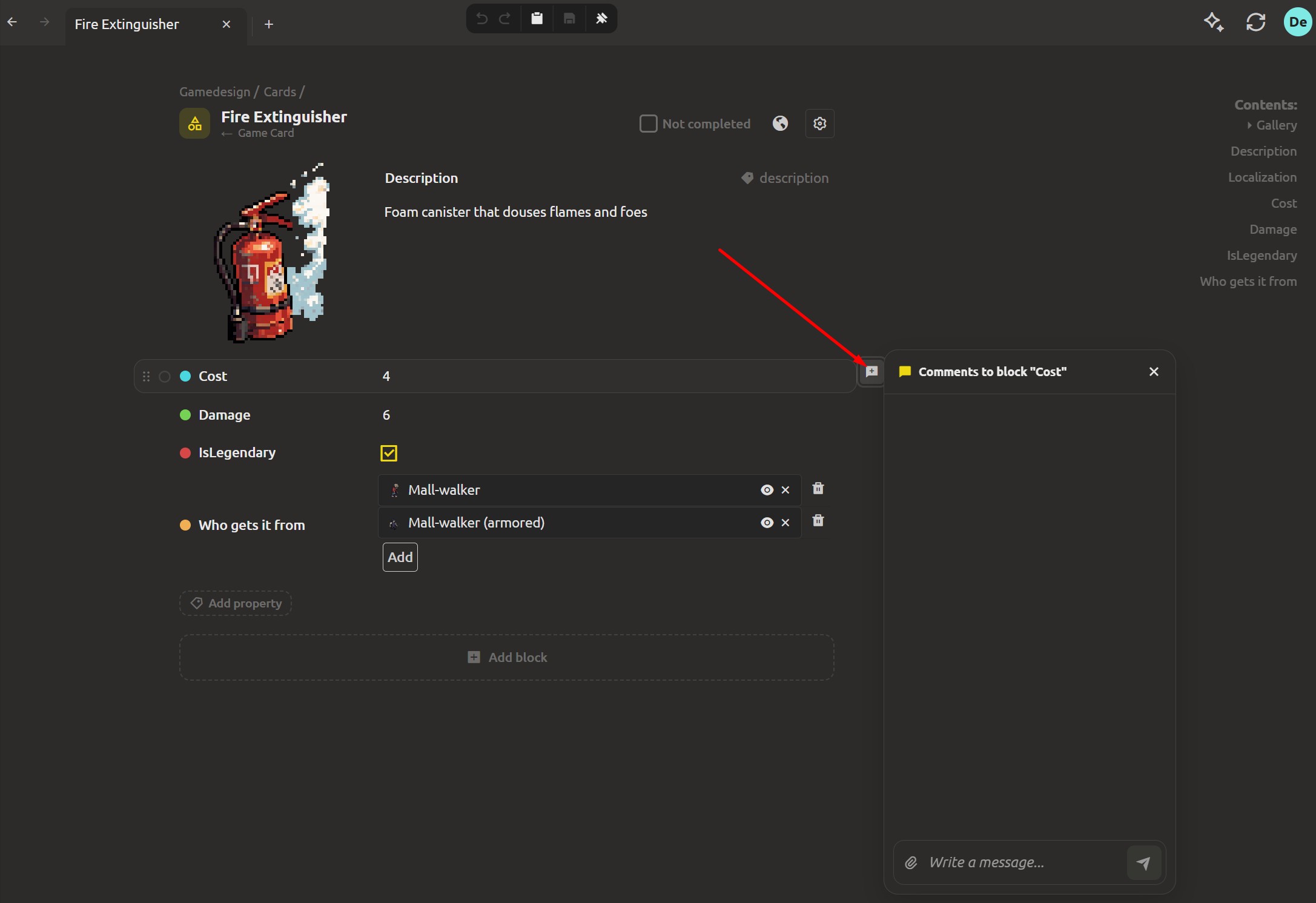
Sometimes a question concerns just one detail: why this particular value was chosen, which icon needs replacing. To avoid discussing such small things in the general chat, next to every block there is a comment icon. Click it and a separate thread opens with the heading Comments to block, dedicated to that exact element.
Here you can hold a full conversation: write a message, reply, add a reaction, attach a file, or mention a colleague using an @mention. And when a new message appears, an unread marker lights up on the comment icon.
You have already seen a similar mechanism on task cards — we covered it in Task comments. The principle is the same, only the place of discussion changes: there you talk about a task, and here — about a specific game design block.
Discussions: a space for the project's shared topics
But not every conversation can be tied to a separate block. For example, the team needs to discuss the scope of work, choose a general direction, or decide whether a particular enemy should be removed from the game at all. For such questions, the project has a separate Discussions section.
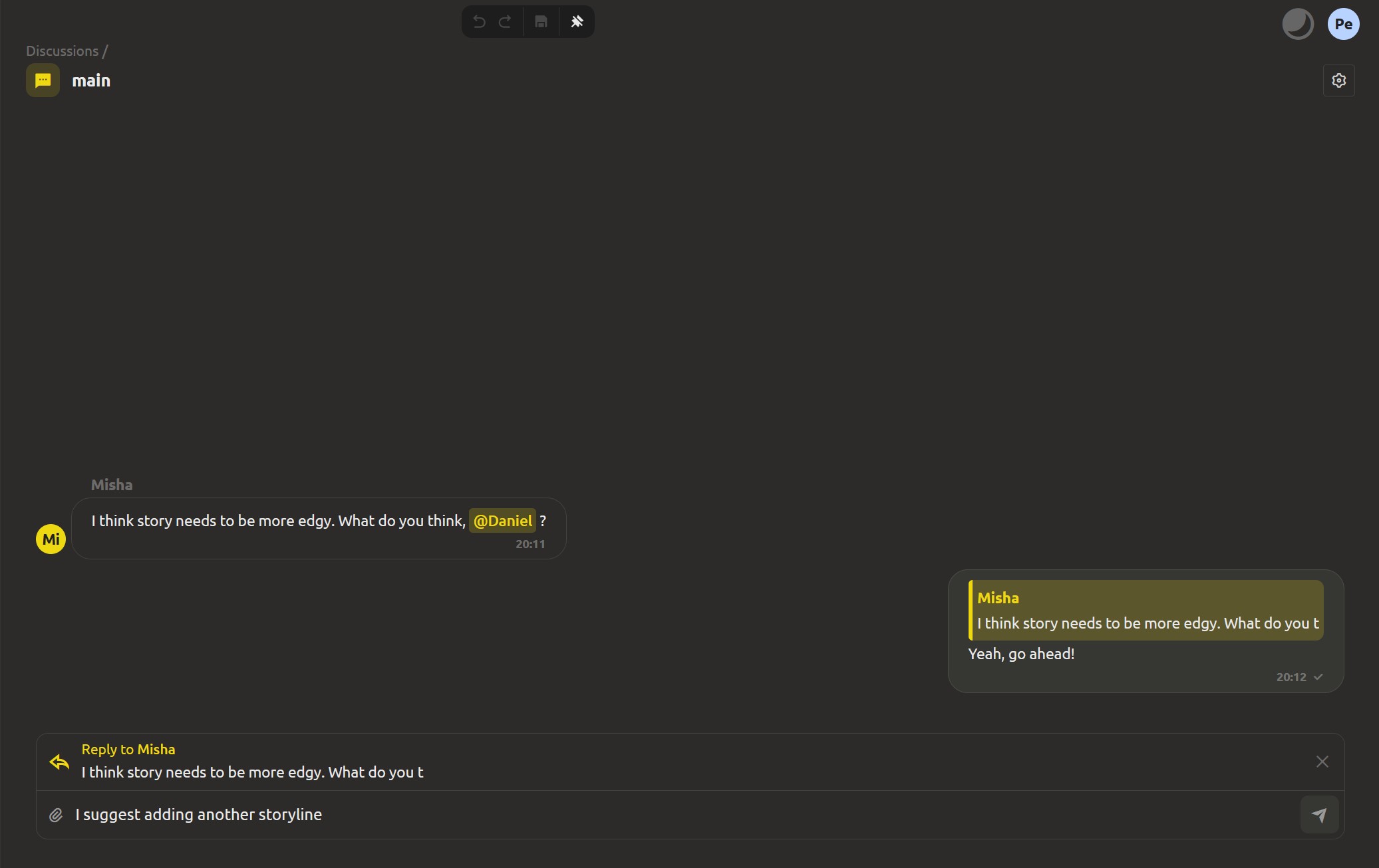
In it you can create discussions: each one becomes an independent topic with its own message thread. To keep things organized, topics can be distributed into folders — just like you organize elements inside the GDD. At the same time, a discussion is not tied to any single block: the topic itself serves as the gathering point, and all participants see the shared conversation history.
Simply put, comments help you work through a specific detail, while the Discussions section is suited to conversations that affect the project as a whole.
Write, reply, and leave reactions
Comments and discussions work the same way: in every thread you can write a message, reply to a colleague, add a reaction, or attach a file. You can also check whether a message was edited or deleted. And with @mentions it is easy to get the right person's attention right in the discussion — without copying links or moving the conversation to the general chat. Even a new team member can open the needed thread and understand not only what changed, but also why that decision was made.
What's next: defining participant permissions
This week we covered the main collaboration tools: a shared board that the whole team can easily read (Day 1), tasks with owners, watchers and deadlines (Day 2), ways to keep the board tidy (Day 3), and sprints and the four task views (Day 4).
One important question remains: what actions should each team member be allowed to perform? Next: we will look at roles and access rights, so you can share the project with colleagues without worrying about the safety of your files.
Next: "Everyone edits everything - roles that say who is who" (Week 3, Day 1)
FAQ
Where are block comments located?
They are available right in the element editor: find the comment icon next to the block you need and open the thread. In a cloud project, comments sync with the team; the desktop app also shows them in projects connected to the cloud.
Where do I find discussions?
In a cloud project, open the Discussions section. It is a separate space next to the game design where you can hold conversations about project-wide topics without tying them to a specific block.
Can I mention a team member?
Yes. Use an @mention to get the right person's attention right in a comment or discussion thread.
Do discussions work in the desktop app?
No. The Discussions section is available in the cloud workspace.
What is the difference between a comment and a discussion?
A comment relates to a specific block of a game design element or a task and helps discuss exactly that. A discussion is a separate topic in the section of the same name, intended for questions concerning the project as a whole. For example, comments can clarify why a certain value was chosen, while a discussion can decide whether an enemy should be removed from the game.