
This tutorial is a part of the Getting started series — Day 3, Week 3, Month 2.
The problem: changes exist, but their history is lost
Last week, the drop chance for an item was 4%, and by Monday it had grown to 6%. Five people have access to the project, but the chat history only contains a message saying "fixed the numbers". As a result, the game economy behaves unpredictably, and the team starts figuring out who changed what right in the middle of a playtest.
If users have access but no way to track changes, arguments and blame-shifting will happen constantly. The change history solves this problem: the project keeps a record of all manipulations made to it.
The "Changes" section: history of your game design
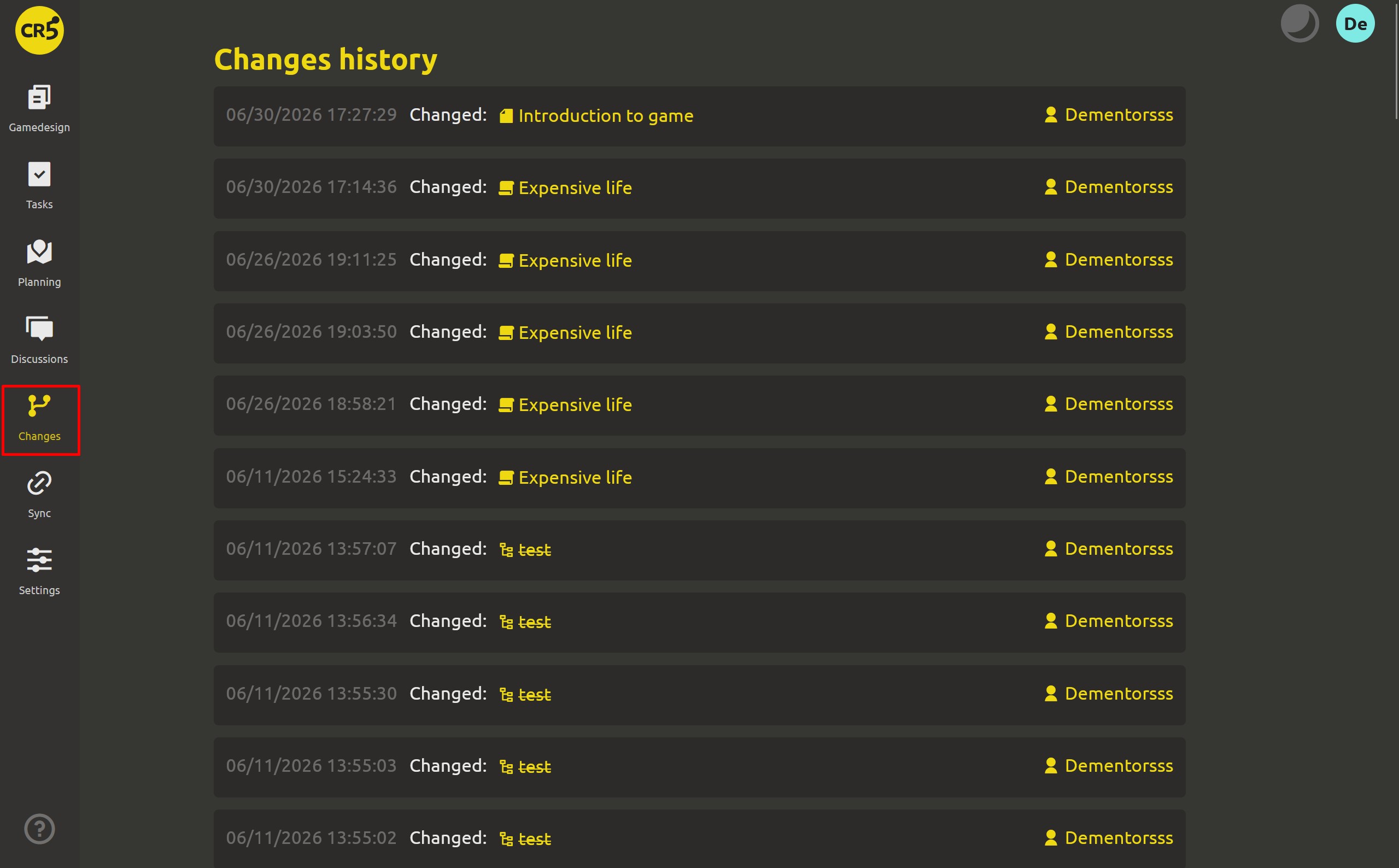
Every cloud project has the "Changes" section available from the very start. You may have noticed it on the cloud project workspace map, and now let's see why it's needed. Here you'll find a general feed of edits across the project, where each entry shows who, when, and what was changed. You can browse it like a regular feed, and if no one has edited the project yet, you'll see the message: "No changes yet".
There's nothing extra to enable or configure: history is tracked from the first day of working on the project. The access rights we talked about yesterday determine who can view the data, and history helps you understand what changes were made.
The same history, but in more detail — down to a single element
If you need to find out what happened to a specific card or other element, open its menu and select "Changes". You'll see the history of just that element: each entry starts with the mark "Changed:" followed by what exactly happened — for example, the element was renamed, a block was changed or created, or properties were edited.
So the question "who changed this number?" no longer requires searching through chat: just open the history to see the username, the time of change, and the list of edits made.
There are two important features:
- History works in the cloud and respects configured access rights. Users who have full access to a specific element can view its history — the same rules we discussed in Tuesday's article. If a user only has read-only access, it remains read-only — even when viewing history.
- You can work with versions in different ways. Each entry's menu has "Restore this version" and "Save as copy" actions. The first returns the element to its previous state, while the second saves the old version separately without affecting the current one. This is useful if you want to compare options but aren't ready to fully undo recent changes.
Restoring previous versions
Restoration works exactly as the name suggests: the selected old version becomes the current one. This is useful if someone made unwanted changes, for example rewriting element parameters overnight. However, this feature should be used with care. Don't forget the rules we discussed in Tuesday's article: the fewer people who have full access, the lower the chance of accidental edits and the need to roll anything back.
Important notes:
- This is not a backup. History tracks changes within the workspace, but it doesn't replace a full backup. For backup storage, use local files from the desktop app and exports — we talked about this in Month 1.
- This is not a place for discussions. History answers the questions "what changed?" and "who did it?", but not "why?". To discuss a decision and leave a comment, you can do it right next to the work — in discussions and comments, which we covered last week.
Important limitations: where history is available
- Change history is a cloud workspace feature. In the desktop app, it's not available: there's no team layer, no "Changes" section, and no versions. On your computer, you work with the project files themselves, and you can track their changes using git if you use it in your workflow.
- In the cloud workspace, you don't need to configure history separately or limit its storage period. There is no free cloud plan — all cloud spaces are PRO, and the project stores full history with no time limit starting from the first edit.
What's next: replace "almost done" with concrete numbers
History helps you understand what already happened and who made the changes. Next, in Thursday's lesson, we'll talk about planning future work: we'll look at estimates, time tracking on cards, and the report that helps you clearly show the team's progress.
Next: "'Two days, probably' — estimates and time tracking on every card"
FAQ
Who can view history?
The "Changes" section is available to project participants in accordance with the rights configured in Tuesday's article. To open the history of a specific element, the user needs full access to it.
For what period is history saved?
History is tracked from the very first edit and has no time limit. Since all cloud spaces are PRO, the changes feed will grow as the project develops.
Can I restore a previous version?
Yes. Select "Restore this version" to return the element to its previous state. If you want to keep both the old and current versions, click "Save as copy": the original element will remain unchanged, and the selected version will appear separately — you can compare it with the current one or examine it in more detail.
Does the desktop app save history?
No, change history is only available in the cloud workspace. In the desktop app, your work materials are stored as files on your computer, and you can track changes to them using git — as we discussed in Month 1.