
This tutorial is a part of the Getting started series — Day 5, Week 3, Month 2.
The problem: "we're almost done" — but where are the real results?
Every Friday, the team sums up the results, and someone estimates the project's readiness at around 90%. But when you ask where that number comes from, the confident answer turns into a vague "well, the tasks are generally progressing". Meanwhile, the team already has a board, deadlines, and time tracking records — so progress can be calculated based on real data.
That's exactly what the separate section "Reports and metrics" is for, in the "Tasks" menu where your board is located.
A team work report without manual data collection
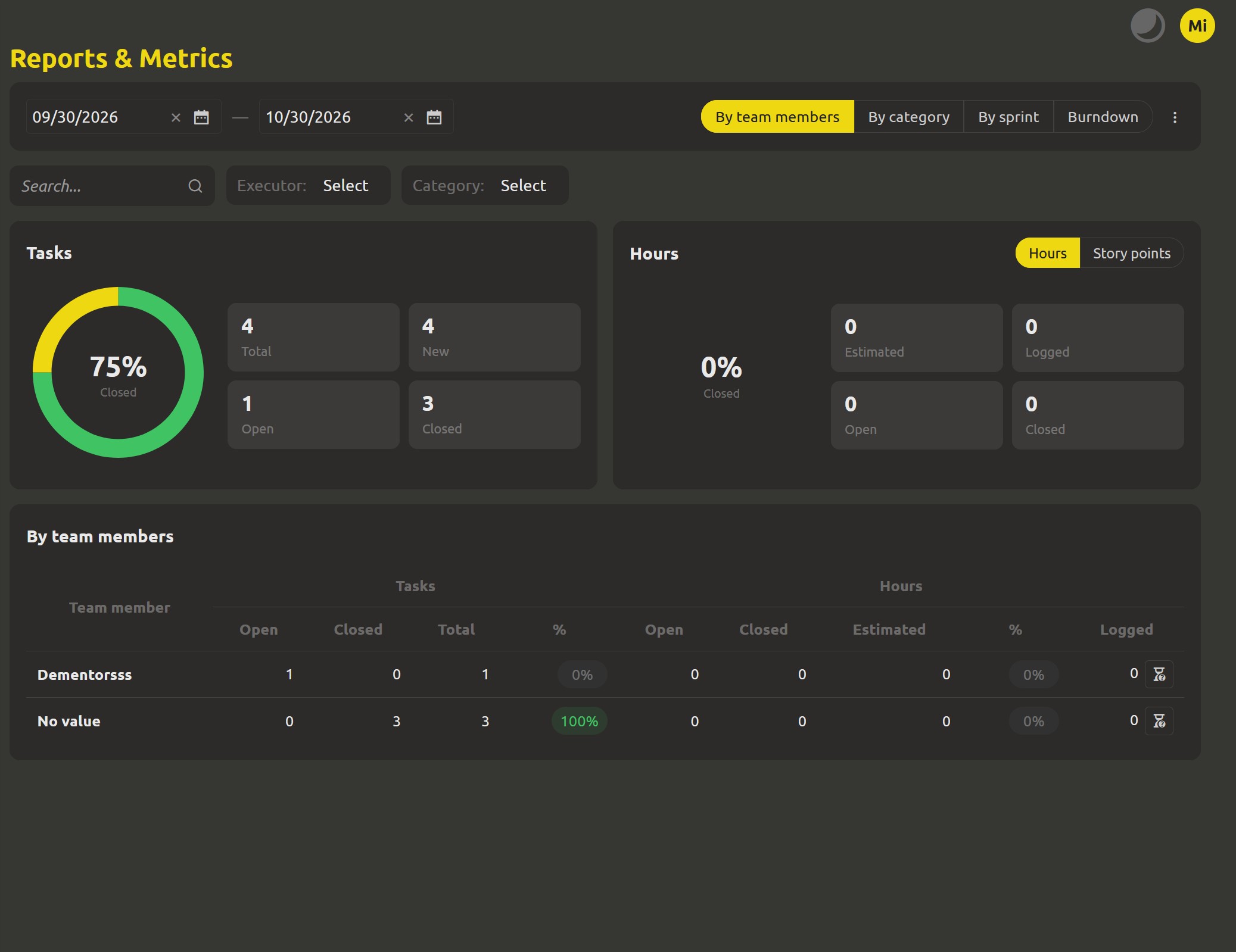
Open "Reports and metrics" in the Tasks menu. Here you'll find data you added to cards on Thursday: estimates, story points, and time logs. Together with the current board state, they form two summary cards:
- "Tasks" — a circular chart shows the share of closed tasks, and next to it there are four indicators you can click for details: "Total", "New", "Open", and "Closed". Click any number to open the corresponding list of tasks via "Show details". This way you can always check which specific cards are behind the number in the report.
- "Hours" — a similar chart, but for estimated and actually spent time. The "Hours" ↔ "Story points" switcher lets you choose the unit of measurement, and the indicators "Estimated", "Logged", "Open", and "Closed" help compare plan with reality. If you click "Logged", you'll see the time entries that make up that sum. When actual time spent exceeds the estimate, the indicator is highlighted: the team sees immediately that they underestimated the volume of work again — even before the final sprint discussion.
See what makes up the numbers
The summary cards answer the question "how much?", but the table below helps you understand where exactly the work is distributed:
- "By project members" — shows each participant's contribution in hours or story points.
- "By categories" — helps understand which parts of the design take the most time.
- "By sprints" — shows actual results for each sprint. There's also a row "No sprint" for tasks not linked to any sprint.
The table is also interactive: click on a cell to see the tasks or time entries related to it. The report period is set in the top of the page using the "From" and "To" dates. You can analyze not an abstract period, but a specific work interval; if necessary, it's additionally limited by task filters above the summary cards.
If you open the report from the sprint page, the required period will be set automatically: instead of date fields, you'll see the sprint name and dates. Next to it, in the same switcher, the "Burndown" chart will be available. And if you need to share the results at a meeting or with colleagues, use the "Export to CSV" button — the data can be opened in a spreadsheet editor.
End of the week: from roles to measurable progress
This concludes the third week of the series. All four previous articles were part of one unified system: roles helped define who is who in the project (Day 1); access rights set what each participant can do, down to a single card (Day 2); change history showed who, what, and when was edited (Day 3); and estimates and time tracking added measurable indicators to tasks (Day 4). Now the report brings all this data together, and you no longer have to convince the team of progress with words alone.
- "Reports and metrics" are available in the cloud space PRO. The cloud space costs 300 rubles/month per participant; a 30-day trial period is also available without linking a card.
- Important: the accuracy of the report depends on how carefully the team keeps track of tasks. If a card isn't closed, it will remain in "Open" status, and time that no one logged will be counted as zero.
What's next: turn the task list into a clear plan
Even if access is configured and progress can be confirmed by numbers, an important question remains: when will the work actually be completed? Next week, we'll look at the "Planning" section: how to use it to work with milestones, track readiness, and use checklists that the board can mark automatically.
Next: "No plan, no deadline — what the planning section actually shows" (Week 4, Day 1)
FAQ
Can I generate a report for just one sprint?
Yes. Open the report directly from the page of the sprint you need — its dates will automatically become the report period boundaries. If you're outside a sprint, specify the dates manually in the "From" and "To" fields, or additionally use the task filters above the summary cards.
"Logged" is much more than "Estimated". Is this a problem?
First of all, it's a useful signal. If the "Logged" indicator is highlighted and exceeds "Estimated", it means the team initially overestimated the volume of work too optimistically. It's better to notice this during the sprint and take it into account when planning the next one, than to be surprised right before release. Focus on the team's actual velocity shown by the report.
Can I export data from the app?
Yes. Click "Export to CSV" at the top of the report — the file will open in any spreadsheet editor. This way you can study the indicators yourself and share them with those who don't work directly in the project.