
This article is part of the Getting Started series — Day 5, Week 1, Month 2.
One card — three versions of the data
Yesterday you connected a folder on your computer to the cloud project. And today someone changed the Fire Extinguisher card in the browser, you pressed Play in Godot and found that the damage in the game was still the old one.
Three links are involved in the process: the browser, the game design files and the game itself. If changes don't reach every one of them, the data starts to drift apart. That isn't a bug in itself, it's just that the workflow isn't closed yet. Configured sync and auto-export are what fix the situation.
Two-way sync: changes come from both directions
It's time to forget the usual scheme where you just upload files. When you upload, you send a single version of the project, which can become stale right after the next edit. Now the work will happen differently: the project stays one, and you can work wherever is more convenient for you.
- Changes in the cloud arrive in the local folder on your computer.
- Changes in the local files are transferred to the cloud workspace.
The files stay in the same format, you can keep them in git and read them without an account in the app.
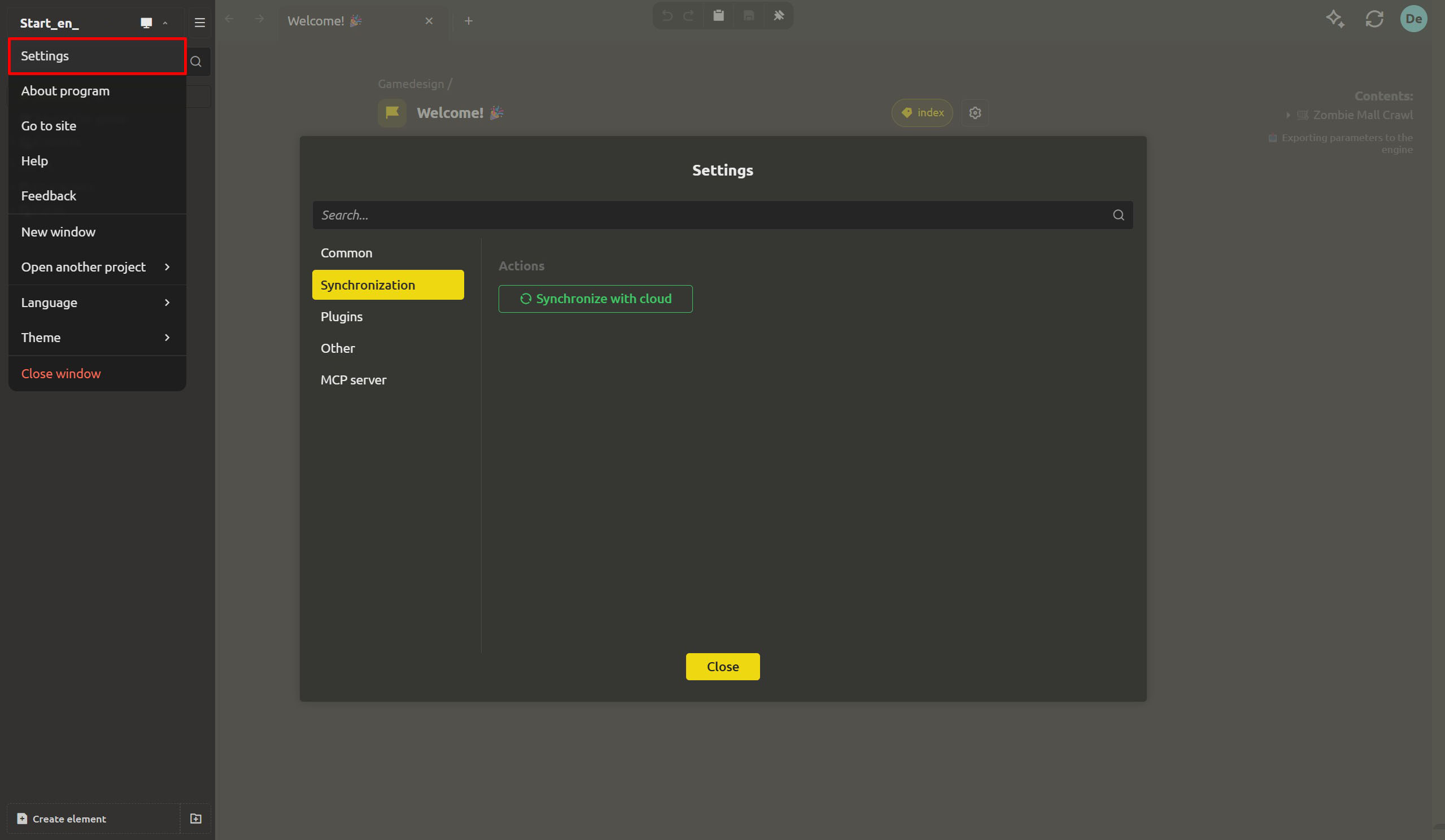
You'll have to set up sync once, and from then on everything will work automatically. You can choose the frequency:
- "Every 30 seconds" — convenient when the project changes quickly and edits appear constantly.
- "Every minute" — a good option for every day.
- "Every 5 minutes" — suitable for calm, individual work.
- "No" — sync will only be started manually.
If you need to transfer changes immediately, press "Synchronize now". And if the connection is unstable, the needed commands are at hand: "Pause" — to stop sync, "Resume" — to continue it, and "Resynchronize all" — to bring both versions back to a single state. If there are no errors, you'll see the status "Synchronization is active".
How the whole loop works
Now let's connect the browser with the game itself. The Dead Mall project already has auto-export configured: the collection is exported to the Godot project folder and updated on every save. If you add sync to this, the process goes like this:
- You change data in the browser. For example, in the workspace someone increases the
Fire Extinguisherdamage from4to6. - Sync transfers the change to your computer. The edit appears in the local
DeadMallfolder — on the same card, in the same property and file. - Auto-export updates the file. After the element is saved, the configured export runs, and a new value appears in
cards.json—"damage": 6. - The engine loads the updated data. Godot reads
res://cards.jsonand applies the new value on the next scene load.
The same data is used at every stage. You won't have to move information from one place to another by hand, which minimizes the risk of losing important edits.
Collaborating on game design
Sync helps keep the data the same, and comments keep the discussion next to the right objects.
Open a tab in the workspace, and this is available:
- "Write a message..." — the hint in the comment field.
- "Add comment" — the ability to leave feedback that stays attached to a specific element.
- @mentions — to pull the right person into the discussion.
- The "New comment" and "New mention" notifications — so you don't have to re-scan the whole project looking for changes.
This helps avoid a very familiar situation: in a shared chat someone writes "nerf the enemy", but the message quickly gets lost among new replies, and the card still ships to release without the needed edit. When the comment is attached to the element itself, the context never disappears.
One important nuance: comments are also available in the desktop app. At the same time, the access and discussion management interface lives in the cloud workspace, which is also where the threads remain. That's why sync is especially important: the local files stay on your disk, while the discussion is stored next to the design and available to the team in the workspace.
- "Which version is current?" — instead of messaging colleagues, check the sync status.
- "Is the game already using my edit?" — save the changes, wait for sync and auto-export, then reload the scene.
- "What exactly did they ask to change on this card?" — open the comment attached to it.
Instead of three recurring questions, you're left with a clear status and a discussion attached to the right element.
What's next: turn the work into a clear process
The GDD has become more accessible and convenient for collaboration. The next step is to make the development process itself more visible: a kanban board will appear with columns and cards, owners and watchers, a backlog and an archive. And for decisions that affect more than one specific element, separate discussions will be available.
Try it right now: change any value in the browser and press "Synchronize now", then open the exported cards.json file on your computer. If the number updated without manual editing, then the working loop is closed.
FAQ
How is two-way sync different from a regular upload?
Two-way sync transfers changes in both directions, so the local folder and the cloud workspace stay consistent. An upload, on the other hand, sends only a single snapshot in one direction, and it can become stale after the next edit.
Which auto-sync interval should I choose?
An interval of one minute suits most teams. If changes appear very often, choose 30 seconds; if you work alone at a calm pace, five minutes. And when you need the result immediately, use "Synchronize now".
In which cases should I pause sync?
For example, when you're tuning the balance of game parameters and want to send only the final values to the cloud, not every intermediate attempt. Another case is switching between git branches, when temporary file changes shouldn't go straight to the cloud. Press "Pause", and when you're ready to continue — "Resume". If you need to reconcile both sides again, choose "Resynchronize all".
What should I do if the internet drops during sync?
When the connection comes back, try to resume sync. If you need to bring both sides back to a single state, press "Resynchronize all". Meanwhile the files themselves stay on your disk, so their safety doesn't depend on a network connection.
Will auto-export run automatically after a sync?
Auto-export works according to the project settings: when an element is saved, it regenerates the exported files. When sync transfers a change to the local folder and the element is saved, the same mechanism updates the file for the game engine. No additional manual run is required.
Do I need a subscription for sync?
Syncing a cloud project with the desktop app is part of the PRO cloud workspace: it's available during the free 30-day trial period, and then it's priced per teammate. If you only work with a local project and never connect the cloud, this limit doesn't apply to you.
Can I use comments in the desktop app?
Yes, comments are also available in the desktop app, but this requires an active PRO subscription and connecting the desktop project to the cloud. After connecting, everything appears next to the corresponding elements, so the discussion stays connected to the game design no matter where you work.