
So, what changed?
A new simplified format for asset files
Until now, each asset in your project was a self-contained file with complete internal metadata: service fields, block descriptions, auxiliary data - everything that makes the file work inside the application. This is reliable, but a person looking into the project folder sees a complex file with a double meaning.
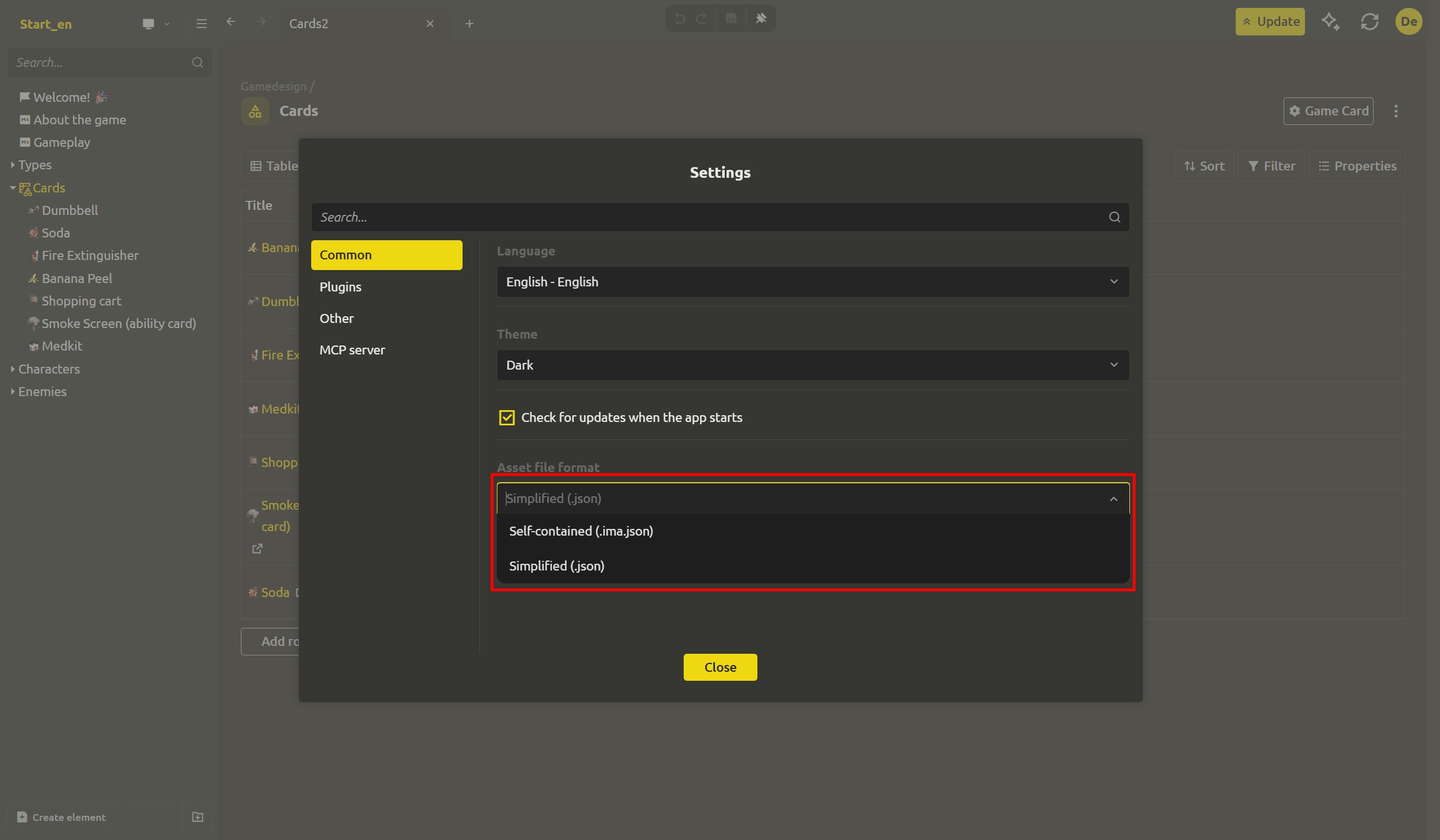
Now there is a choice. In the project settings, a new "Asset file format" option has appeared: keep the old behavior with "Self-contained (.ima.json)", or switch to the new "Simplified (.json)" format.
The simplified format keeps only what is essential in the file - the actual content of the blocks, properties and structure. Such a file is easy to read, easy to open in any JSON tool, and easy to track changes in version control. Nothing is lost: the application stores the remaining service data separately and restores it when the project is opened. And if you switch back to the self-contained format, the full set of metadata returns to its place.
Under the hood, assets are now stored in memory in a flat form - blocks are no longer nested inside each other, which has made searching, editing, and syncing faster and more predictable.
Intelligent import of arbitrary JSON files
Loading arbitrary .json files into the project has also become more intelligent. Now IMS Creators understands the structure of the file: text values become text blocks, numbers and booleans receive the correct types, arrays turn into multi-value fields, and nested objects keep their structure with automatically generated type metadata.
New Property block: design the data structure for your tasks
The Game Object template no longer drags a mandatory props block with it. Instead we introduced a new block type - Property. It is a single, self-contained property: a name and a value. Any number of such blocks, any combination, in any order - the user now designs exactly the data they need, without constraints imposed by a predefined structure.
The logic of creating a game object has become extremely concise: a new object is formed from the basic set (gallery, description and localization), and additional properties are added as needed by simply clicking the "Add property" button. Each block Property functions independently — it has its own name and type, supports localization, inheritance in derived objects, and direct use as a variable inside dialogs.
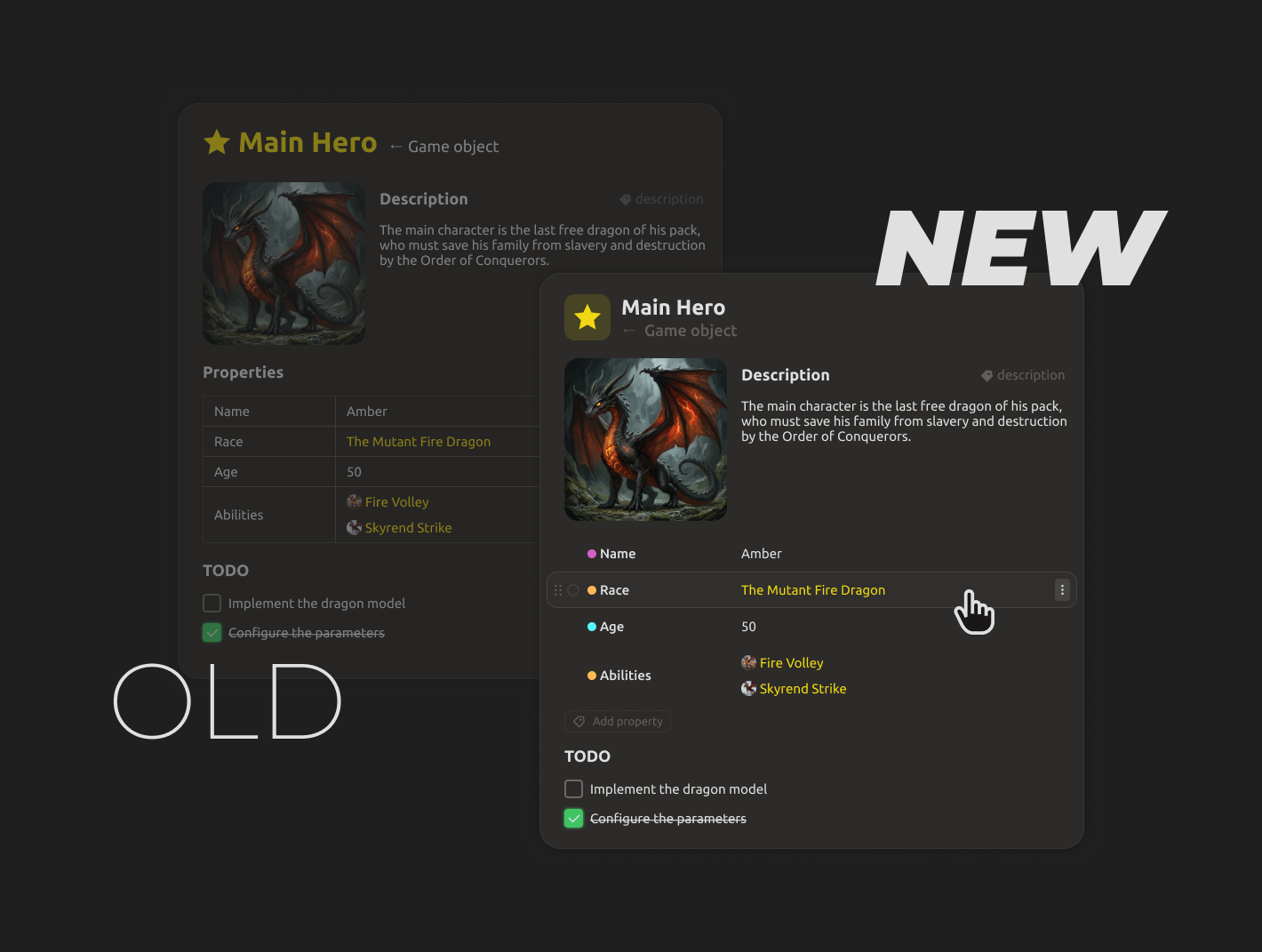
This approach is in perfect harmony with the simplified JSON format, since the structure designed in the editor is reflected in the project file in the form of transparent "name: value" pairs without cumbersome nested metadata. At the same time, a backward compatibility mechanism is provided for previously created objects Game object, ensuring their smooth operation with the new template.
Switching to Markdown in object descriptions
The description of new Game Objects and Game mechanics has now become a markdown block. Previously, it was a field with formatting via another editor - convenient inside the application, but difficult to parse outside it. Markdown retains all the same formatting features - headings, lists, tables, bold text, links - but the content is stored in a simple, universally readable syntax.
That matters more than it may seem: game design data is increasingly consumed by engines, import tools and AI assistants. They all read markdown natively, without extra parsers or conversion layers. What you write in the editor is exactly what they see in the file.
Along with that, the old WYSIWYG "Text" element disappeared from the asset creation menu - "Text (.md)" is the only text element left there. And if you need a freely formatted document with any set of blocks - dialogs, diagrams, properties, whatever - the new "Empty element" is there for exactly this purpose: create it and fill it with the blocks you need.
The block palette got organized
The add-block lists now have groups: dialog, diagram, graph and level editor are collected together in one section. The legacy Formatted text and Text grid blocks are marked as deprecated - we recommend moving to modern blocks, and new projects will not see them in the top positions.
Element List block
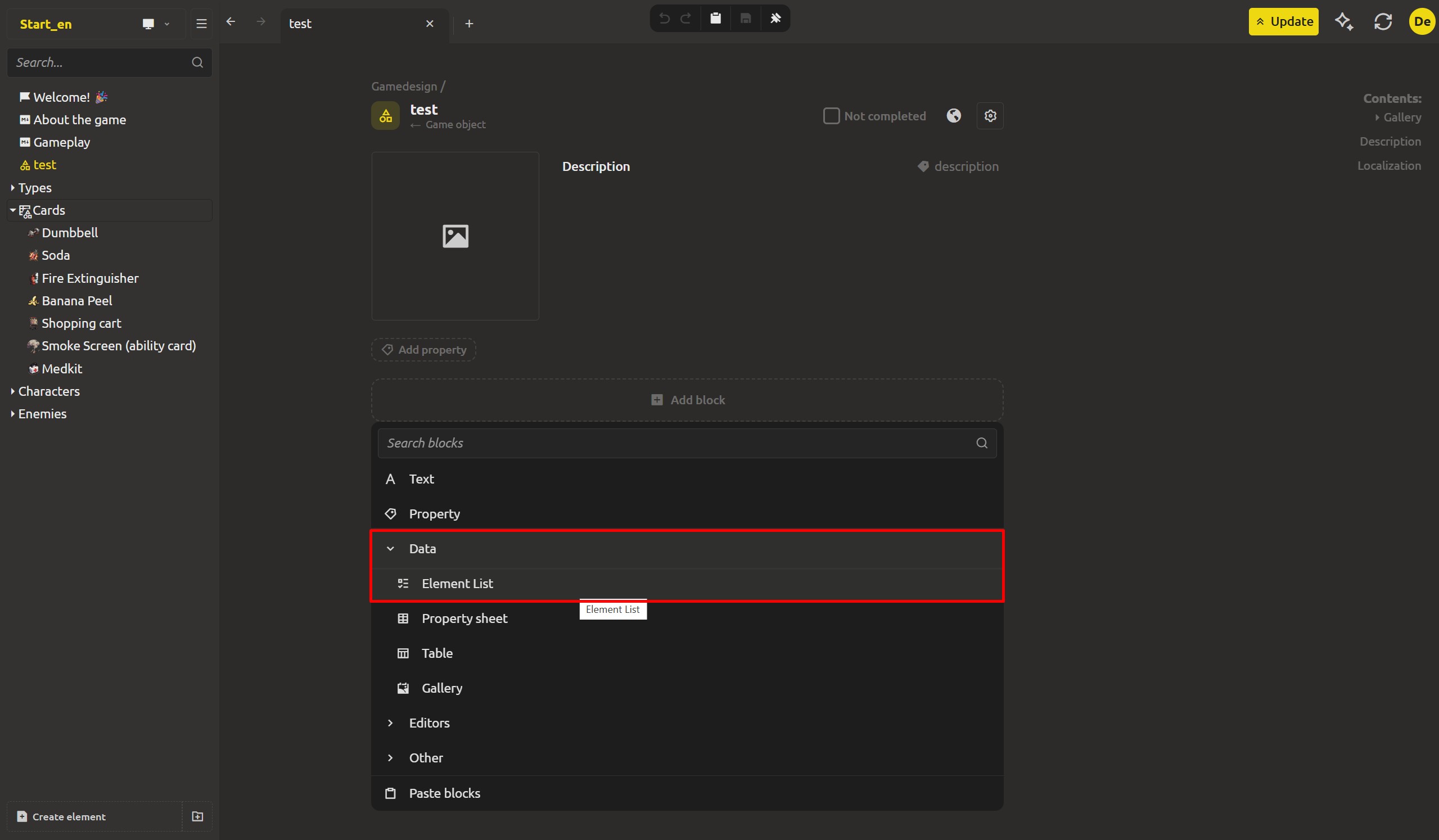
There is always a place in the design document where you need to link a group of related elements: quest characters, enemies on the level, items in the chest. The previous scheme, which involved creating properties with the "Element Selection" type and enabling multiple selection, was characterized by excessive complexity.
New block The list of elements displays a group of related assets in the form of visual flashcards with icons and names, while binding is carried out both through a standard dialog box and by simple drag-and-drop, and sorting is regulated by intuitive movement of elements. The block settings allow you to set filtering by type and special conditions, and the list itself is exported to dialog systems as an "asset array" type variable, available for iteration, calculation, and algorithmic processing.
In addition, the functionality of the "Select Element" property (including single links) has been expanded by introducing two-level filtering. If the Type parameter restricts the selection to the scope of a given template, then the new filter expression Condition performs a deeper selection based on the internal properties of the objects themselves, for example, allowing you to filter opponents by their faction affiliation.
Comment block
Since the entire team usually works on design documents, there is a need for remarks, working TODO notes, and notes for colleagues that should not become part of the main content.
For these purposes, the Comment block has been created, which is a concise markdown note isolated from the main content and stored in a service block. The remark does not get into localization systems and is not exported as variables, but it is clearly highlighted in the editor's interface, remaining clearly visible to all participants in the development.
And the little things
- The Level Editor no longer loses the initial view in landing demos - the canvas now re-centers itself after resizing.
- You can now assign a color to each element in its settings. All links to this element throughout the project automatically receive the specified color, so different types of objects are easy to distinguish at a glance.
- You can now assign a color to each element in its settings. All links to this element throughout the project automatically receive the specified color, so different types of objects are easy to distinguish at a glance.
- Updated UI of structure and enum editors.
- In gallery block now you can assign captions for images.
- For Markdown elements you can now change the icon too.
- Function to select multiple blocks, copy them and paste.
- Now the directory where the last project was created is saved.
- Function to disconnect cloud synchronization.
- App update indicator now shows progress.
- Fixed the "Type is not set" error that appeared when editing a derived block.
- Fixed saving of custom asset icons.
- Dialogs now take variable colors from a single source, so their styles always match the application theme.
Create, Structure, Automate! We are waiting for your feedback, thank you for helping us get better! The files have become cleaner, the Game Object template more thoughtful, and you complete your game design docs faster. Join us on Discord (https://discord.gg/xPTmUZR9) or Facebook (https://www.facebook.com/profile.php?id=61569739761148), send feedback through the form at https://ims.cr5.space/en/feedback, or drop into the Telegram chat (https://t.me/imscreators_en). Good luck with your game demos. See you in the next one!