
This tutorial is a part of the Getting started series — Day 1, Week 4.
The problem: your design is 50 files deep
Your game design is no longer a paragraph on a page. Three weeks of this series turned it into something real: survivors as game objects, an Enemies folder with typed stats, a Cards collection you can grid, filter and view. That structure is exactly what made the design queryable - but only if you know where to look.
The questions you actually have are not "what element is named X". They sound like this:
- Which survivors have crowd control on their kit?
- Which enemies drop the Fire Extinguisher?
- Which cards deal more than 20 damage and cost less than 4?
Searching for those means opening folders, remembering which element did what, and re-reading. That works at 10 elements. At 50, it's a treasure hunt in your own design - and the answer you're sure about is usually the one that's outdated.
The assistant reads the project
IMS Creators has the answer built in: an AI assistant that works with the actual data of your project - not a chat bolted on the side, but a tool that reads the same files the editor does. Instead of describing what you think you remember, it looks at what the design is.
The assistant never sees a wall of prose. It works with the same structure you built all month: game objects with typed properties, collections, references between elements.
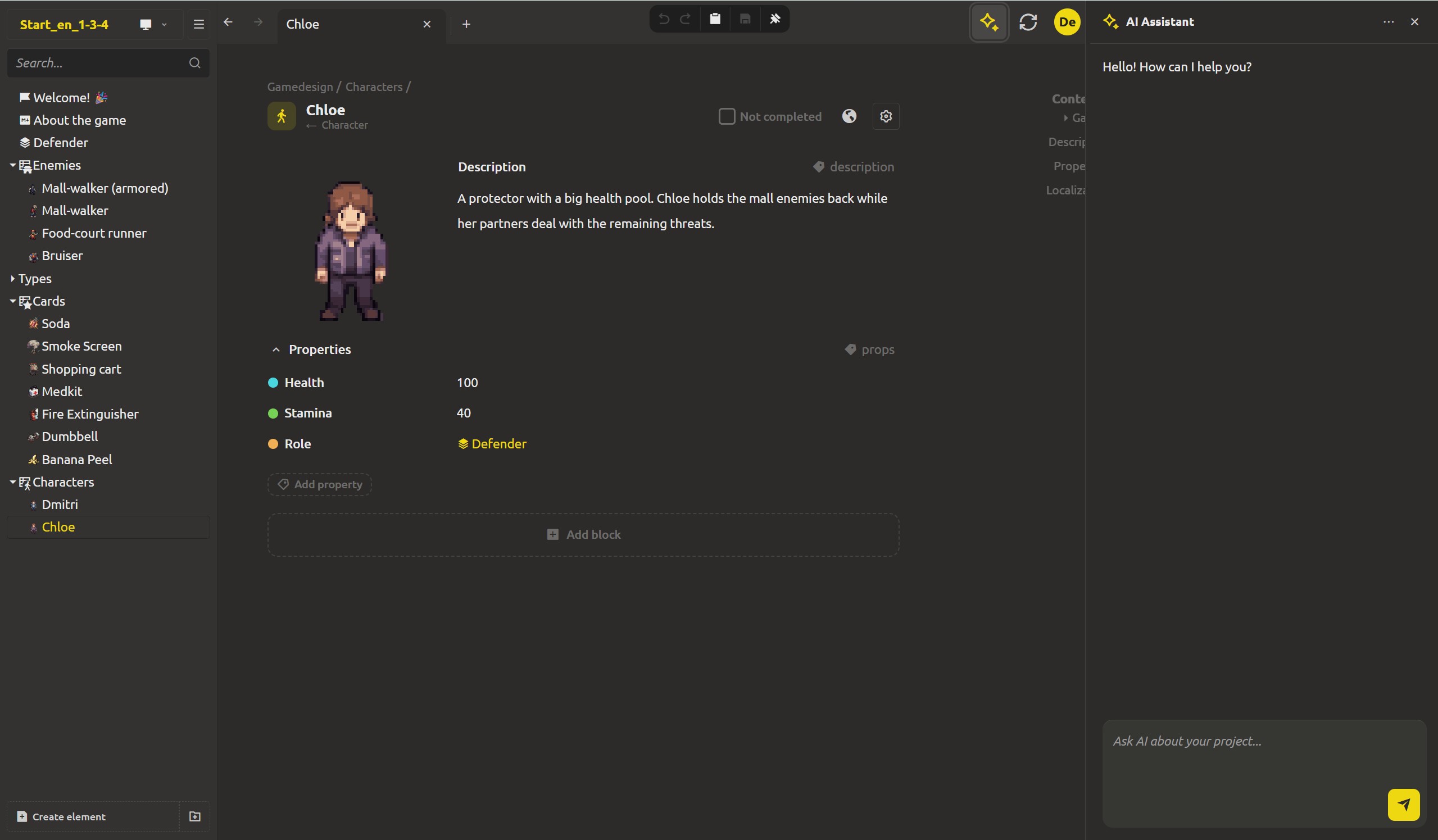
Step 1: open the assistant
The assistant is one click away - the icon (AI Assistant) in the app's top bar. Click it and a panel opens on the right of the workspace.
The first bubble is already there:
- Hello! How can I help you?
Type a question in the input at the bottom: Ask AI about your project....
Step 2: pick a model
The first time you send a message, the app asks you to set up an AI model - it's a one-time step. A settings dialog opens with the fields:
- AI Provider - choose one. You can use a cloud provider (OpenAI (GPT), Anthropic (Claude), Gemini, DeepSeek, OpenRouter, Grok), or a fully local one (Ollama - that's Day 5 of this week), or a Custom OpenAI-compatible endpoint.
- Model - the model to use; let the list load or type the name.
- Save
Your choice lives in the app's settings, not in your project files - the design itself stays untouched. And you can change it anytime: the assistant panel's menu → Settings.
Step 3: ask a real question
Now type:
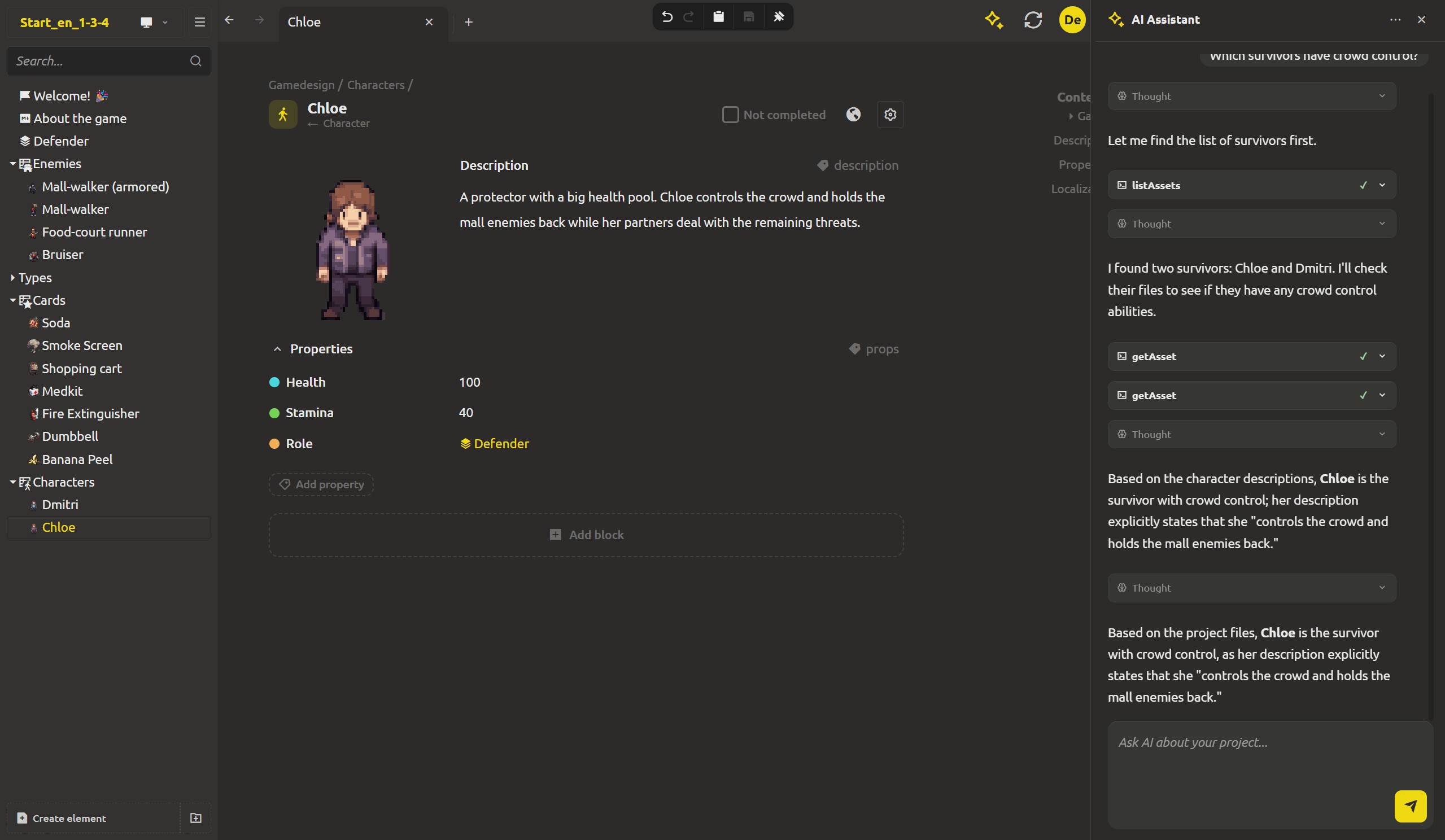
Which survivors have crowd control?Watch what happens in the panel. The assistant doesn't answer out of thin air - it works through the project like a designer who was told to actually check:
- it lists the assets
- it opens the elements that look like survivors and reads their properties,
- it answers with the ones that match, pointing at the real elements.
The panel shows you the way it got there: a collapsible Thought block with its reasoning, and the tool calls with their Arguments and Result. You see it check the data, not just trust a guess.
In the Zombie Mall Crawl project, the answer comes from the structure you built: Chloe - her role is 'Defender', she slows enemies and shields the group. The assistant names her, and the answer traces back to the element itself.
Everything is grounded - and every change is reversible
Because the assistant works with real elements, it can do more than read. Ask it to update something and it edits the actual data - and every one of those edits lands in a Changes bar in the panel (Changes (N)). It is the same safety net the whole app uses: the change is visible before you commit to it, and one click on Revert all changes rolls the whole batch back.
Nothing goes into your project without you seeing it. The machine drafts, proposes, edits - you keep the final say, and the design files never leave your side until you decide otherwise.
What's next: drafts
Reading a 50-element design by asking for it is the first step. Tomorrow: the flip side - making the assistant write, when you need the roster itself drafted.
FAQ
Does the AI assistant send my project to the cloud?
Only if you pick a cloud provider in the AI Model Settings - and even then it works with the project data it needs, not a full upload. If privacy is the priority, choose the Ollama provider and the whole thing runs on your machine (get AI help fully offline).
Can I ask about anything in the project?
In practice, yes - the assistant reads the same data the editor shows: elements, their properties, collections, references. Questions like "which cards are legendary and cost more than 4" or "who drops the Fire Extinguisher" are answered from the actual structure, not from memory.
What if the assistant gets something wrong?
The panel shows its reasoning (the Thought block) and the tool calls it made - you can see exactly what it read and where the conclusion came from. If an answer or an edit isn't right, the Changes bar lets you Revert all changes, and you can rephrase the question.
Do I need a separate AI account or subscription?
That depends on the provider you choose. Cloud providers require their own API key (you bring it to the AI Provider settings). Ollama is free and local - no account, no key, no subscription.
Can I work with the AI in the cloud (web) version?
Yes - the assistant works identically in the cloud (web) version: same panel, same tools, same Changes bar with keep and rollback. In a cloud project the design lives in your workspace, so the assistant edits it there - and your cloud project gets its own version history alongside two-way sync with your desktop folder.
Where are my conversations stored?
On the desktop app, session history lives inside your project folder in .imsc/.imsc-local/ai-chat.json. Sessions can be renamed, deleted, or started fresh from the panel's menu.